Organise your forms with tags
As your list of forms grows, staying organised is key to an efficient workflow. Form tags allow you to create custom search categories tailored to your team’s needs. Once tags are assigned to forms, you can filter your forms list by selecting the tag name.
Tip: For the best results, pair your tags with clear, descriptive form names to help your team find exactly what they need. You can rename a form at any time, however it will change the form URL which will need to be updated if already published or shared.
Setting up form tags
To set up form tags:
- Log into Snapforms and click Forms on the left hand side.
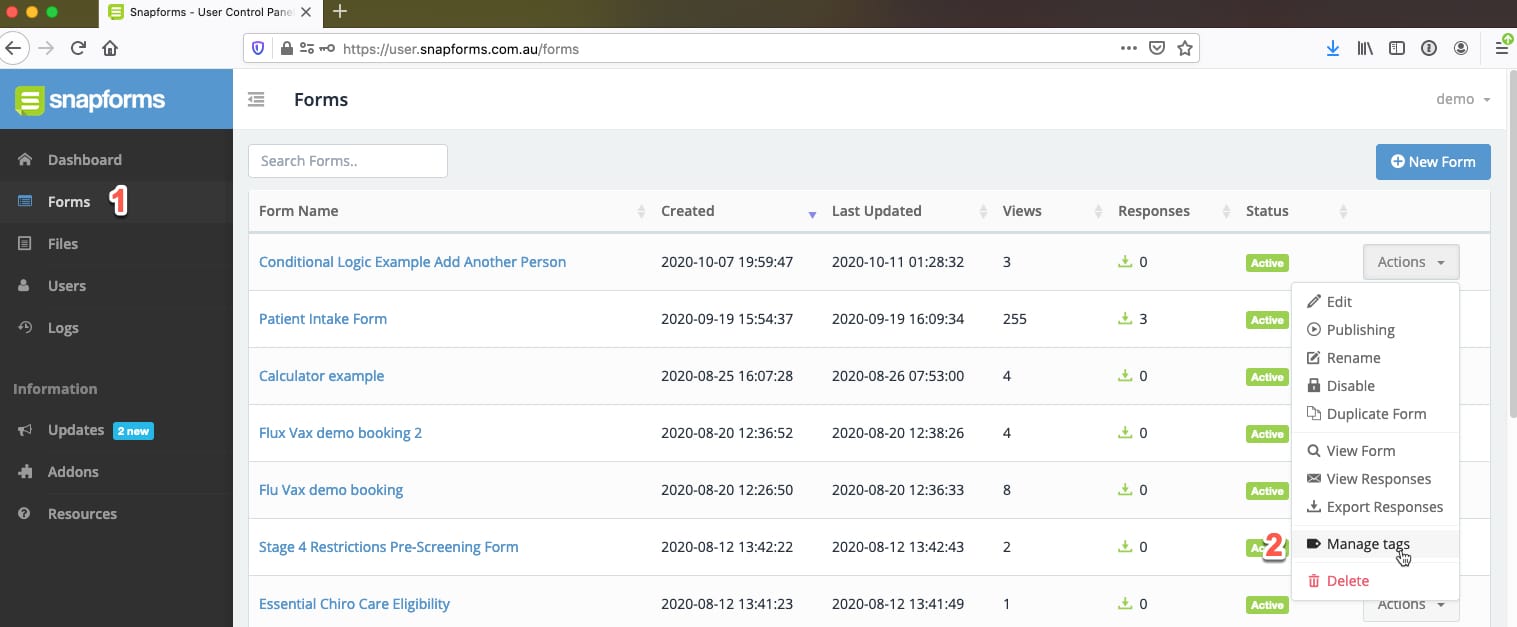
- Next to any of your forms, click Actions > Manage tags.
- In the Available Tags section, enter the tag name, then click Add.
- Repeat to add as many tags as you need for use across all forms. You can come back to this section at any time to add or remove available tags.
Assigning form tags
To assign a tag to a form:
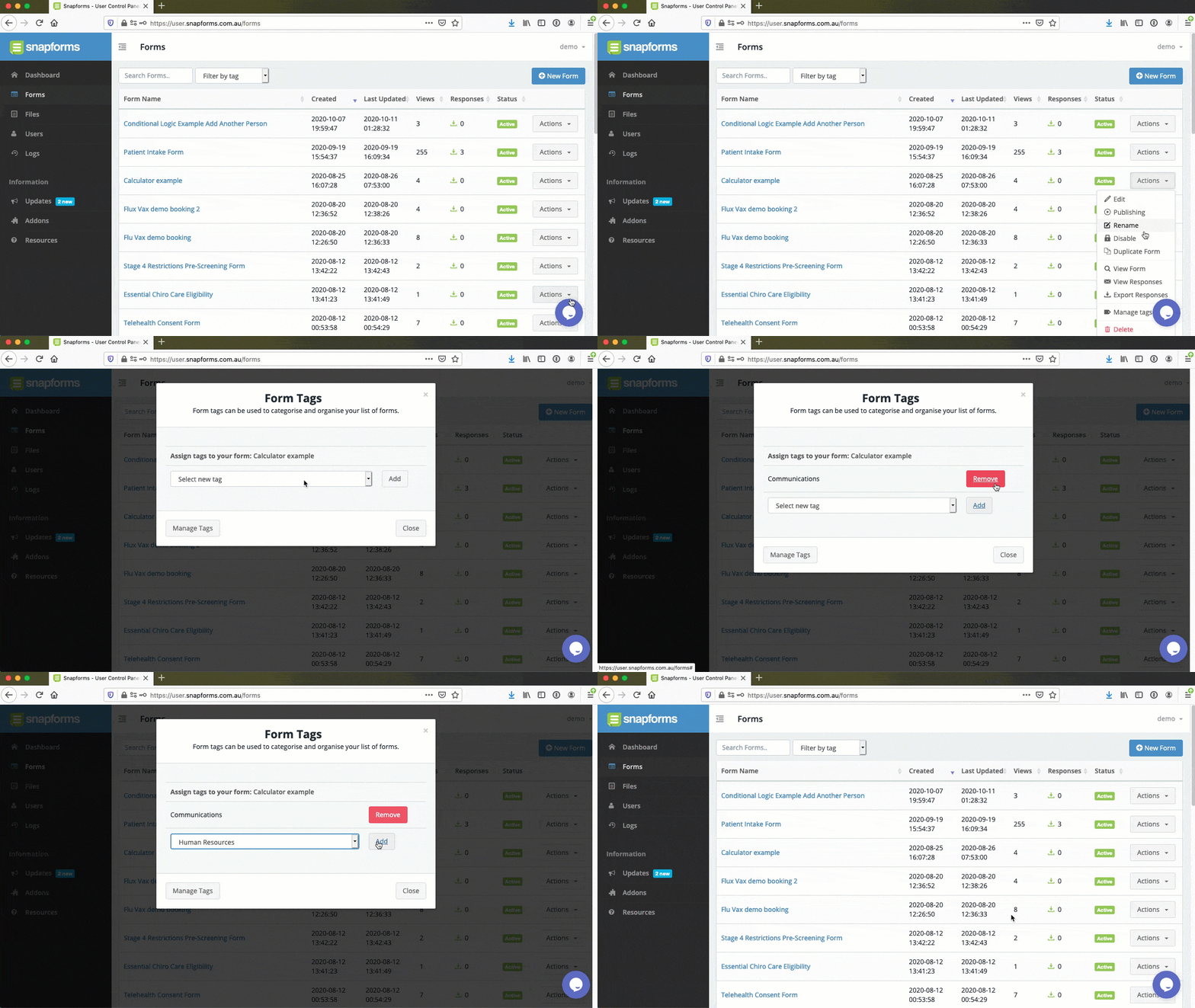
- In the Form Tags section, select a tag from the drop down list, then click Add.
- Repeat to assign multiple tags to a form.
- Once done, click Close.

Searching by form tag
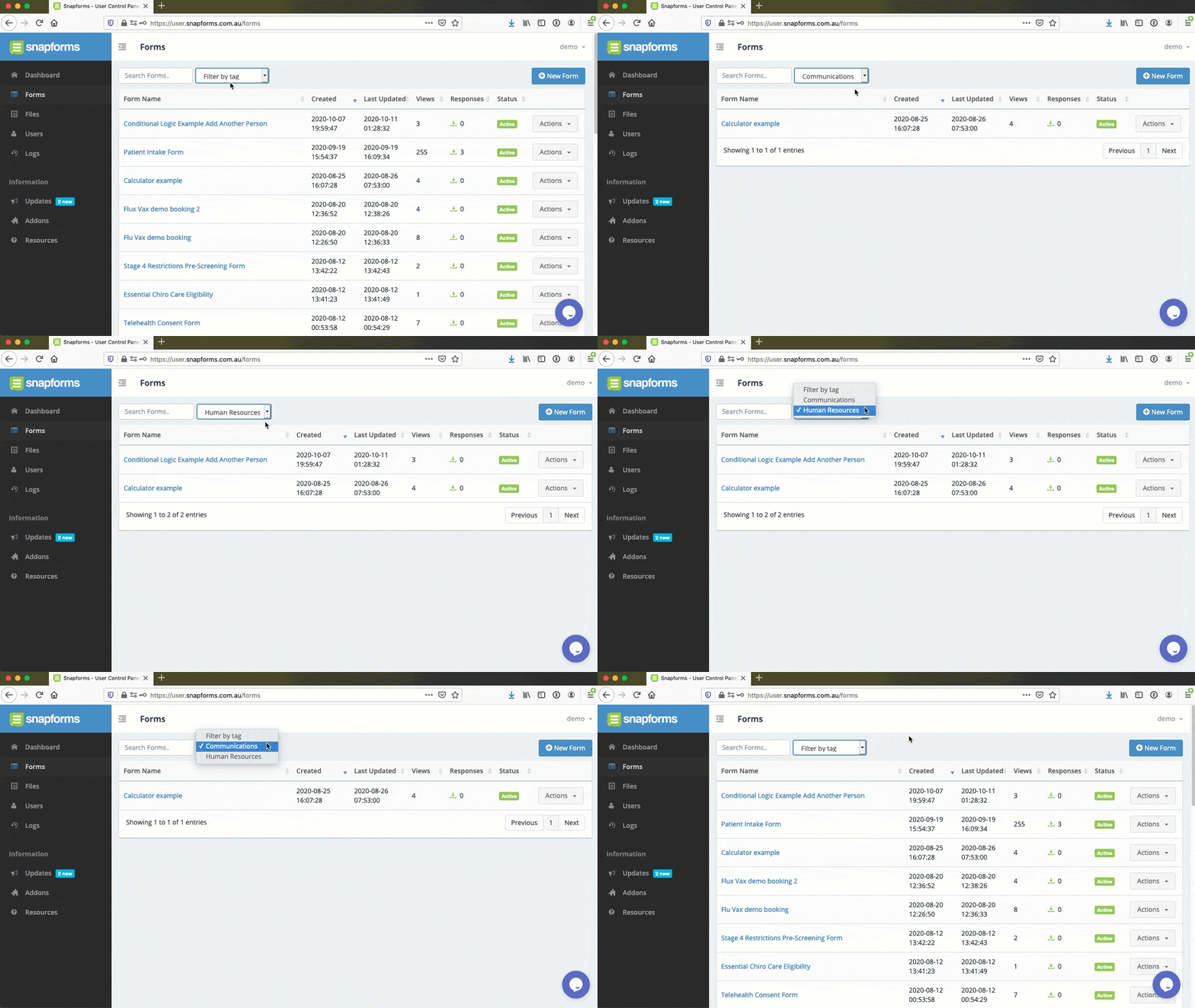
Now that you’ve assigned tags to your forms, you can use the Filter by tag search function at the top of your form list to display the relevant forms for each tag.