
MediRecords Integration
Snapforms allows clinics and allied health practitioners to create secure digital forms for patient registration, intake, referrals, signed consent, assessments and more.
With the MediRecords practice management integration, Snapforms can automatically add and update patient records in MediRecords using the information provided in your patients’ form responses.
| In this guide: |
How does the MediRecords integration work?
- When a patient submits a completed form, it’s automatically synced to their patient record in MediRecords.
- Got a new patient? No problem! Once they submit an intake, registration, or referral form, a new patient record is automatically created in MediRecords with all their details filled in.
- Existing patient records can also be automatically updated via forms that are connected to MediRecords.
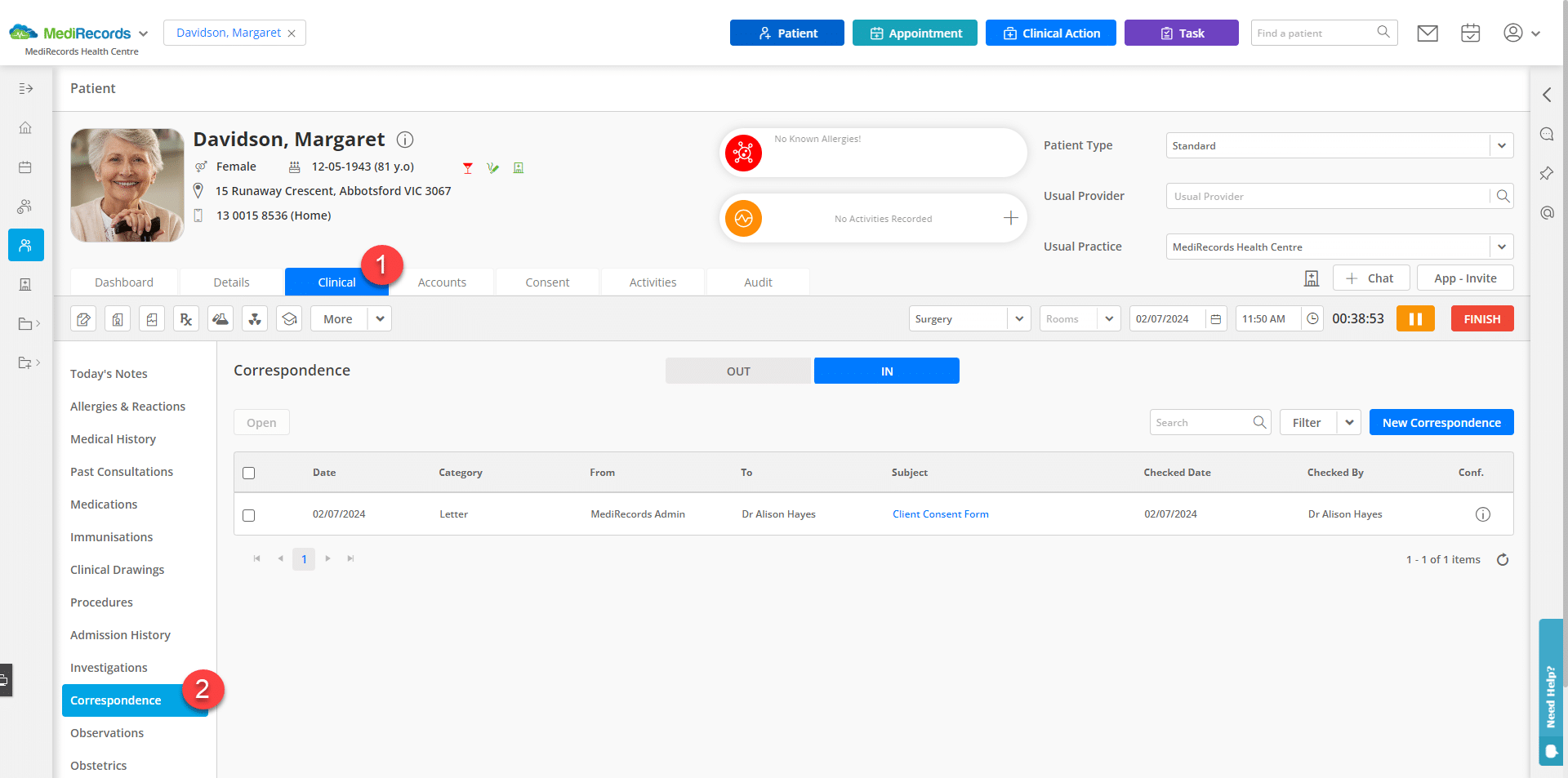
- For both new and existing patient records, you’ll find a PDF copy of the form and any uploaded documents in their Clinical Correspondence records.
How to set up the MediRecords integration
Before you start
This guide assumes you’ve already created your online form using the drag-and-drop form builder.
If you’re new to Snapforms, we recommend you check out our 10-minute getting started video or have a look through our help guides to learn how to set up your form.
Note: Successful data synchronisation with MediRecords depends on correct form field mappings and response value formatting. Certain fields must be configured according to specific requirements to avoid sync failures. Please see Data sync requirements for MediRecords below for a comprehensive list of required form fields and field-specific values.
Obtain a MediRecords API key
Please contact MediRecords to request an API key for the Snapforms integration settings. Once you’ve obtained the API key, log into Snapforms and configure the following integration settings on your form.
Enable MediRecords integration and link account
- Open your form edit mode.
- Navigate to the Form Settings tab > Integrations.
- Select the MediRecords checkbox.
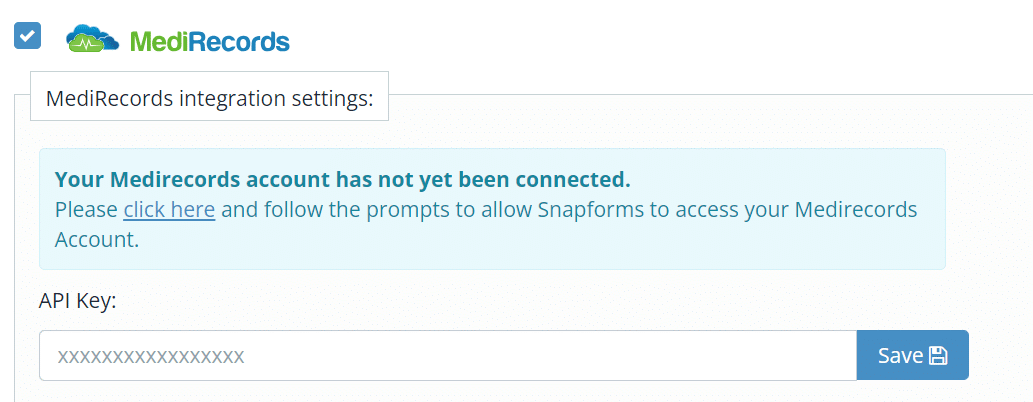
- If this is the first connection, click the click here link to display the API Key field.

- Paste your MediRecords API key and click Save. This API key is now saved and can be used across different forms.
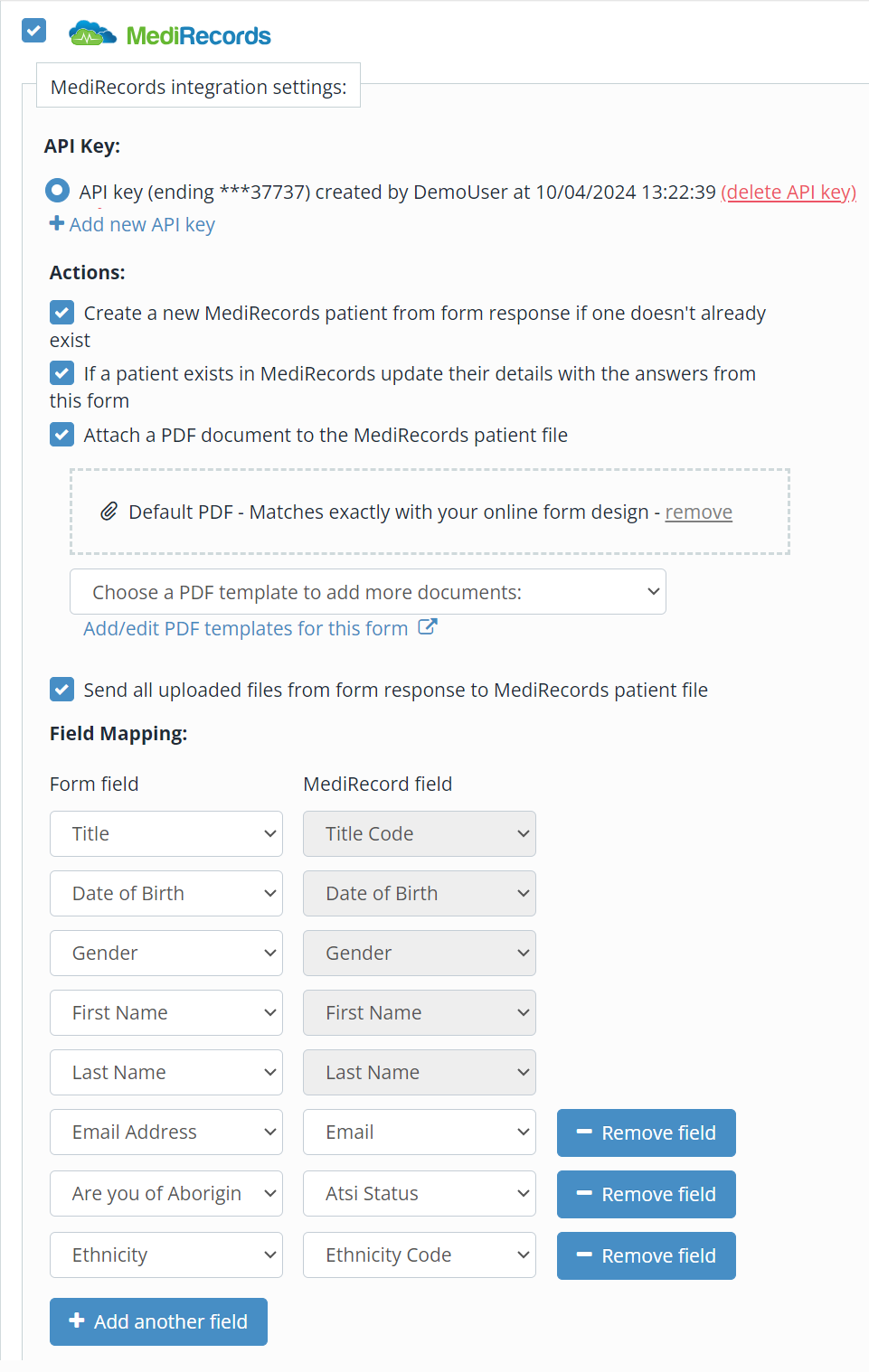
- Enable the integration actions you require:
| Integration Actions | Description |
| Create a new MediRecords patient from form response if one doesn’t already exist | Creates new patient files in MediRecords using the mapped fields from the form responses.
Note: If you have multiple practices set up in MediRecords, all new patient files will default to the first practice in your MediRecords account. See Advanced Customisation for more information. |
| If a patient exists in MediRecords update their details with the answers from this form | Updates existing patient files in MediRecords using the mapped fields from the form responses. |
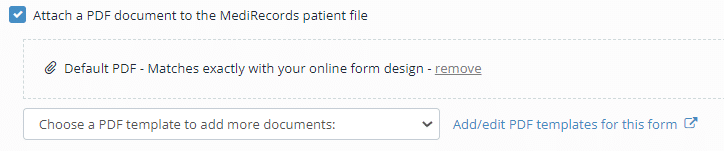
| Attach a PDF document to the MediRecords patient file
Note: Additional form fields and mappings are required for attaching PDFs to patient records in MediRecords. See Data sync requirements for MediRecords for more information. |
Attaches a PDF document that looks exactly like your online form (including the responses populated within the fields) to the patient file in MediRecords.
If you prefer to design your own PDF template or use a pre-made fillable PDF, click Add/edit PDF templates for this form (blue link) and follow the instructions in the PDF templates guide.
|
| Send all uploaded files from form response to MediRecords patient file
Note: Additional form fields and mappings are required for attaching PDFs to patient records in MediRecords. See Data sync requirements for MediRecords for more information. |
Sends uploaded files from form responses and automatically attach them to patient correspondence in MediRecords. |
Set up basic field mapping
- In the Field Mapping section, select the form fields that correspond with each of the MediRecords fields. For example, link your ‘First Name’ field to ‘First Name’, ‘Last Name’ to ‘Last Name’, and so on. Note: First Name, Last Name, DOB, Title and Gender are the minimum required mappings. For greater accuracy of data matching, you can add more field mappings.
- To add more field mappings, click Add Another Field, then select the form field from the list and map to the corresponding MediRecords field.
- To start syncing all submissions to MediRecords, scroll to the top and click Save.

Data sync requirements for MediRecords
MediRecords requires specific response values and formats that match their internal system. Use the table below to ensure your form field responses are perfectly aligned for a successful sync.
| Field name in MediRecords | Data sync requirements |
|||||||||||||||||||||||||||||||||||||||||||||||||||||||||||||||||||||||||||||||||||||||||||||||||||||||||||||||||||||||||||||||||||||||||||||||||||||||||||||||||||||||||||||||||||||||||||||||||||||||||||||||||||||||||||||||||||||||||||||||||||||||||||||||||||||||||||||||||||||||||||||||||||||||||||||||||||||||||||||||||||||||||||||||||||||||||||||||||||||||||||||||||||||||||||||||||||||||||||||||||||||||||||||||||
| Recipient
Provider ID |
If sending PDF’s and files to MediRecords, your form must include these two additional fields and associated mappings in your form. They are required for syncing the PDF or file to your patients’ clinical correspondence within MediRecords.
To capture this information automatically, add two Hidden fields to the top of your form, with your Recipient (provider name) and Provider ID set as the default values.
If your MediRecords account has multiple practices, you will need to use a Dropdown List to allow a staff member to select the relevant recipient and provider ID. With either of these methods, the two form fields must be mapped to the matching MediRecords fields in the Integration settings. |
|||||||||||||||||||||||||||||||||||||||||||||||||||||||||||||||||||||||||||||||||||||||||||||||||||||||||||||||||||||||||||||||||||||||||||||||||||||||||||||||||||||||||||||||||||||||||||||||||||||||||||||||||||||||||||||||||||||||||||||||||||||||||||||||||||||||||||||||||||||||||||||||||||||||||||||||||||||||||||||||||||||||||||||||||||||||||||||||||||||||||||||||||||||||||||||||||||||||||||||||||||||||||||||||||
| Medicare Expiry | MediRecords requires the Medicare card expiry date to be entered in the YYYY-MM format.
Tip: Instead of using a Date field, we recommend using a Short Answer field with input validation to ensure form users enter the correct date format.
|
|||||||||||||||||||||||||||||||||||||||||||||||||||||||||||||||||||||||||||||||||||||||||||||||||||||||||||||||||||||||||||||||||||||||||||||||||||||||||||||||||||||||||||||||||||||||||||||||||||||||||||||||||||||||||||||||||||||||||||||||||||||||||||||||||||||||||||||||||||||||||||||||||||||||||||||||||||||||||||||||||||||||||||||||||||||||||||||||||||||||||||||||||||||||||||||||||||||||||||||||||||||||||||||||||
| Usual Provider/Doctor ID | Can accept the name of the doctor and will automatically convert it to the correct ID when syncing to MediRecords. |
|||||||||||||||||||||||||||||||||||||||||||||||||||||||||||||||||||||||||||||||||||||||||||||||||||||||||||||||||||||||||||||||||||||||||||||||||||||||||||||||||||||||||||||||||||||||||||||||||||||||||||||||||||||||||||||||||||||||||||||||||||||||||||||||||||||||||||||||||||||||||||||||||||||||||||||||||||||||||||||||||||||||||||||||||||||||||||||||||||||||||||||||||||||||||||||||||||||||||||||||||||||||||||||||||
| Title Code | Title choices in your form must match the titles used in Medirecords:
Mr |
|||||||||||||||||||||||||||||||||||||||||||||||||||||||||||||||||||||||||||||||||||||||||||||||||||||||||||||||||||||||||||||||||||||||||||||||||||||||||||||||||||||||||||||||||||||||||||||||||||||||||||||||||||||||||||||||||||||||||||||||||||||||||||||||||||||||||||||||||||||||||||||||||||||||||||||||||||||||||||||||||||||||||||||||||||||||||||||||||||||||||||||||||||||||||||||||||||||||||||||||||||||||||||||||||
| ATSI Status | MediRecords will only accept an integer for this field. Please ensure your form field contains the following choices and assigned numerical values.
|
|||||||||||||||||||||||||||||||||||||||||||||||||||||||||||||||||||||||||||||||||||||||||||||||||||||||||||||||||||||||||||||||||||||||||||||||||||||||||||||||||||||||||||||||||||||||||||||||||||||||||||||||||||||||||||||||||||||||||||||||||||||||||||||||||||||||||||||||||||||||||||||||||||||||||||||||||||||||||||||||||||||||||||||||||||||||||||||||||||||||||||||||||||||||||||||||||||||||||||||||||||||||||||||||||
| Ethnicity Code | MediRecords will only accept an integer for this field. Please ensure your form field contains the following choices and assigned numerical values.
|
|||||||||||||||||||||||||||||||||||||||||||||||||||||||||||||||||||||||||||||||||||||||||||||||||||||||||||||||||||||||||||||||||||||||||||||||||||||||||||||||||||||||||||||||||||||||||||||||||||||||||||||||||||||||||||||||||||||||||||||||||||||||||||||||||||||||||||||||||||||||||||||||||||||||||||||||||||||||||||||||||||||||||||||||||||||||||||||||||||||||||||||||||||||||||||||||||||||||||||||||||||||||||||||||||

Advanced customisation
Creating new patient records for multiple practices
When new patient records are created via the MediRecords integration, they default to the first practice in your MediRecords account.
To specify a different practice, this information will need to be defined in your form and mapped to the MediRecords Practice ID field in the Integration Settings.
Here are a couple of ways that you can set this up in your form:
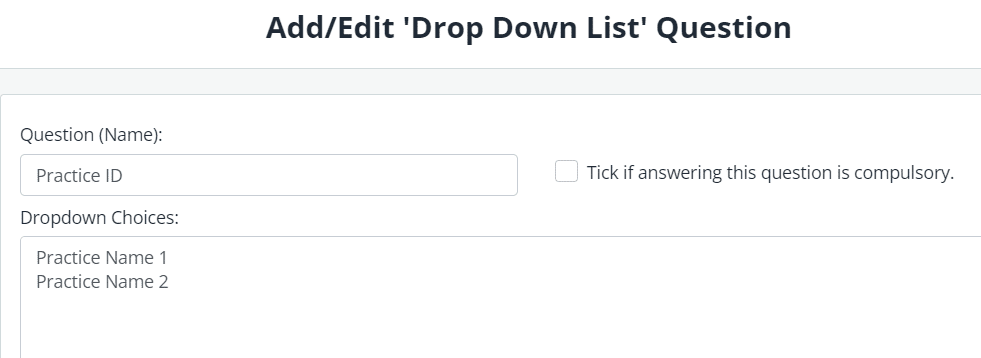
Option 1 – Allow patients or staff to choose the practice name by adding a Dropdown List field to your form.
Option 2 – Assign all responses from a specific form to one practice by adding a Hidden Reference field with the relevant practice name set as the default value.
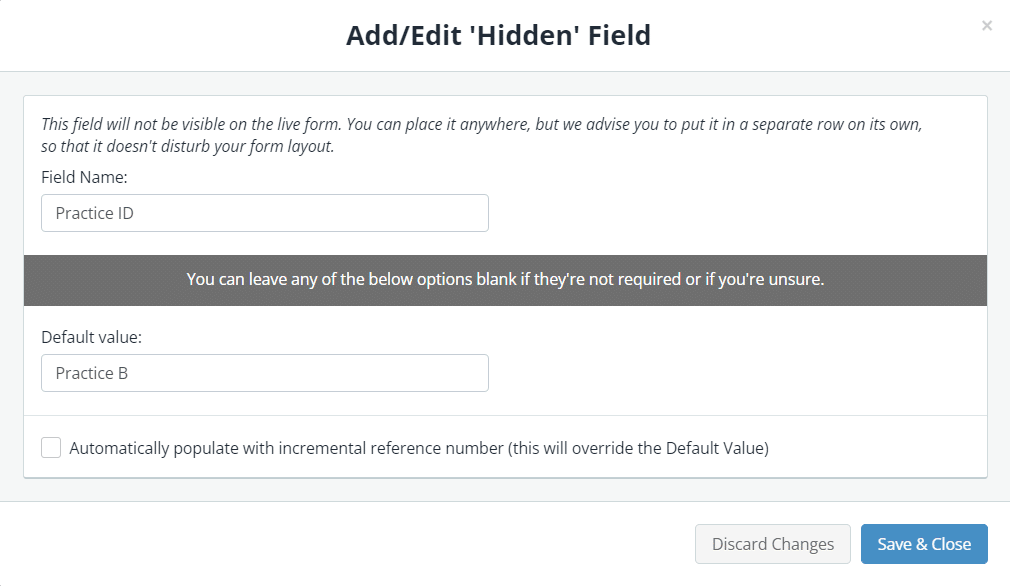
Once you’ve added the field to your form, navigate to the Form Settings > Integrations > MediRecords > Field Mappings and map this field to the MediRecords Practice ID field.
Using conditional logic to run integration
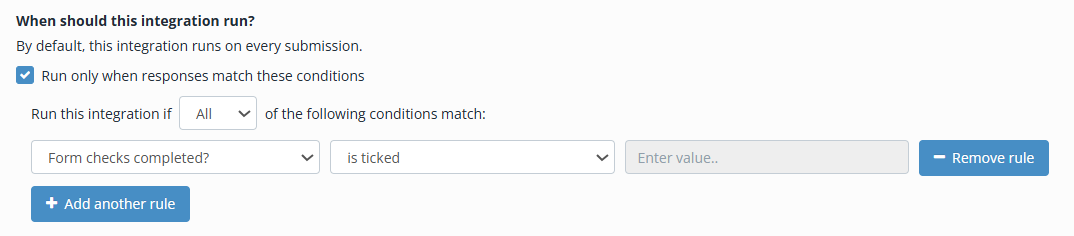
Instead of syncing every submission, you can apply conditional logic that triggers the integration only when specific criteria are met. This allows you to filter syncs based on responses or completion of workflow steps.
To control when the integration runs:
- Tick the Run only when responses match these conditions.
- Choose to run the integration if All or Any conditions match.
- Select a form field, or a workflow step (if configured).
- Select an operator, e.g. is, is blank, greater than, etc. Note: This list will vary depending on the selected field type.
- Enter a specific answer required to trigger the integration.

Troubleshooting
If your data isn’t appearing in MediRecords as expected, check the Response Activity Logs for errors and retrigger the sync.