
ActiveCampaign Integration Setup
The Snapforms ActiveCampaign integration allows you to automatically send contact details from submitted form responses to your ActiveCampaign account.
This is a direct integration between Snapforms and ActiveCampaign and is an alternative to the more flexible approach of using our Microsoft Power Automate connector.
How does the ActiveCampaign integration work?
- When a respondent submits a completed form, a new contact is automatically created in your ActiveCampaign account with their contact details filled in.
- If you have tags set up in ActiveCampaign, you can include a specific tag to easily identify contacts imported from various forms.
How to set up the ActiveCampaign integration
Before you start
This guide assumes you’ve already created your online form using the drag-and-drop form builder. Please ensure your form has all the fields required for adding contacts to ActiveCampaign (First Name, Last Name, Email, and Phone Number).
If you’re new to Snapforms, we recommend you check out our 10-minute getting started video or have a look through our help guides to learn how to set up your form.
Obtain your ActiveCampaign URL and API key
To connect Snapforms to ActiveCampaign, you will need to obtain your ActiveCampaign URL and API key from your ActiveCampaign account. Please refer to ActiveCampaign’s help article for instructions.
Once you’ve copied these details, log into Snapforms and configure the following integration settings on your form.
Configure the form integration settings
- Open your form in edit mode.
- Navigate to the Form Settings tab > Integrations.
- Select the ActiveCampaign checkbox.
- If this is the first connection, click the click here link to display the ActiveCampaign API Key field.

- Paste in your ActiveCampaign API key, then click Save. The API key is now saved and can be used across different forms.
- Paste in the ActiveCampaign API URL.
- (Optional) If you have tags set up in ActiveCampaign, enter the tag that you want added to each contact created through this form.
- In the Field Mapping section, select the form fields that correspond with each of the ActiveCampaign fields. For example, link your email field to ’email’, first name to ‘firstName’, and so on.

- Once complete, scroll to the top and click Save. Contacts will start to sync with ActiveCampaign when completed forms are submitted.


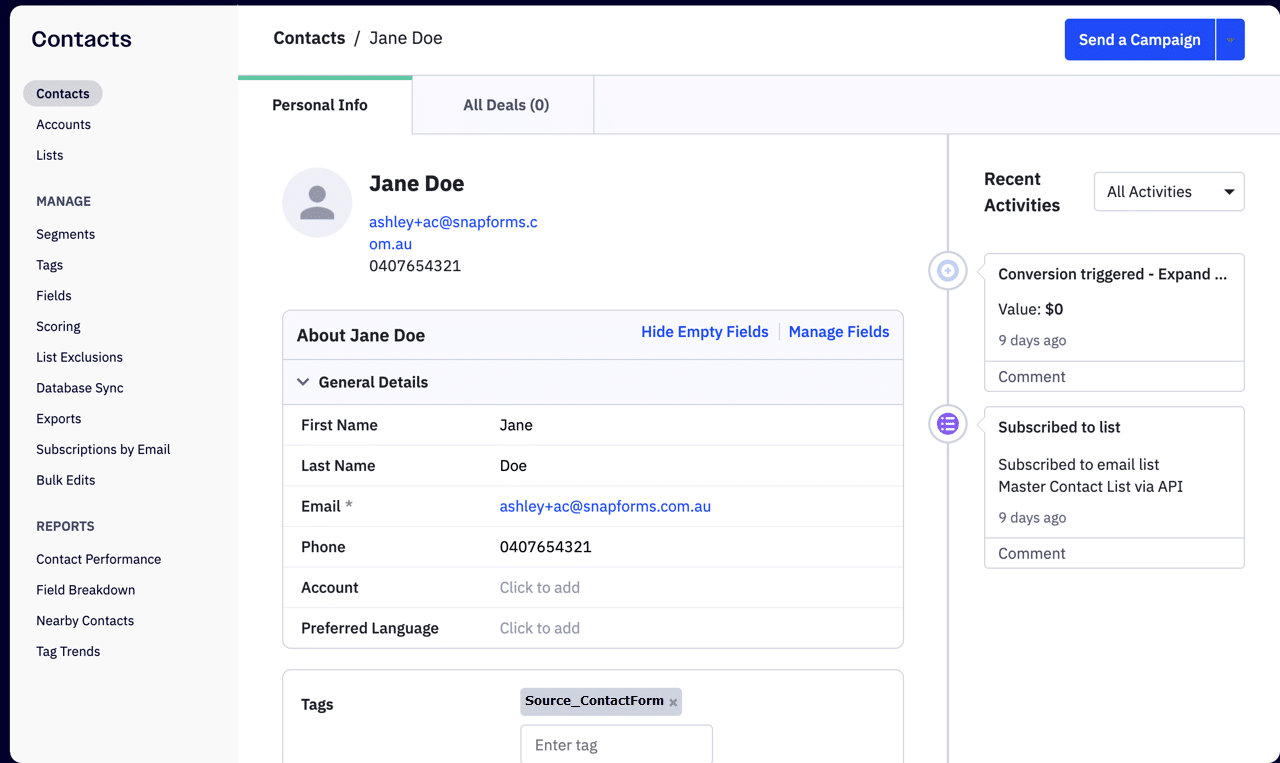
Contact details sent from Snapforms will appear like this in ActiveCampaign:
Troubleshooting
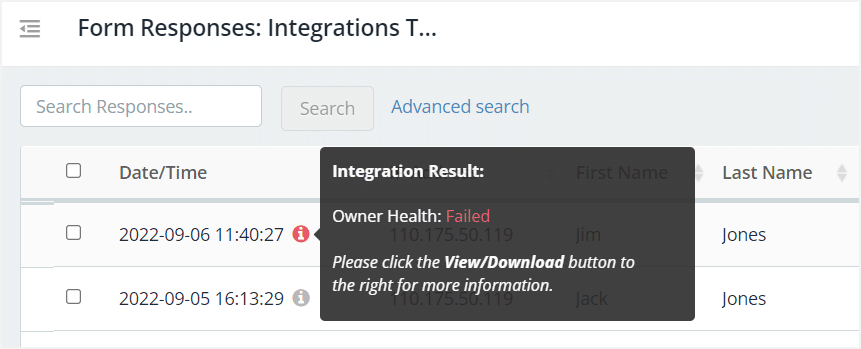
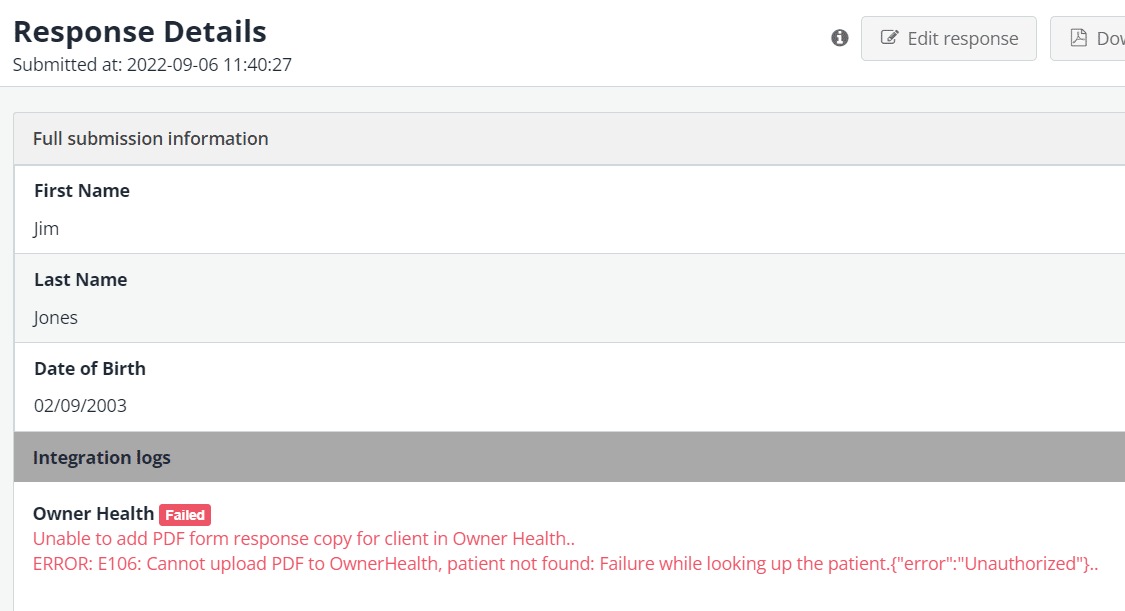
If an integration fails to create a contact in your ActiveCampaign account, you can check the integration result and logs in the form’s responses.
- In the Forms List, on the form click Actions > View Responses.
- For more details, click View/Download.

- Scroll to the bottom of the response details to the integration logs.

If you’re unable to resolve any issues, please get in touch with us for assistance.