
Styling and Themes
With Snapforms, you have full control over the look and feel of your forms.
You can apply a complete set of pre-defined font and colour settings with just one click, or create your own custom theme to match your organisation’s branding. This makes it easy to keep your forms consistent, professional, and on-brand.
Apply a pre-defined theme
Snapforms provides a range of pre-built themes that you can apply to your forms. After selecting a theme, you can adjust the pre-defined style settings to suit your preferences.
To apply a pre-defined theme:
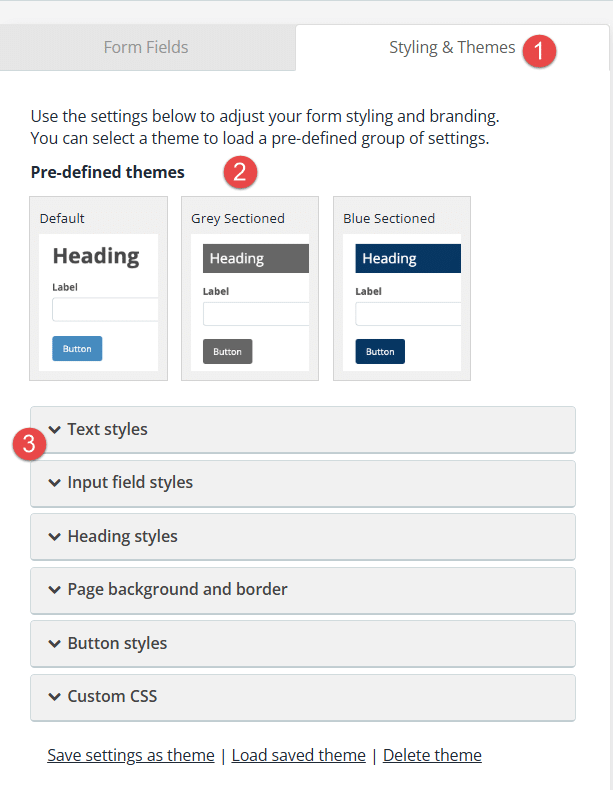
- From the Form Builder, navigate to the Styling & Themes tab.
- Select a theme.
- (Optional) Click the styling sections below and adjust the settings as needed.

- Save your form.
Save settings as a theme
If you’ve modified the styling settings, you can save them as a custom theme and easily apply the same look to other forms.
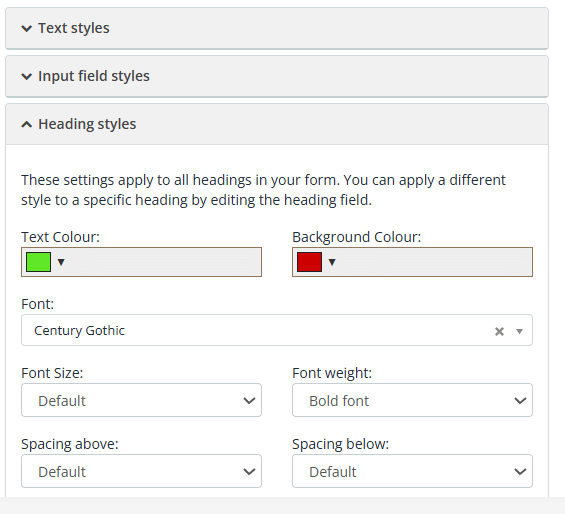
To save styling settings as a theme:
- Click Save settings as a theme.
- Enter a theme name.

- Click Save Theme.

Apply a saved theme
To apply a saved theme to a form:
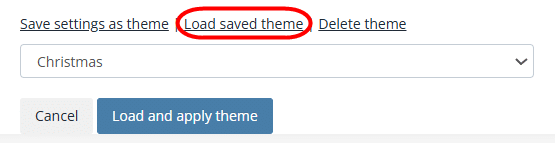
- Click Load saved theme.
- Select the theme from the list.

- Click Load and apply theme.
Delete a saved theme
Deleting a saved theme can only be done by an Organisation Admin.
To delete a saved theme from the list:
- Click Delete Theme.
- Select the theme from the list.
- Click Load and Apply Theme.
Adding custom CSS
Instead of using themes, if you have your own styling code (CSS) you can add that to the Custom CSS area.
To learn more, see Custom CSS.