Conditional logic
You can use conditional logic to hide fields in your form until certain conditions (responses) of other fields are met.
Conditional logic can personalise and transform your form by:
- Hiding questions that may be irrelevant to some form users
- Opening up fields to capture further information only when it’s needed
- Combining multiple forms into one dynamic form that’s quick and easy to complete.

When you enable conditional logic on a field, its visibility is dependent on whether or not the response in another field meets the rules/conditions you’ve set.
You can even set a rule on other hidden fields within the same form, creating a chain reaction of conditional logic.
Applying conditional logic
Conditional logic can be applied to any field type.
- Add or edit a field.
- Click Show Advanced Options.
- Scroll to the bottom and select Show/hide this field with conditional logic.
- Set up your rules/conditions for showing this field:
[Select field name] [Select condition] [Enter value] - Save & Close.
- Click View Form to see your conditional logic in action on the live form.
Common scenarios and rules
Here are some common scenarios and rules to help you get started.
Scenario 1 – Show an additional text field when ‘Other’ is selected from a list of options.
You might have a list of options that includes ‘Other’. If this option is selected, you could provide an additional field that lets the form user type in other choices that are not listed.
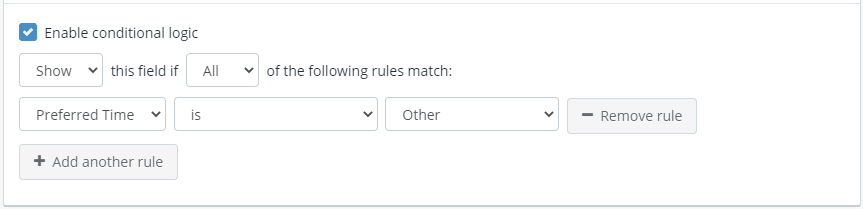
In the example below, we’ve added a field called ‘Enter your preferred time’ and have enabled the ‘Show/hide this field with conditional logic’ option.
We’ve set a rule to only show this field when a form user selects ‘Other’ in a field called ‘Preferred Time’, allowing them to enter their preferred time.
Scenario 2 – Only show credit card payment field if ‘Credit Card’ is selected.
You may want to only show a Payment field when a ‘Credit Card’ option is selected.
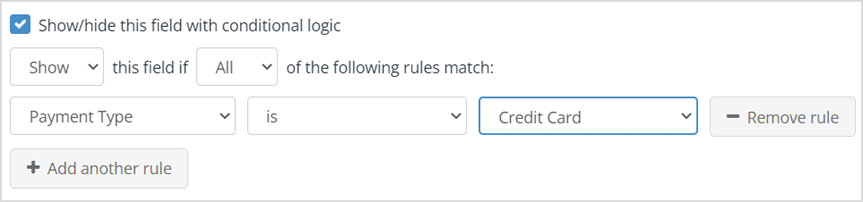
In the example below, we’ve added a Payment field and set a rule to only show it when a form user selects ‘Credit Card’ in another field called ‘Payment Type’, allowing them to enter their credit card details.
Scenario 3 – Show a group of fields when a checkbox is selected
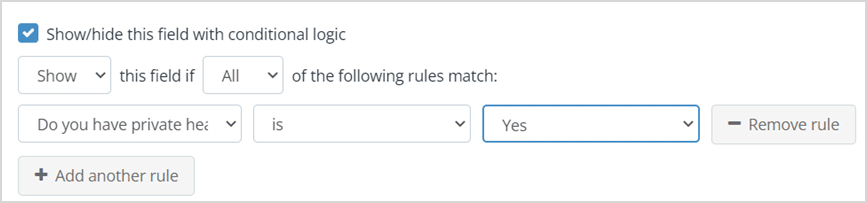
You might have a form that asks clients if they have private health care. If they select ‘Yes’ in this field, you could display a series of additional fields/questions to capture their private health care details.
To achieve this, you will need to add a field for each question and set the following rule on each of the fields:
Scenario 4 – Show additional field when multiple conditions are met
You may have a particular form field that you only want to show when a number of conditions are met.
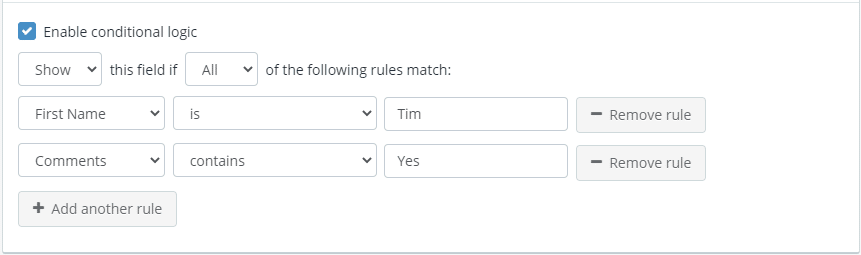
In the example below, we’ve added a field that will only be displayed when ‘Tim’ (case sensitive) is entered in the First Name field and the Comments field contains the word ‘Yes’.
Scenario 5 – Show dynamic forms based on responses
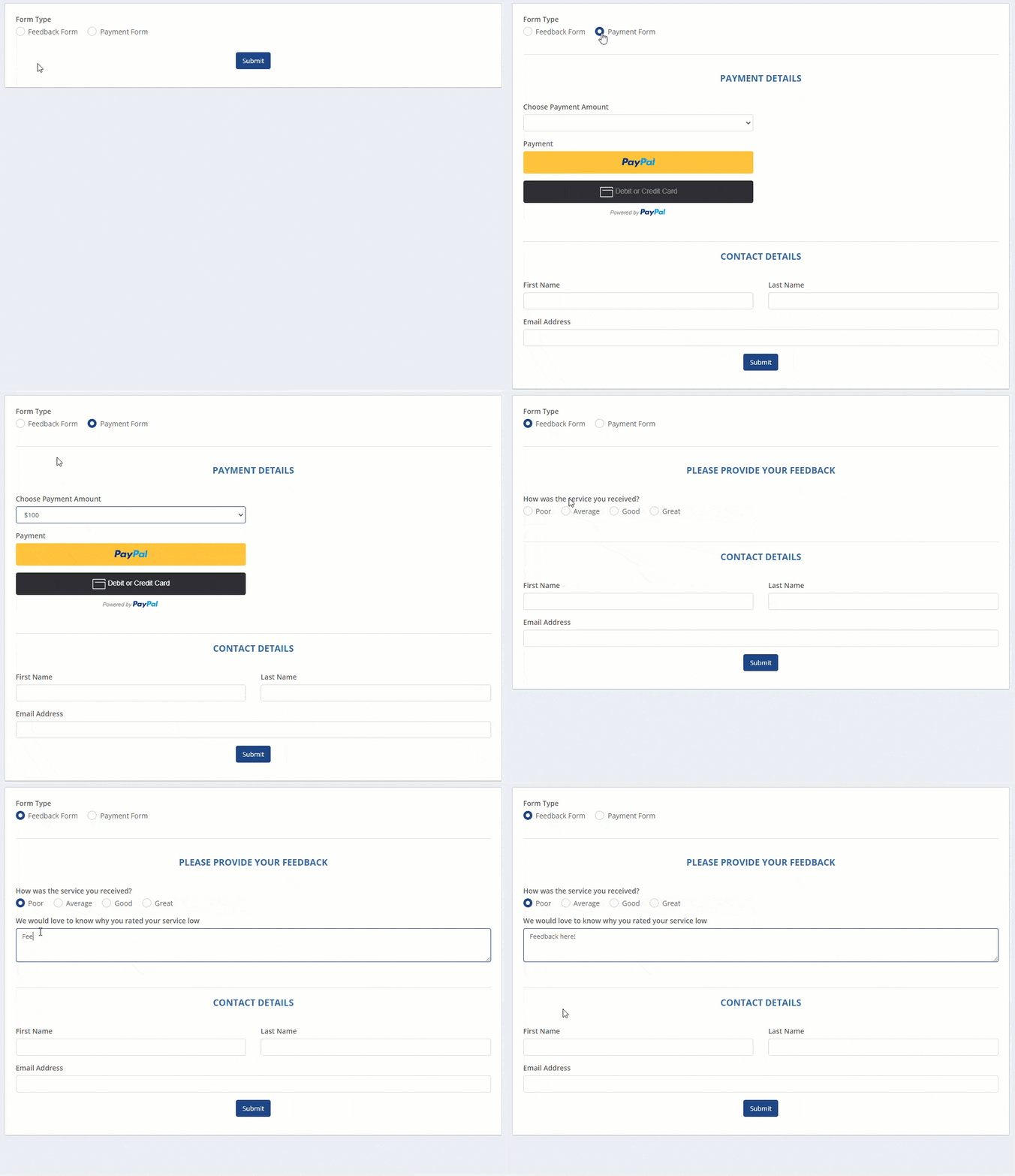
Combining multiple forms together into one dynamic form is a great way to reduce the number of forms your customers have to fill in.
Using conditional logic, you can hide the additional forms and only display them when the form user makes the appropriate selection.
In the example below, we’ve added a Payment field and applied the following rule to only show this field when the ‘Payment’ option is selected in the previous field:
Rules based on choice fields
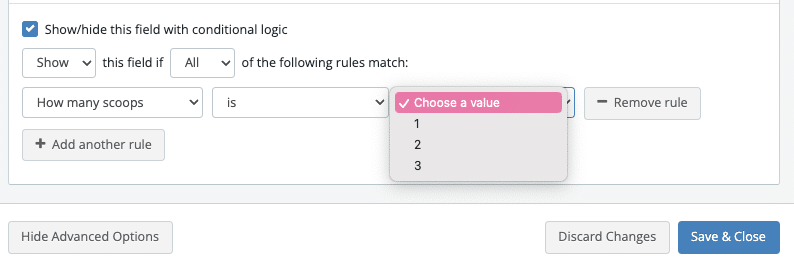
When basing a conditional logic rule on a Choose One field, you will need to select the ‘is’ operator and then select the choice from the dropdown list.
Example:

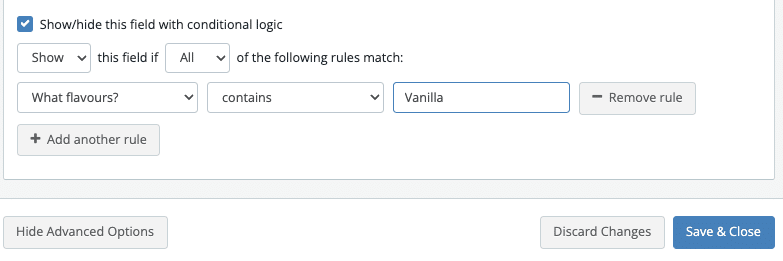
When basing a conditional logic rule on a Choose Multiple field, you will need to select the ‘contains’ operator and then enter the choice into the text field.
Example: