Dropdown List
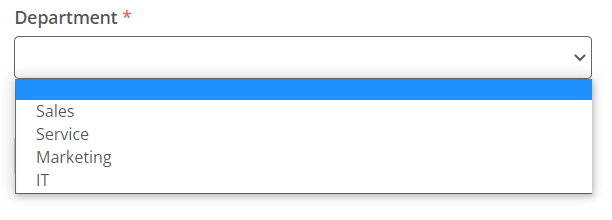
Dropdown lists are used to present a list of items for the form user to make a single selection.
Basic setup
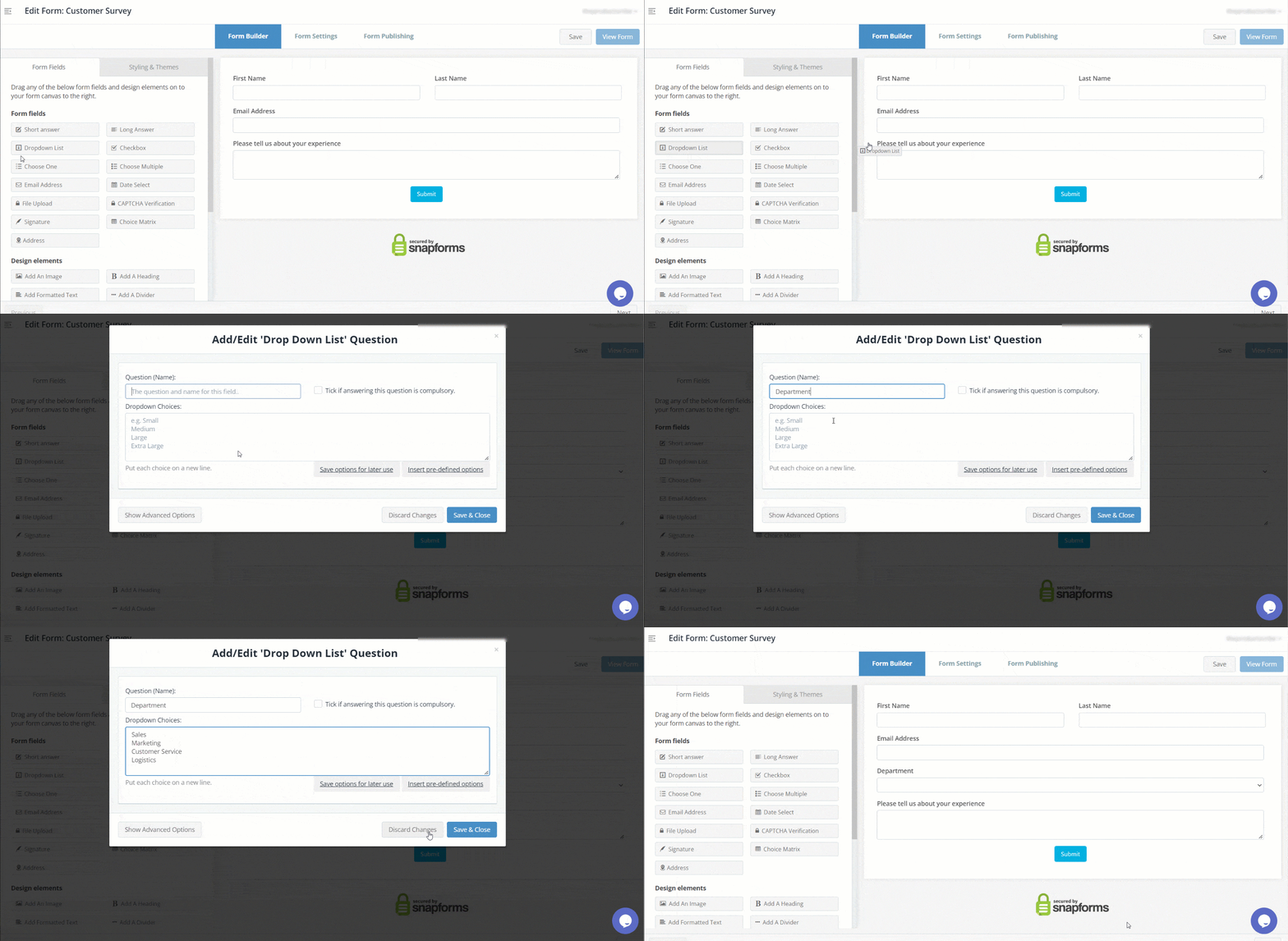
- Enter the field question or name.
- (Optional) Tick if answering this question is compulsory.
- Enter the list items/options in the Dropdown Choices area.
- Save & Close.
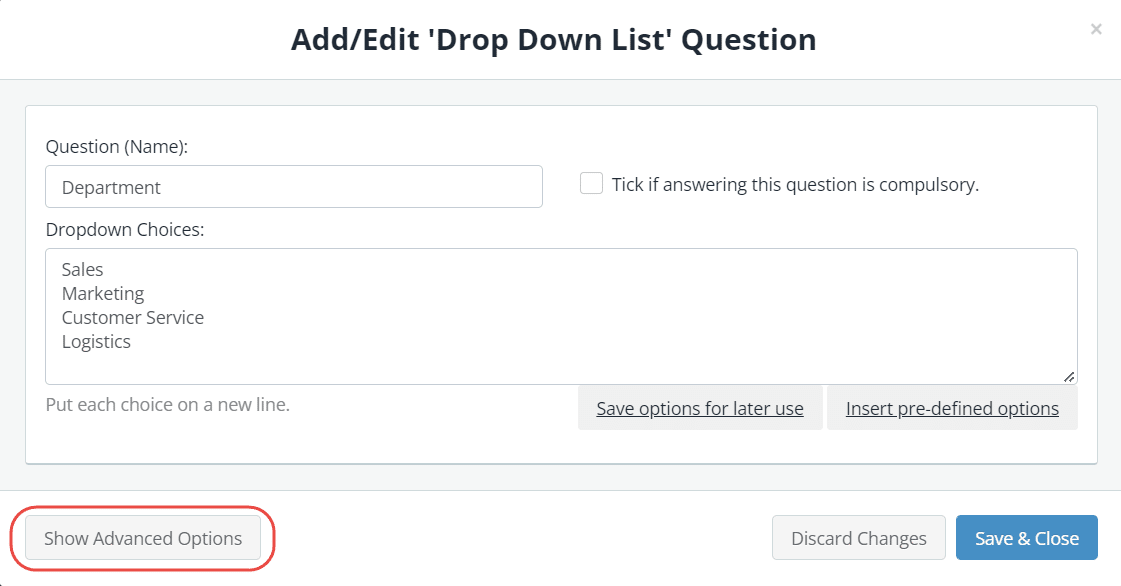
Show advanced options
Advanced options provide additional controls and functionality as explained in the table below.
| Option | Tick this if you want to… |
| Question (Label) | Show a different field label (instead of the field name) on the form.
When a Question (Label) is specified, it will override the Question (Name) on your form. For example, you may want to:
|
| Hide the question (only show the answer box) | Only show the input field (without the question/name). |
| Default answer | Prefill the field with a default answer.
Field short-codes can also be used to prefill dynamic values directly from responses in other fields within the form. |
| Placeholder | Provide an example of a response or required format to guide form users. The placeholder text will disappear when a value is typed in. |
| Further instructions | Add some informative text just below the field. |
| Assign numeric values for your options | Assign values to options to automate calculations within a form.
To learn more, see Calculation Field. |
| Read-only – don’t allow entry into this field | Lock a field to prevent form users from modifying a pre-defined field value.
For example, you may have a default answer such as ‘today’s date’ or ‘customer ID’ that is pre-filled on the form and you don’t want form users to change it. |
| Hidden – don’t show this field on the online form | Hide a field to prevent form users from modifying a pre-defined field value.
For example, you may have a default answer such as ‘today’s date’ or ‘customer ID’ that is pre-filled on the form and you don’t want form users to see it. |
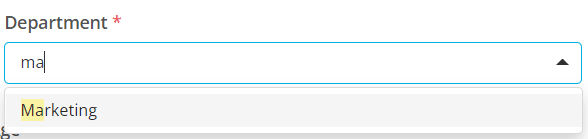
| Enable search/filtering on this drop down | Make larger lists easier to search by enabling a filter on the dropdown list.
|
| Show /hide this field with conditional logic | Hide this field until certain conditions/responses in other fields are met.
To learn more, see Show/hide fields based on conditions. |
Saving and inserting predefined options
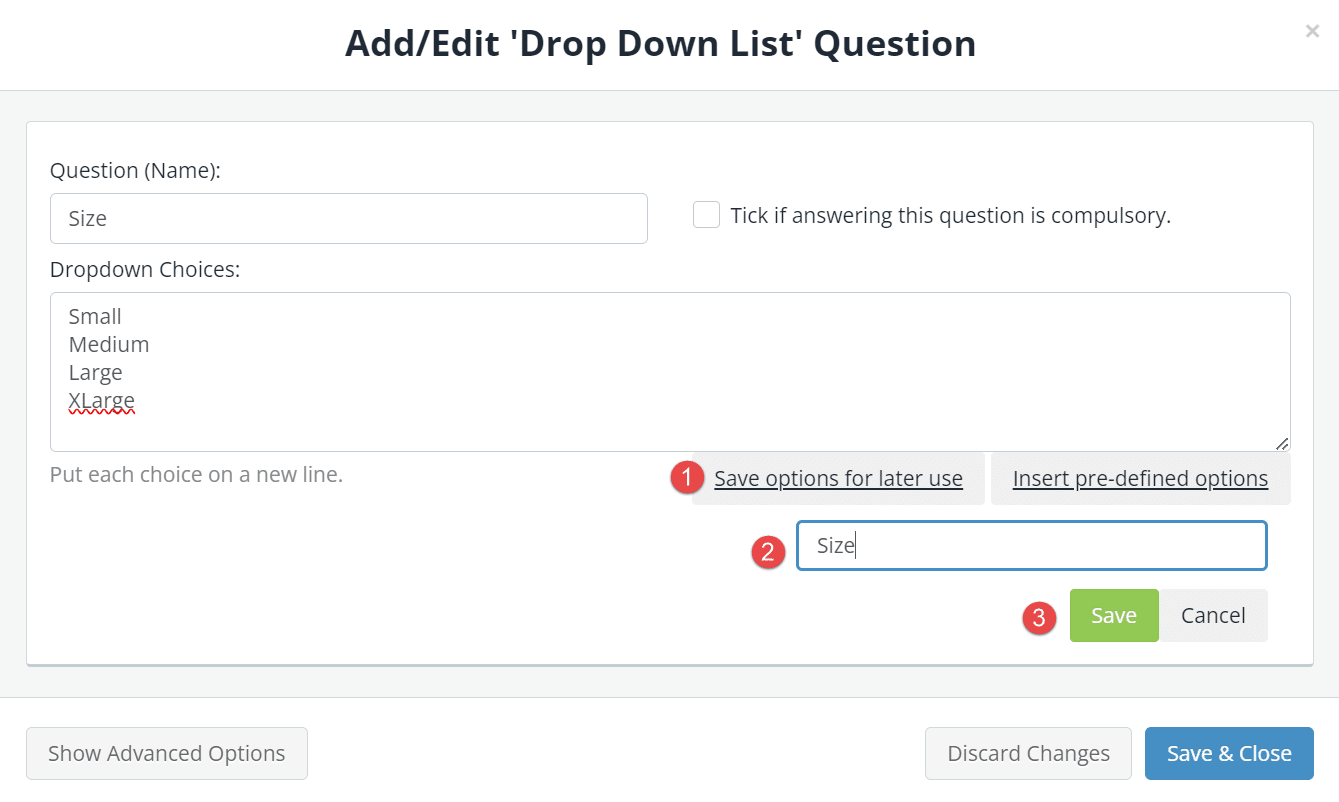
To save options for use on other forms:
- Click Save options for later use
- Enter a list name
- Click Save.

To insert a saved list on a new form:
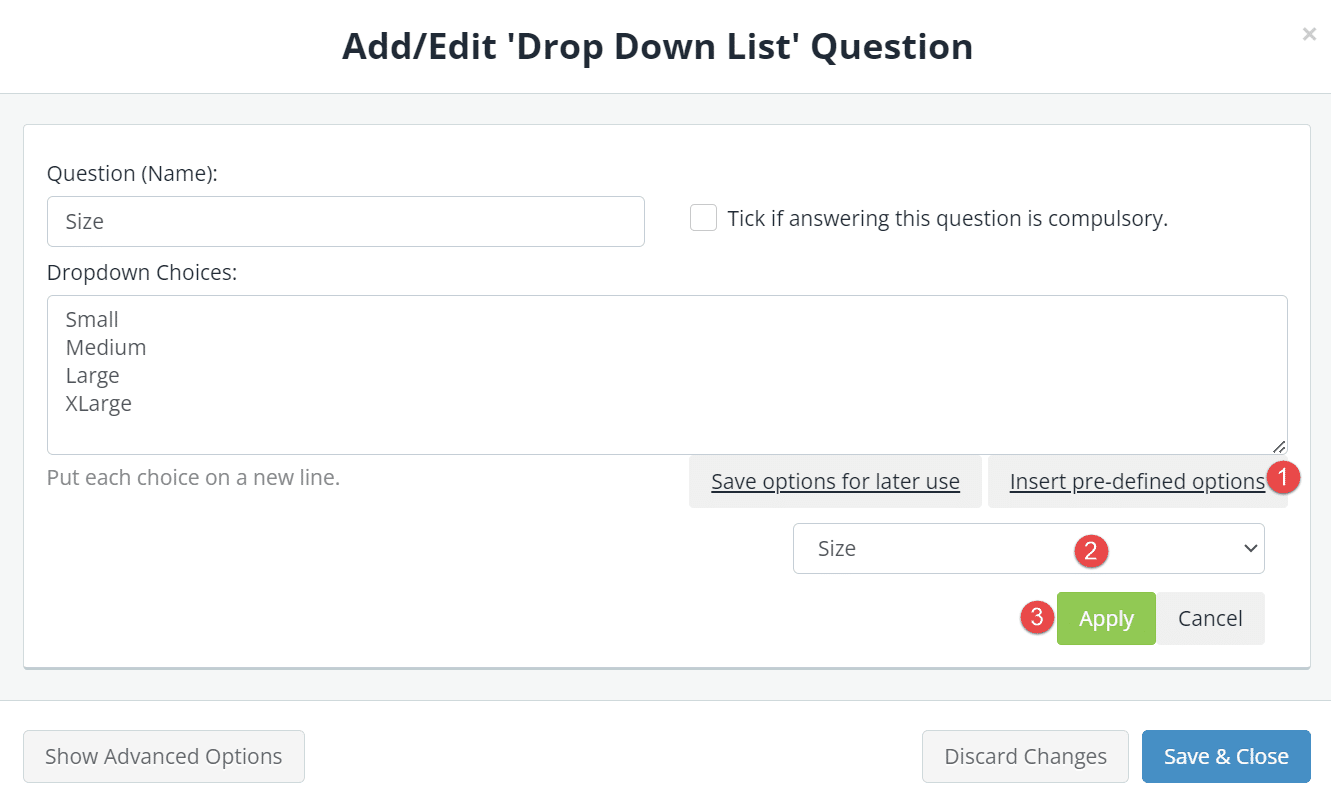
- Click Insert pre-defined options.
- Select the required list.
- Click Apply.