
Export responses to CSV
Exporting form responses to a CSV file allows you to work with your data outside of Snapforms in Excel or Google Sheets. You can export all responses, or just a filtered selection, depending on what you need. This is useful for reporting, analysis, recordkeeping, or sharing data with others.
To export responses to a CSV/Excel file:
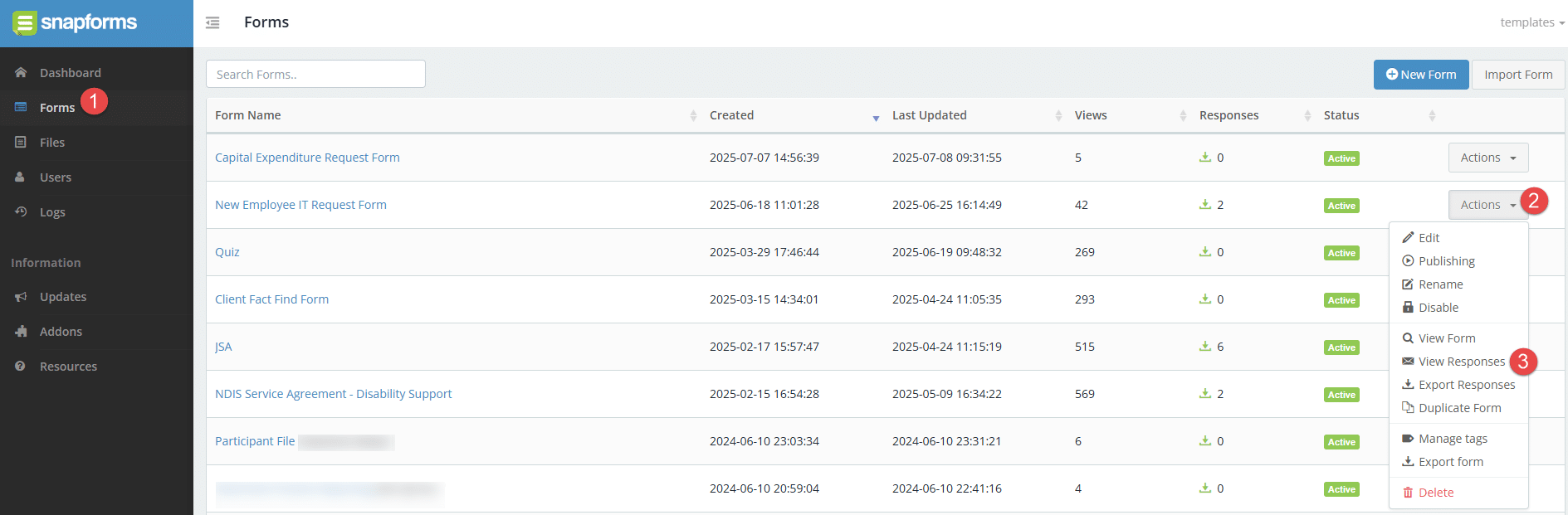
- Navigate to the Form Responses page via your Dashboard > View Responses, or the Forms List > Actions > View Responses.

- (Optional) Customise the data you want to export using the filters at the top of the form responses table.
- Click Export and select Export responses to CSV.
- Choose an export type:
- All Responses – exports all form responses. Note: If your form contains over 250 responses, a secure download link will be emailed to you.
- Date Range – exports form responses for a selected date range or custom range.
- Current View – exports form responses displayed in the current table view with filters applied.
- Saved View – exports form responses for the selected saved table view.
- Click Export.
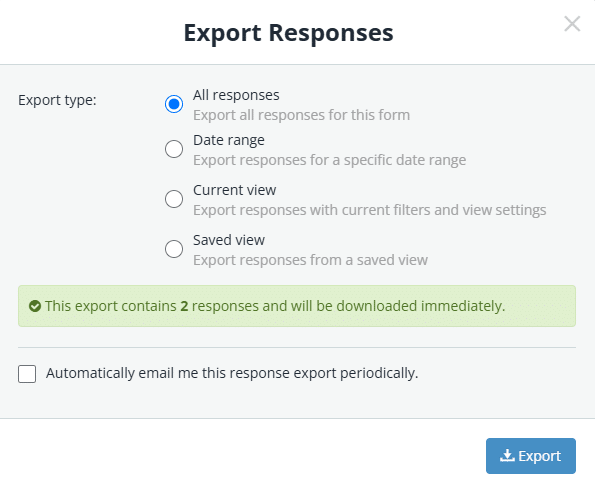
If you need to receive form response data regularly, you can set up an automatic export schedule. This feature lets you send CSV files to your email on a recurring basis—daily, weekly, or monthly—based on all responses or a custom filtered view.