
Field Table
The Field Table field lets your form users add as many rows as they need, making it perfect for capturing multiple records of the same type.
Whether you’re collecting line items for an order form, logging hours on a timesheet, outlining a schedule of services, recording participant details, or creating repeatable sections in assessments, Field Tables provide a flexible, structured way to collect data.
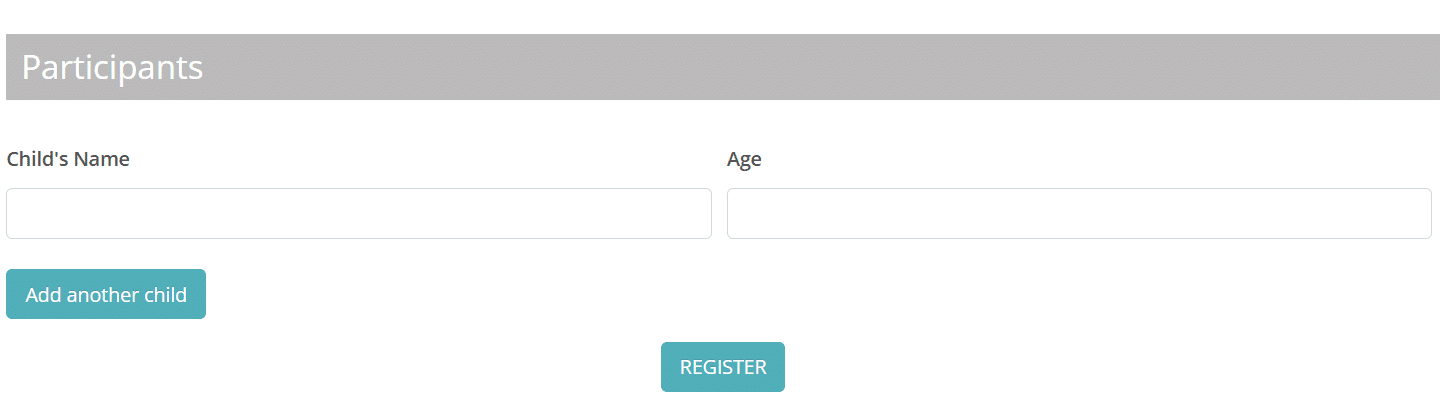
Field table setup
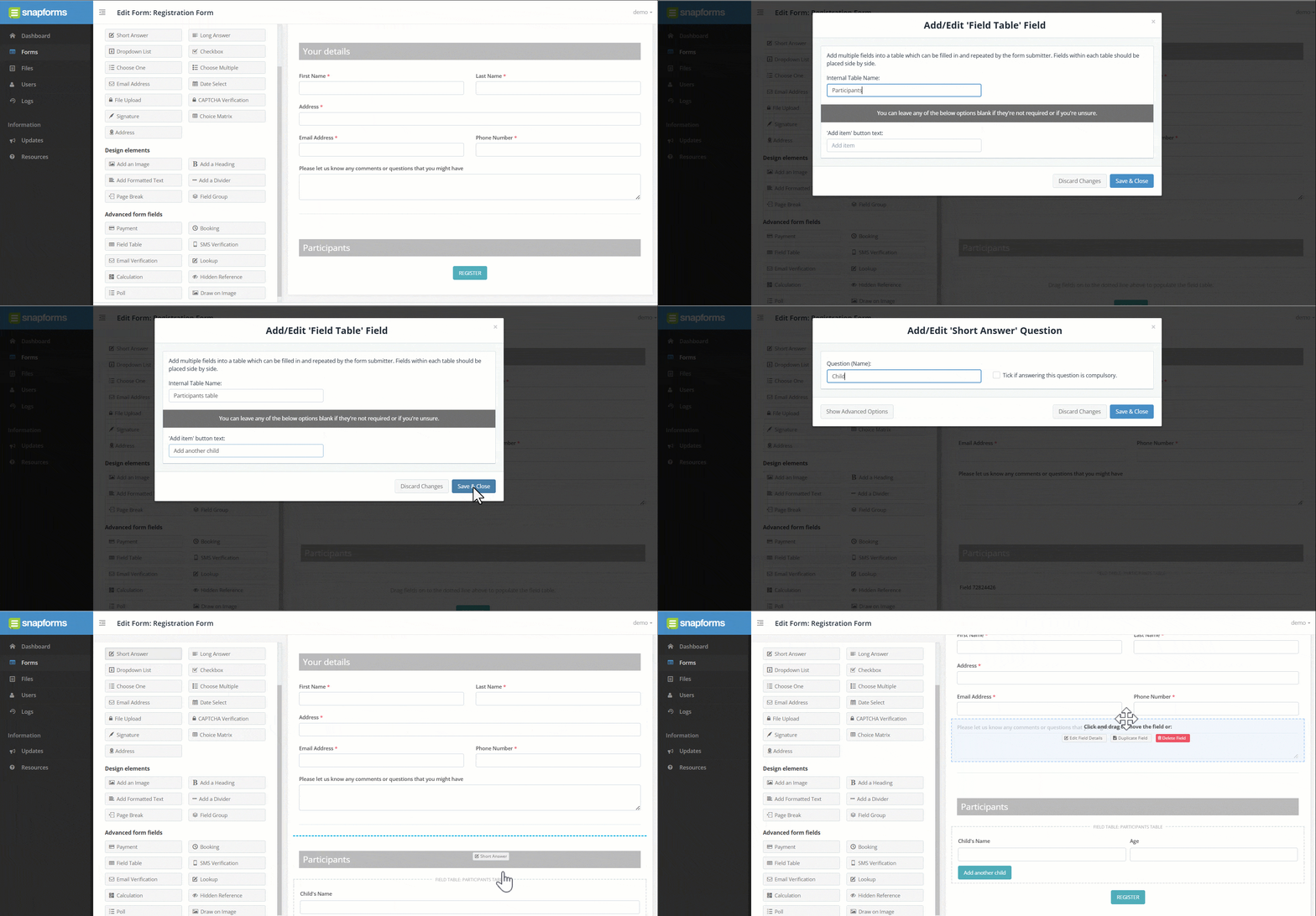
- In the Form Fields panel (left of screen), under Advanced Form Fields, click and drag the Field Table field onto your form.
- Enter an internal table name (this is not visible on the live form).
- Enter the button text for the respondent to add rows, e.g. Add another child. Note: This button only works when viewing the form online.
- Save & Close.
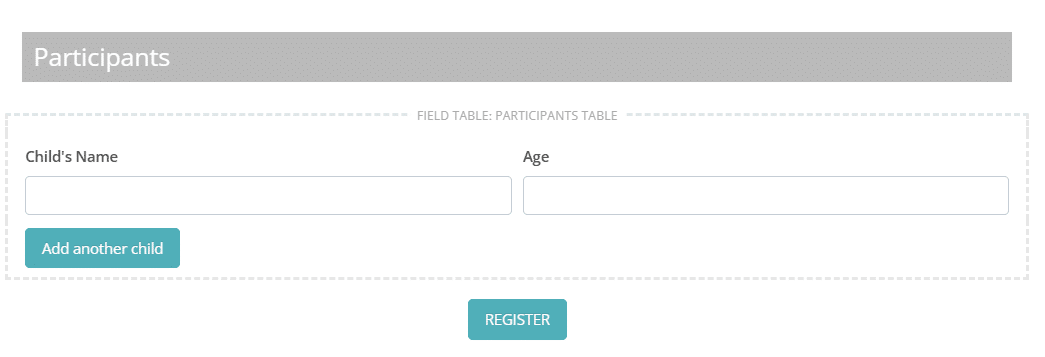
- Now drag the required fields onto the dotted line inside the field table. Position the fields side by side to form a row.
Note: The following field types are supported for use within field tables:
Short Answer, Long Answer, Dropdown List, Checkbox, Choose One, Choose Multiple, Email Address, Date Select, Add an Image, Heading, Formatted Text, Calculation Field.

- Save and view the form to try it out.
Using Calculation Fields with Field Tables
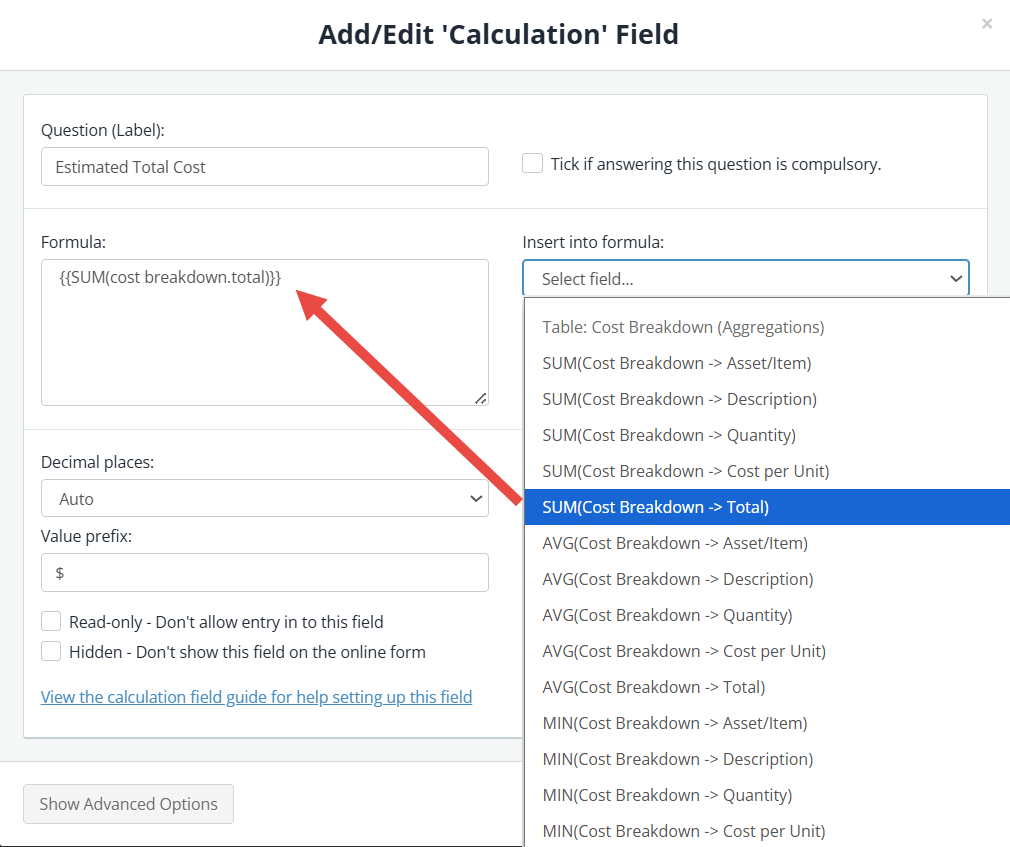
Calculation fields with custom formulas may be placed inside and/or outside a Field Table, allowing totals and other numeric results to automatically update based on field inputs.
This is especially useful for scenarios like itemised order forms, timesheets, schedule or service, or any workflow where multiple line items contribute to a final total.
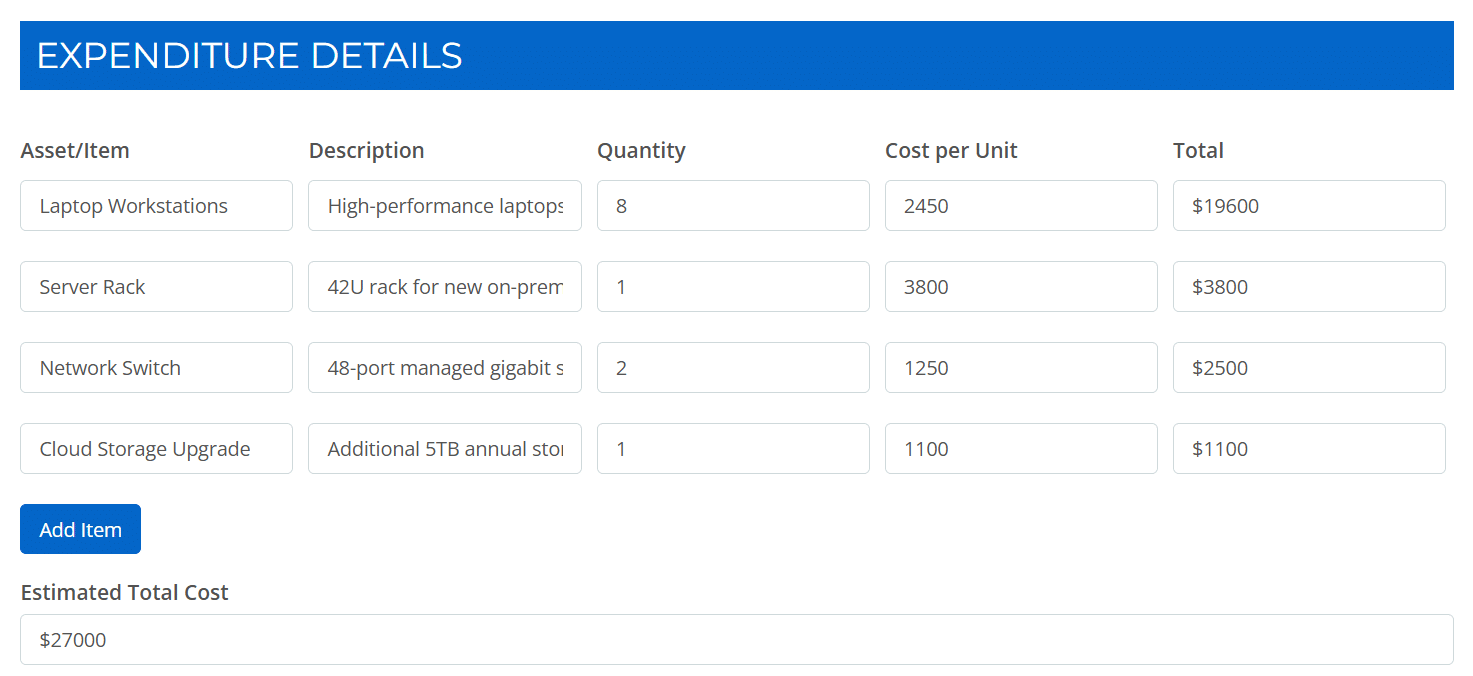
In the example below, the calculation formula above was used to automatically calculate the ‘Estimated Total Cost’ based on the ‘Total’ column. This figure will update as rows are added, deleted, or modified.
How conditional logic works in field tables
If a field inside a table depends on a field outside the table, then the whole table column (the same field in all rows) will be shown or hidden depending on the response to the field outside the table.
If a field inside a table depends on another field inside the table, then the conditional logic will apply on a row-by-row basis. The field in any given row will be shown or hidden based on another field in the same row.
To learn more, see Show or hide fields using conditional logic.