Form fields
Whether you’re creating a basic or complex form, Snapforms’ wide range of field types and advanced settings provide the flexibility to add as much or as little functionality as you need.
When adding a new field to your form, the primary settings for the field type will be displayed. This includes the option to mark required fields (*) to ensure information is provided.
Each field also has a range of advanced options that are specific to the field type. These settings are used to provide additional functionality for various use cases. Some advanced options are common across multiple field types.
Click the links below to learn more about each field type.
| Field name | Description |
| Short Answer | Displays a short free text field suitable for capturing most types of information.
|
| Long Answer | Displays a large free text field that allows form users to provide more detailed information.
|
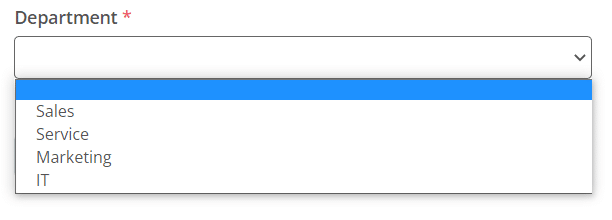
| Dropdown List | Displays a dropdown list of options where only one can be selected.
|
| Choose One | Displays radio buttons for different options but allows one selection only.
|
| Choose Multiple | Displays checkboxes for different options and allows multiple selections.
|
| Checkbox | Displays a single checkbox that is often used to indicate agreement to terms and conditions, confirmation, or opt-in.
|
| Email Address | Displays a text field that requires a valid email format.
|
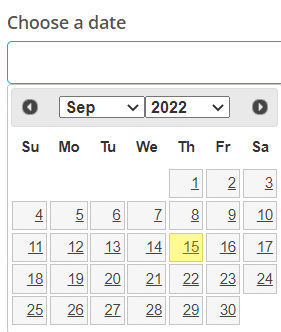
| Date Select | Displays a calendar when the field is clicked.
|
| File Upload | Displays a file upload function that allows form users to browse and upload their files, photos, and documents.
|
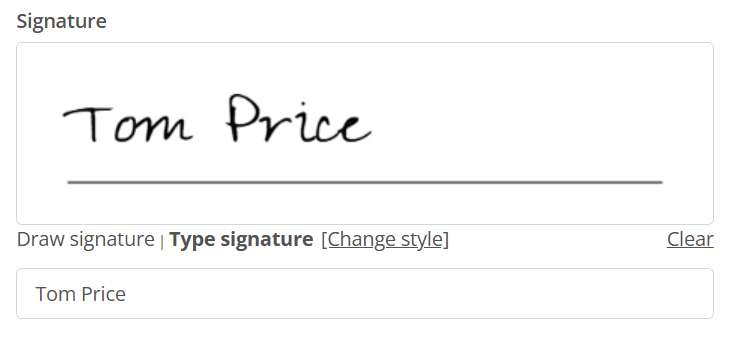
| Signature | Displays a signature box that allows the form user to digitally sign using their mouse/finger or a type signature.
|
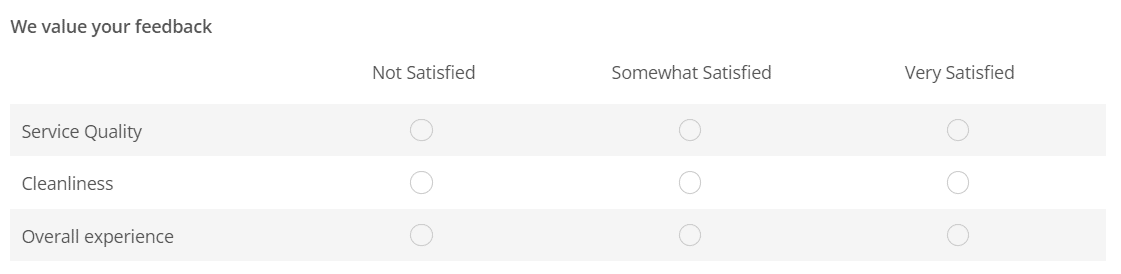
| Choice Matrix | Displays a matrix of questions that have the same response options in a header row.
|
| Address | Displays a group of sub-fields for each component of an address, e.g. street address, city, postcode, etc.
|
| CAPTCHA Verification | Displays a CAPTCHA challenge for additional security/anti-spam measures.
|









Advanced fields and business tools
| Field name | Description |
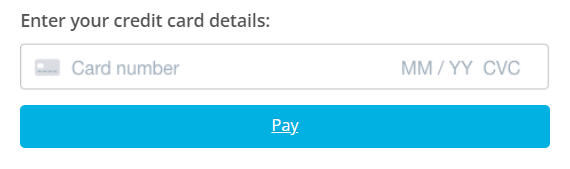
| Payment | Allow your customers to make credit card payments directly through Snapforms, or connect to a third-party payment provider.
|
| Booking | Embed a fully-fledged booking system within a form so your customers can easily book your services.
|
| Field Table | Provides form users with the ability to add multiple rows of the same fields.
|
| SMS Verification | Used to collect and verify mobile numbers by sending a code to ensure they are valid.
|
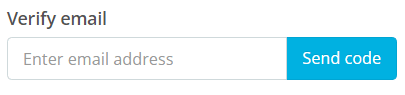
| Email Verification | Used to collect and verify email addresses by sending a code to ensure they are valid.
|
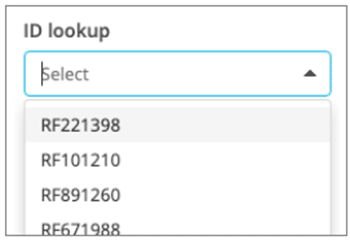
| Lookup | Connect a field to a centralised database to allow form users to select their response from a large list of values.
|
| Calculation | Allows you to build formulas for automating calculations based on form responses. This field has a wide range of uses. Some common examples include:
|
| Hidden Reference | Allows you to add a reference field for internal purposes that’s not visible to form users. This field also supports automatic population of form reference numbers.
|
| Draw on image | Displays an image/diagram that allows form users to draw on, as part of their answers.
|
| ABN Lookup | Powered by the Australian Business Register (ABR), the ABN Lookup field allows your form users to search for an Australian Business Number (ABN) and automatically populate associated information such as the entity name and address. |
| SSO Entra ID Lookup | The Entra ID Lookup field allows form users to look up other users’ information in their SSO organisation based on a given group ID. |