Disabling/enabling a form
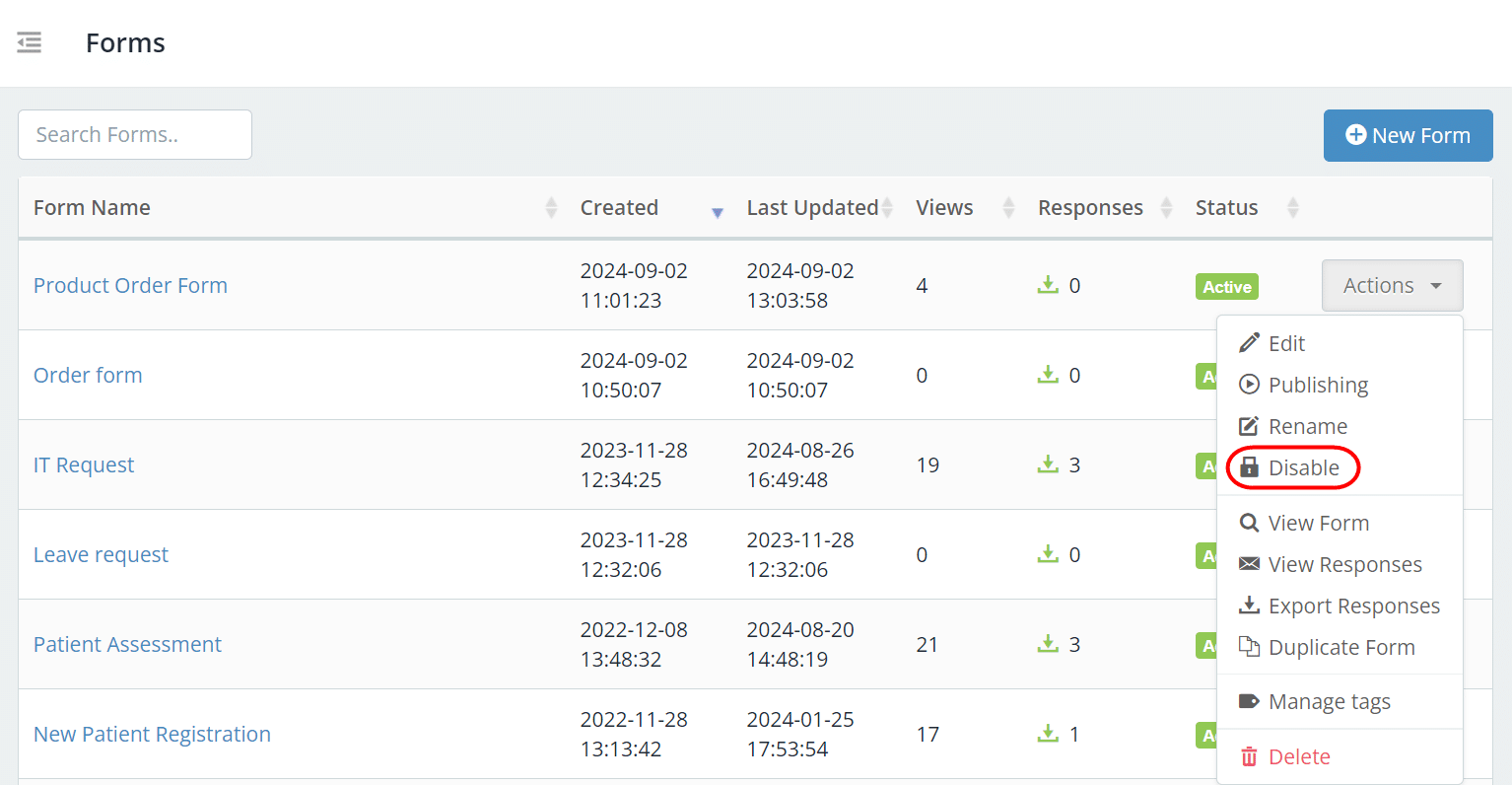
You can take a form offline immediately, or archive a form that’s no longer in use, by disabling it from the Forms list. If you need to bring a form back online, you simply enable it.
There may also be times when you need to temporarily pause form submissions. You can do this automatically by conditionally disabling a form based on a specific date range or a submissions limit.
You can also create a customised message that will be displayed when the form is accessed.

Automatically disable a form based on conditions
- Open your form in edit mode.
- Go to Form Settings > Usability.
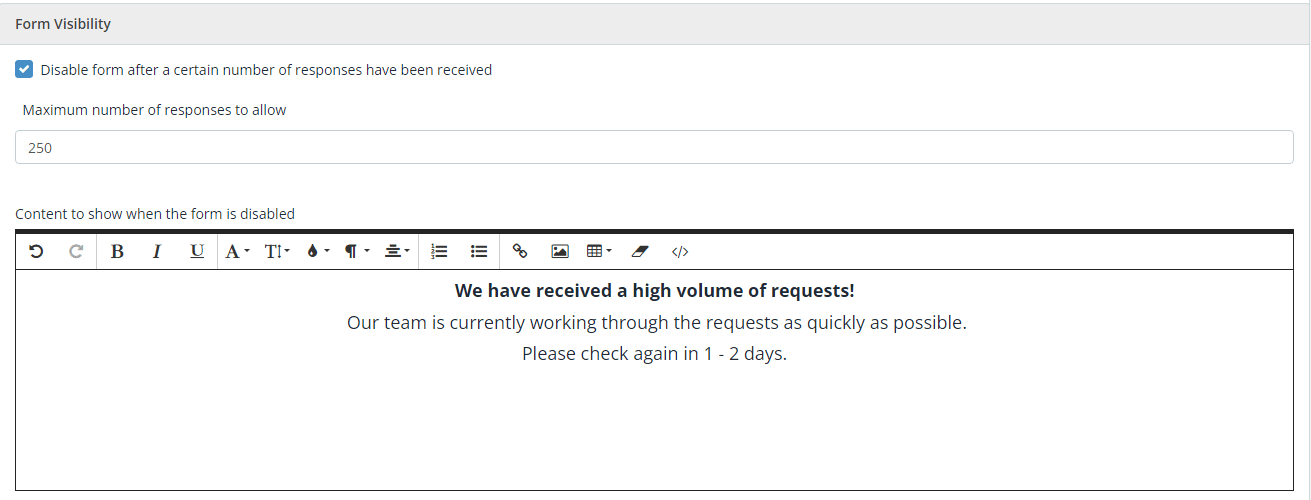
- In the Form Visibility section, you can choose to:
- Disable the form after a certain amount of responses have been received.
- Enter the number of responses you want to receive before disabling the form.
- Disable the form between certain dates.
- Enter the start and end dates/times for the duration you want to disable the form. Your form will go back online when the end date/time passes.
- Disable the form after a certain amount of responses have been received.
- Enter the content or message that you want to display when the form is disabled.
- Click Save.
Manually disable/enable a form
To disable/enable a form:
- From the Forms list view, click Actions.
- Click Disable or Enable.
- Confirm the action.