Input Table Layout Examples
Input tables are a great way to collect multiple related responses in a clear, structured format. Instead of adding separate fields for each item, you can arrange questions or options into rows and columns, allowing form users to enter their answers directly into the table.
This guide walks you through the different ways to design input tables in your online form, so you can capture data efficiently and keep your form easy to use.
Types of table layouts
When adding input tables to your form, you can choose between a static or dynamic layout, depending on how flexible you need the table to be.
-
Static input table – A fixed number of rows and columns, ideal when you know exactly how many entries you want to collect.
Example: A survey asking respondents to rate a fixed list of services from 1 to 5. -
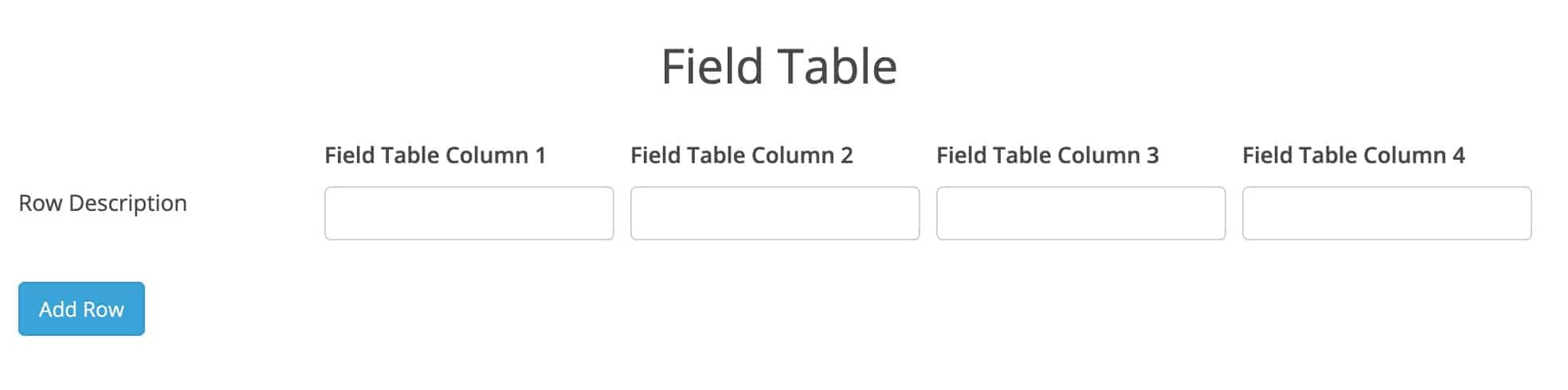
Dynamic input table – A fixed number of columns, but form users can add as many rows as they need.
Example: An expense report where staff can add as many line items as required.
Create a static input table
Using Formatted Text and Short Answer fields
Arrange Formatted Text fields as your column and row headings, and then use Short Answer fields for the cells. Example: Recording student attendance for a set list of class dates.
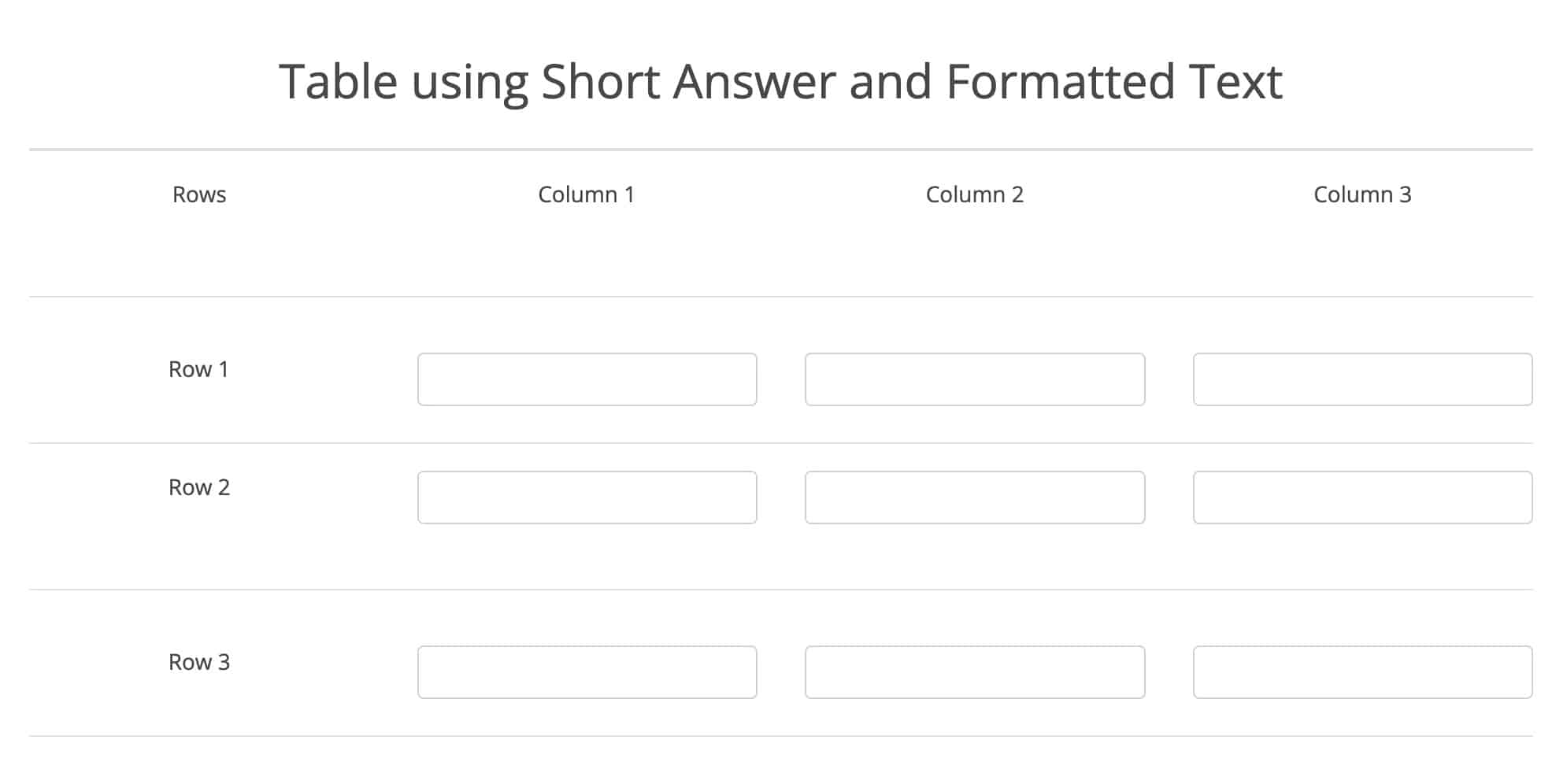
This method is the most complex to set up, but it gives you a table that looks and functions like a traditional printed table with a fixed layout. It’s also ideal if you want your table to appear in a specific, consistent format when exported to PDF.
Using a Choice Matrix
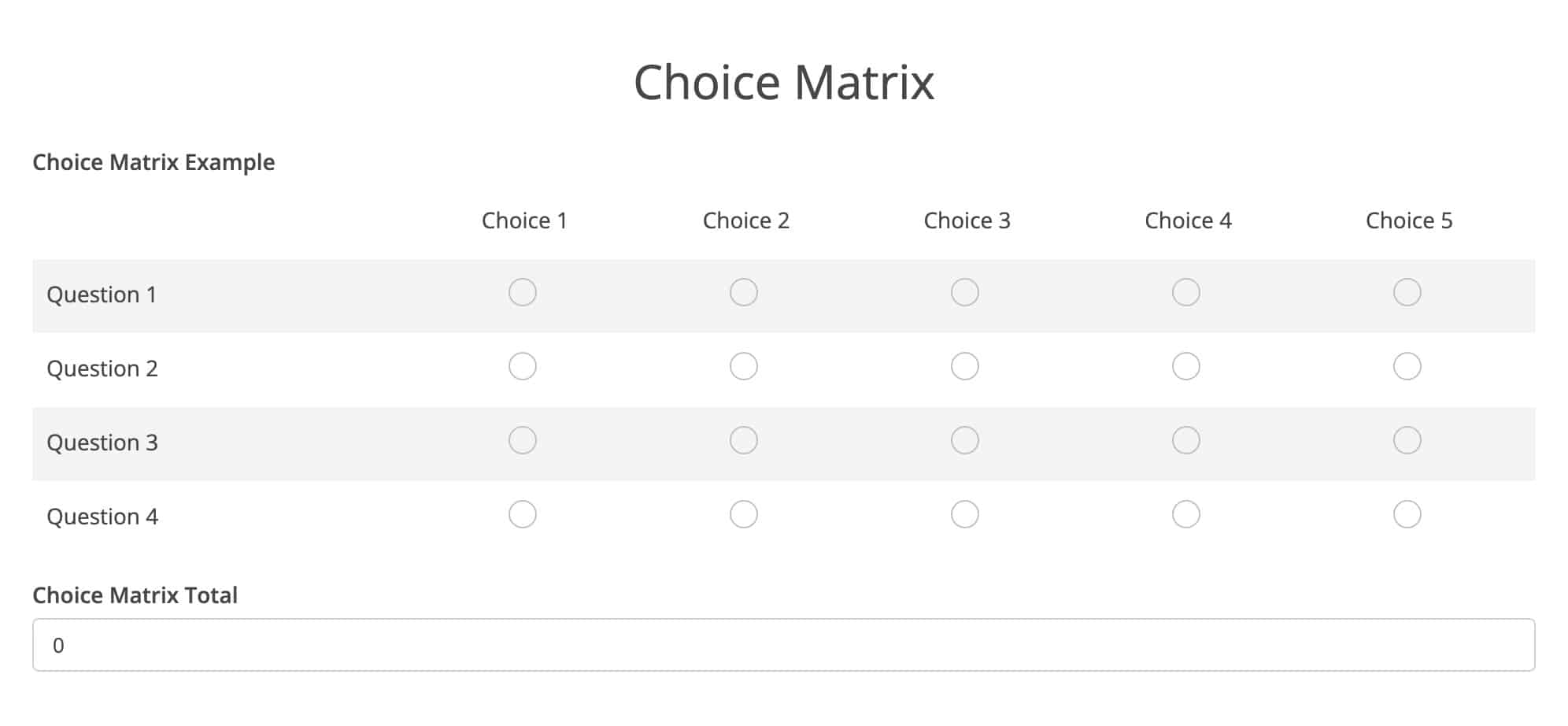
A Choice Matrix is suitable when form users need to select an option at the intersection of a row and a column. This layout is commonly used for questions that are presented as a table or grid in paper forms, and it translates well into an online format.
Example: Asking customers to rate product features as “Excellent”, “Good”, “Fair”, or “Poor”.
Create a dynamic input table
Using a Field Table
If you want form users to be able to add rows as they go, use a Field Table. This allows you to set the number of columns while giving form users the flexibility to add as many rows as they need.
Example: Collecting details of attendees for an event where the number of guests varies.