
SAML SSO for Protecting Forms
In addition to providing a faster and more secure way for your team (Forms Administrators) to log into the Snapforms admin panel, SAML Single Sign-On (SSO) with Snapforms can be used to protect specific forms by restricting access to internal SSO-authenticated users only.
This feature is only available on the Enterprise plan.
Setting up SSO with SAML
SAML is the recommended way to set up SSO with Snapforms. Please refer to your organisation’s identity provider’s (IdP) website for instructions on how to set up SAML SSO as steps will vary depending on the identity provider.
Obtain Snapforms service provider metadata
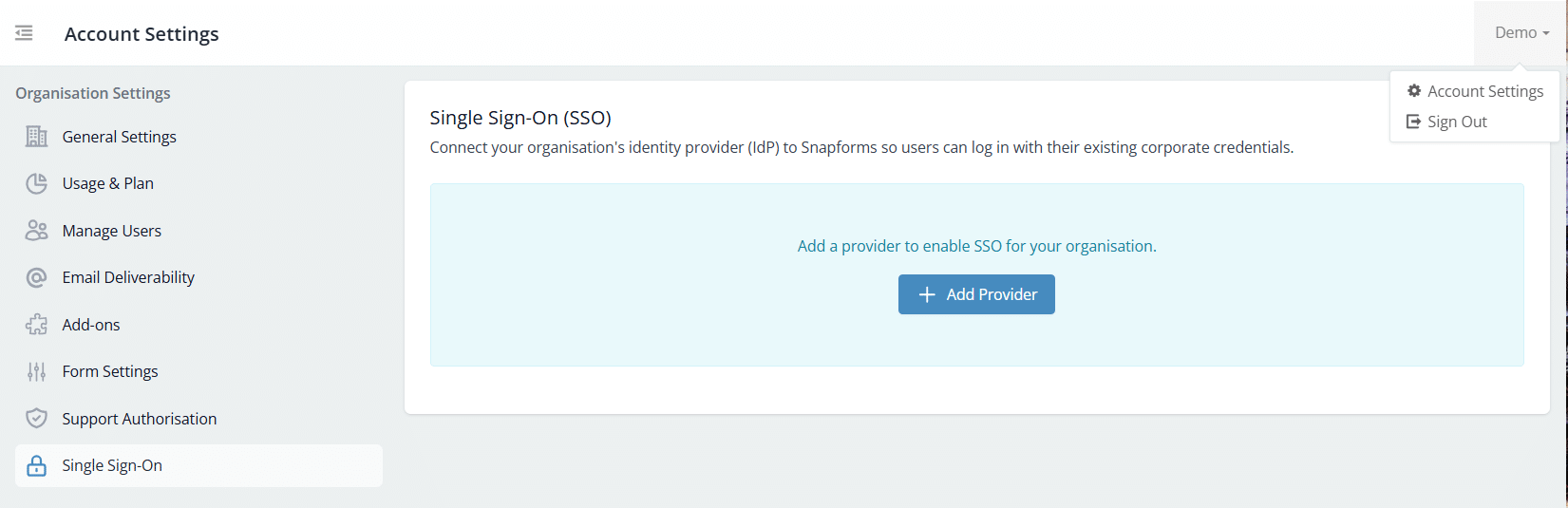
- Navigate to Account Settings > Single Sign-On.
- Click + Add Provider.

- Select Dashboard Login to Snapforms, then click Next.
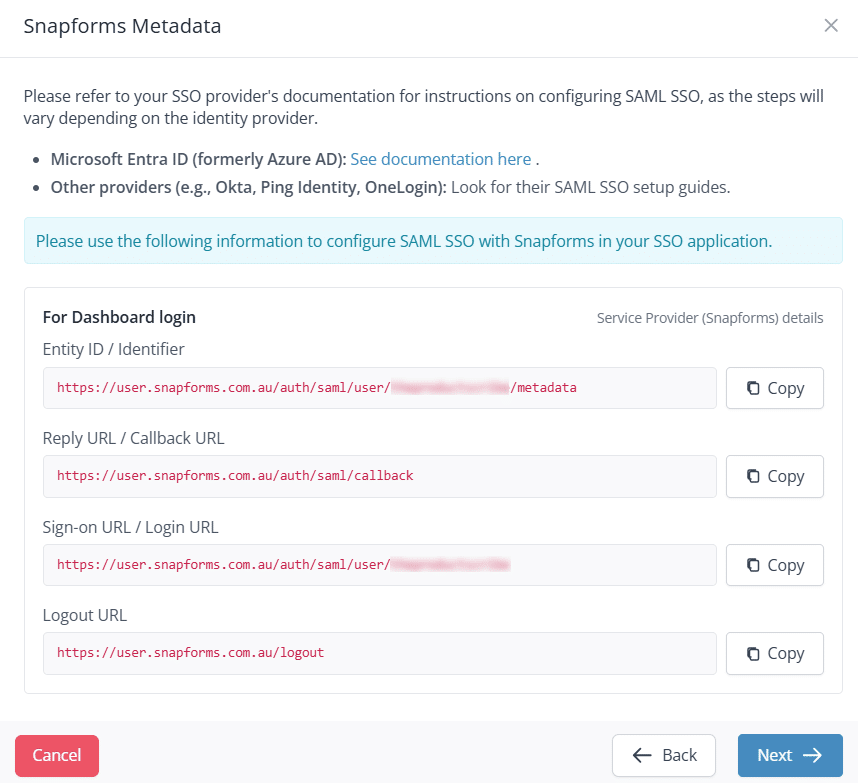
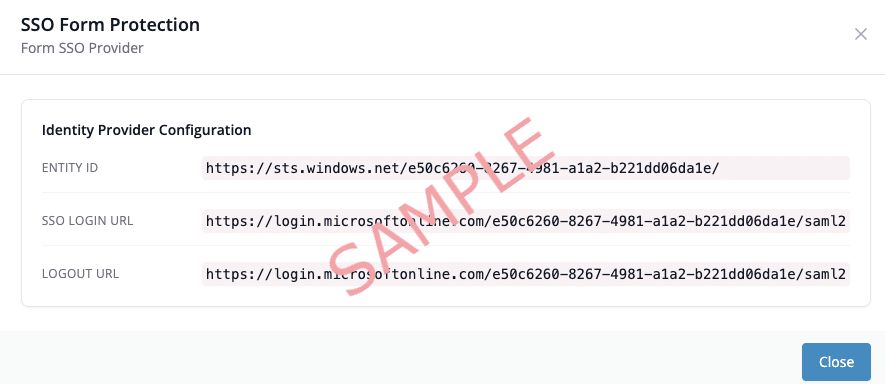
- Use the Copy button to copy/paste the following information into your IdP application.

- Click Next to add your IdP’s SAML SSO details into Snapforms.
Add provider SAML SSO details
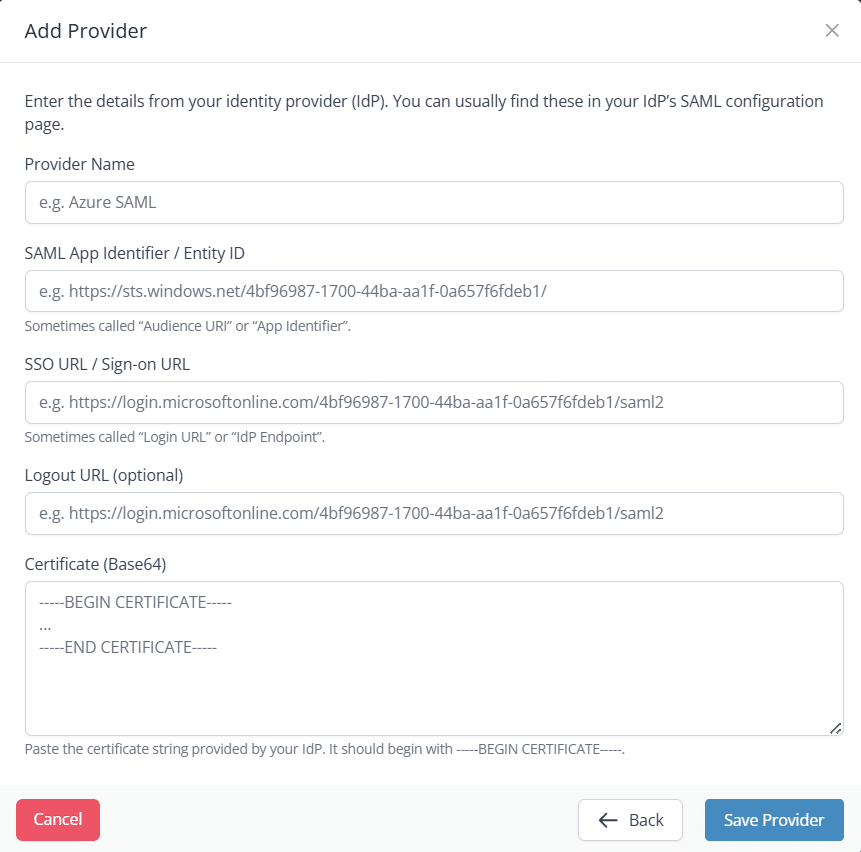
- Enter the details from your IdP’s SAML configuration page into the relevant fields.

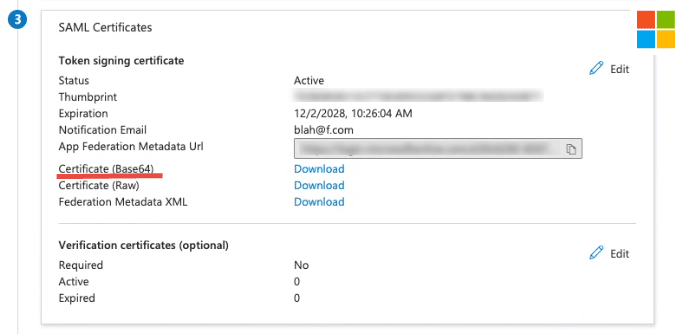
- Download the Certificate (Base64) file from your IdP. Note: You may need to open the file in plain text, using a plain text editor such as Notepad or TextEdit.

- Copy/paste the certificate string into the Certificate (Base64) field, after the —-BEGIN CERTIFICATE—-
- Click Save Provider. Note: There is no static login URL for viewing forms as users will be automatically redirected when they try to access a protected form via its normal URL.

Protecting a form using SSO
- Navigate to the Forms list.
- Click Actions > Edit
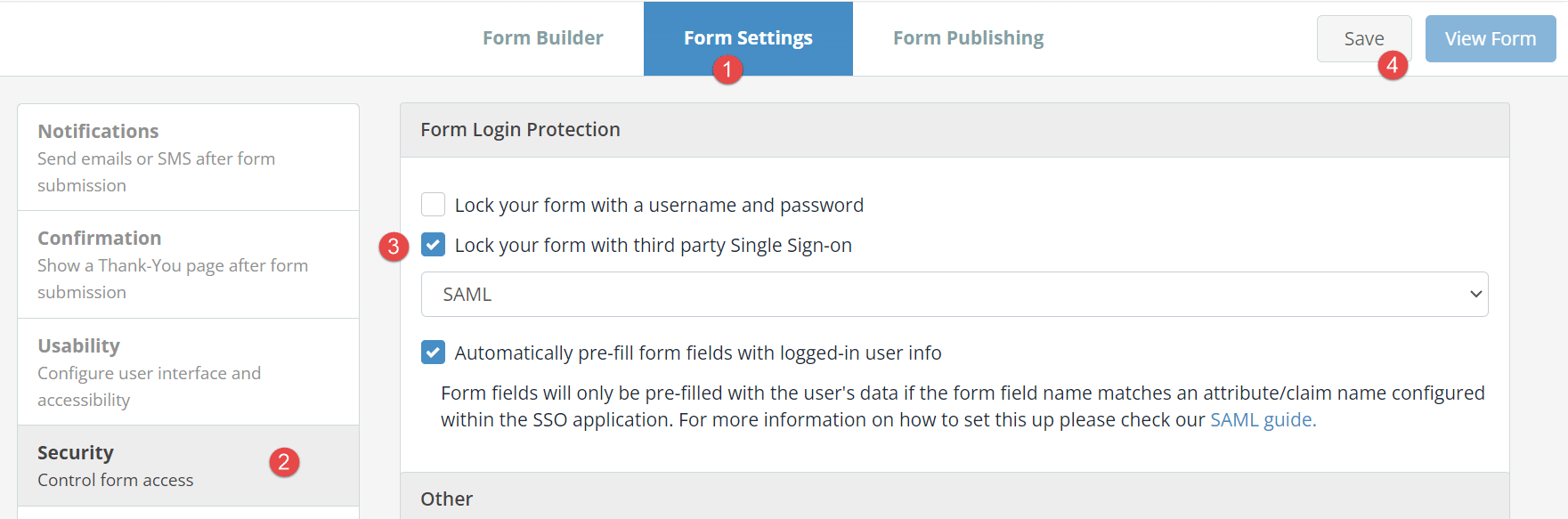
- Select the Form Settings tab (top) > Security (left side).
- Tick the Lock your form with third party Single Sign-on checkbox and select ‘SAML’.
- Save the form.

Pre-filling a form using SSO
You can leverage the existing user data in your identity provider application to speed up form completion by prefilling the form user’s basic information.
To learn how to enable this feature in Snapforms, see our help article: Enable Form Pre-fill Using SSO