
SMS Verification
The SMS Verification field allows you to ask your form users to enter their mobile number and verify it using an SMS verification code sent from Snapforms.

You can use this field to:
- confirm ticket purchases or appointment bookings
- verify mobile numbers for enrolment or registration forms
- send confirmation codes for orders, requests, signups, and more.
Tip: If you don’t have a specific requirement for verifying mobile numbers, you can use a short answer field to collect mobile numbers instead.
Basic setup
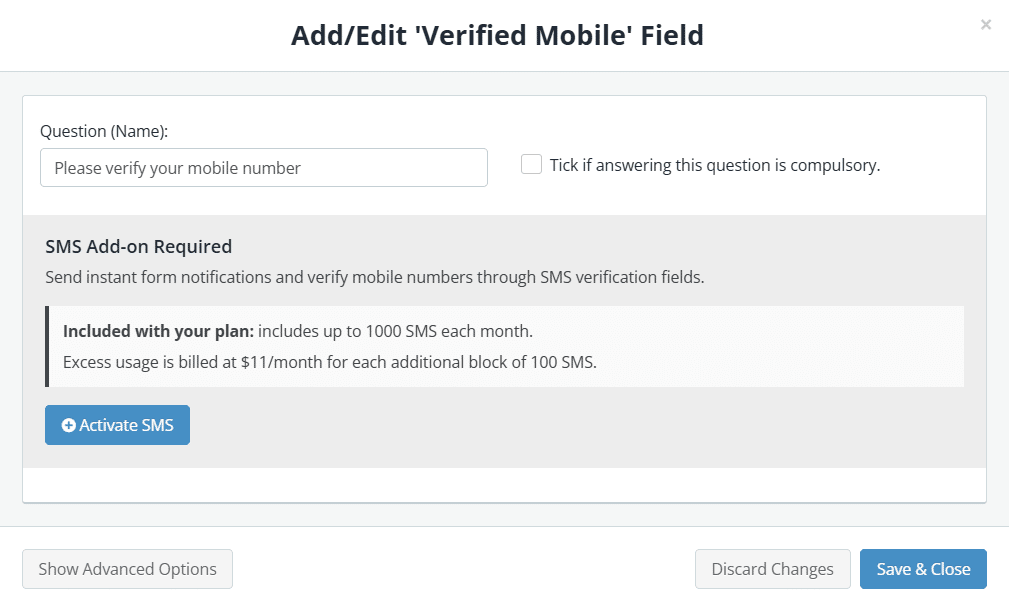
- In the Form Fields panel (left-hand side), under Advanced Form Fields, click and drag the SMS Verification field onto your form.
- Enter the field question or name.
- If the SMS add-on has not been activated, click the Activate SMS button.(Organisation Admin users only).
- (Optional) Tick if answering this question is compulsory.
- Save & Close.

Show advanced options
Advanced options provide additional controls and functionality as explained in the table below.
| Options | Description |
| Question (Label) | Show a different field label (instead of the field name) on the form.
When a Question (Label) is specified, it will override the Question (Name) on your form. For example, you may want to:
|
| Hide the question (only show the answer box) | Only show the input field (without the question/name). |
| Allow only Australian mobile numbers | Enable this setting if you want to only accept Australian mobile numbers, starting with 04 or +61 4 |
| Restrict repeated submissions using the same Phone Number | Enable this setting to restrict the number of form submissions a respondent can make within a specified period, using their mobile number as the identifier. |
| Placeholder | Provide an example of a response or required format to guide form users. The placeholder text will disappear when a value is typed in. |
| Further instructions | Add some informative text just below the field. |
| Show /hide this field with conditional logic | Hide this field until certain conditions/responses in other fields are met. To learn more, see Show or hide fields using conditional logic. |