
Using short-codes to insert dynamic content
What are short-codes?
Each field in your form has a unique short-code, enclosed in double curly braces {{ and }}, that can be used to automatically display response values.
Short-codes are commonly used to personalise auto-reply emails/SMS and confirmation pages using information provided in a submitted form.

Dynamic default values in form fields
Short-codes can also be used as a default value in a form field to prefill information from another field or multiple fields.
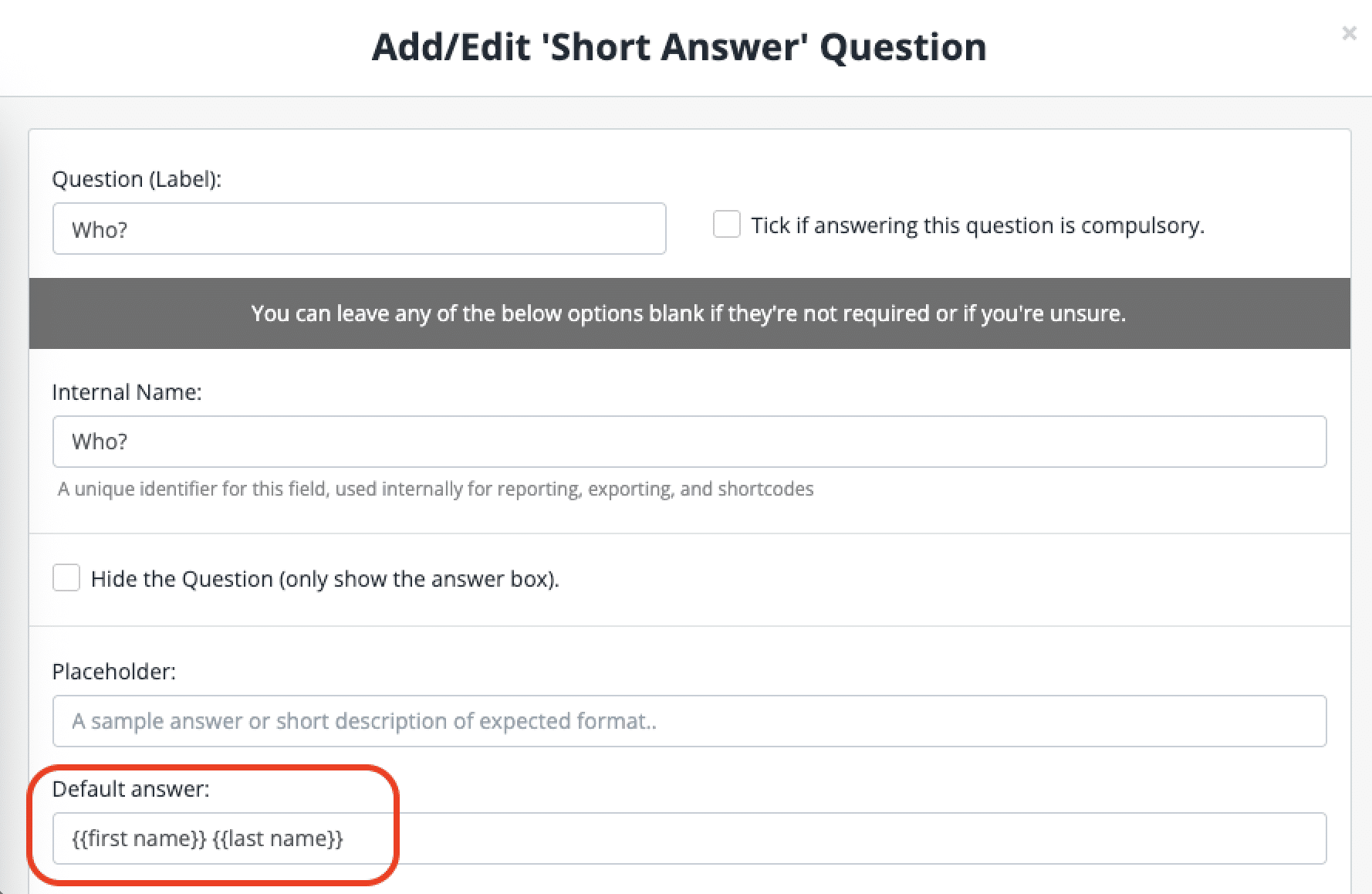
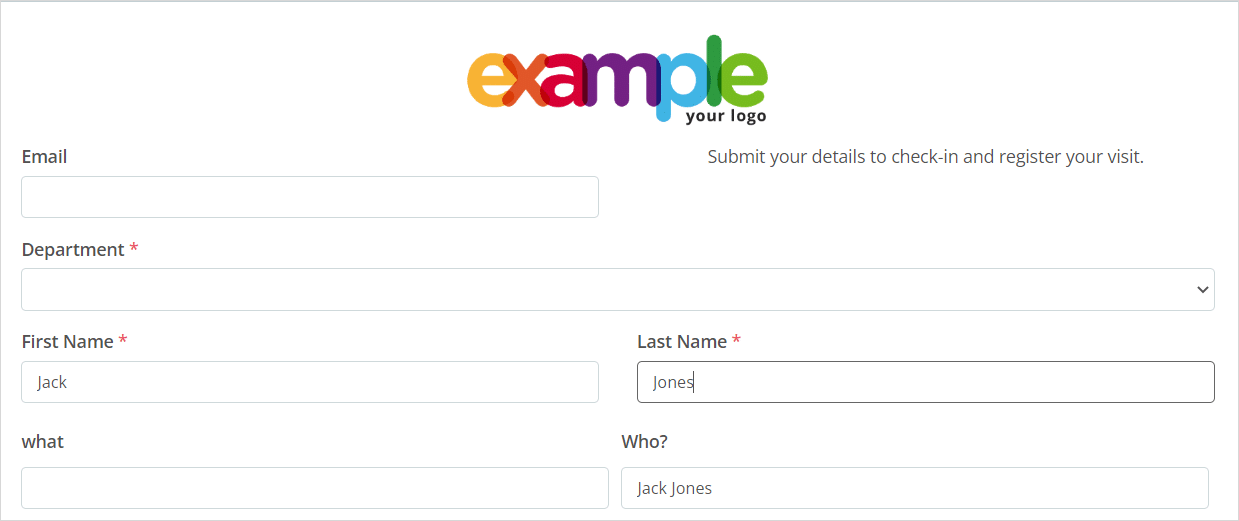
When a default value is set, this field will automatically populate with the same response value that is entered in the field(s) represented by the short-code.
Where can I find the short-codes for my form fields?
There are a few different ways to view your field short-codes:
- Add a Formatted Field to your form > Insert form answers
- Go to Form Settings > Notifications > Enable ‘Email Notifications’ > Insert form answers
- Go to Form Settings > Notifications > Enable ‘Send users an automatic response when they submit the form’ > Insert form answers
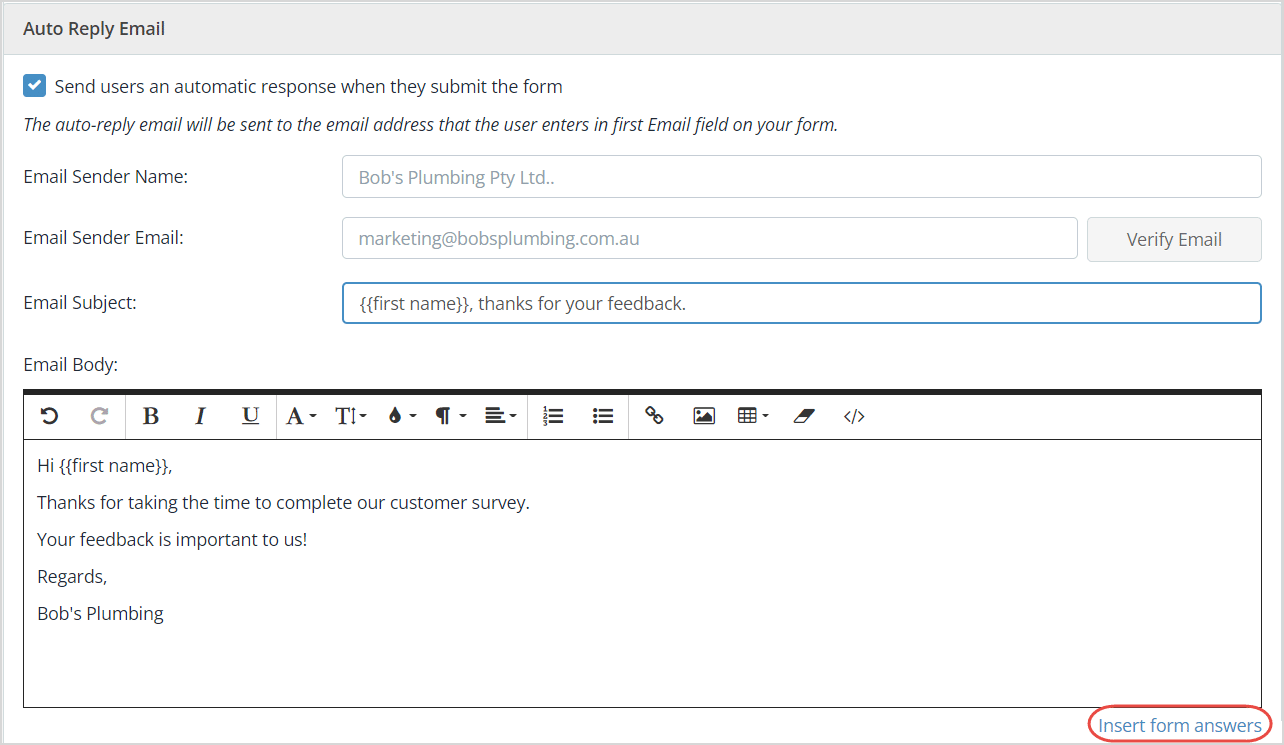
Next, click the Copy button next to the short-code and paste it into your email/SMS notifications, confirmation pages, or use them as default values in form fields.
Tip: Short-codes must be in lowercase and must match the question field names in your form.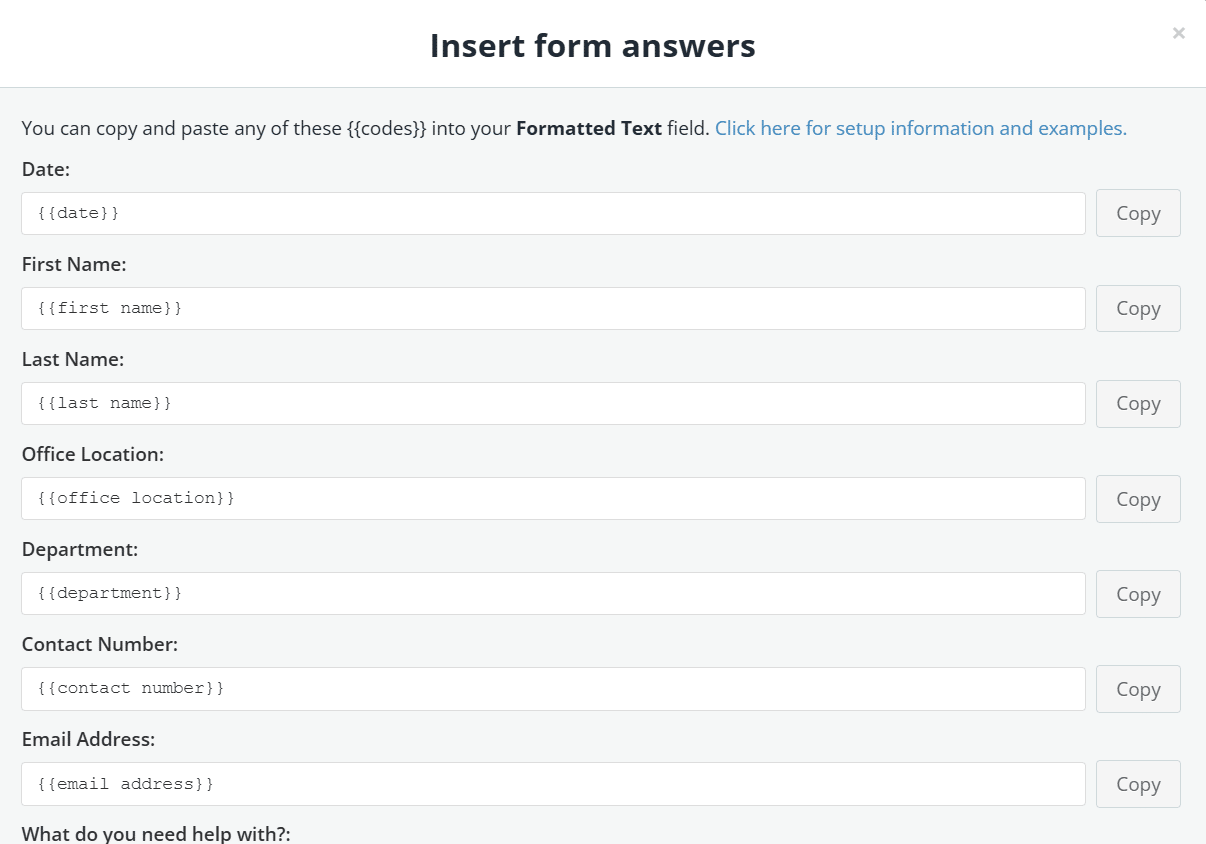
Special codes
There are also a range of special codes that you can use to insert database information that is not entered by a form user.
| Special code | Used to insert… |
| {{_autodatetime}} | Current date and time stamp |
| {{_allfields}} | All fields table |
| {{_responseid}} | Form response ID |
Why are my short-codes not working?
We recommend that you copy/paste short-codes directly from your list of form answers to ensure they work correctly.
Tip: Short-codes should always be in lowercase and must match the question field names in your form.
Example:
Question name = First Name
Correct short-code = {{first name}} not {{First Name}}