Using signature images in your Power Automate flows
When signatures are received in your form submissions they are saved as image files.
When you use the value from your signature field in a Power Automate action, it will output a secure image URL that requires a Snapforms login to view it.
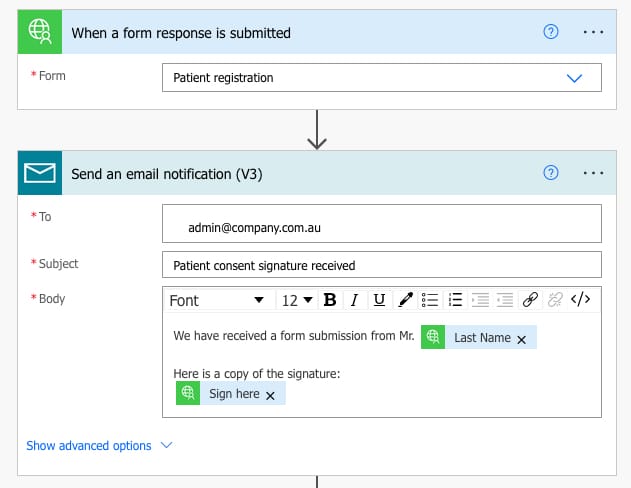
If you’d like to save or attach the image file itself, so that it does not require a login to view, you can use the ‘Retrieve File URL for Download’ action to get a temporary download URL and have Power Automate download it using the HTTP action.
Please follow the steps below to see how this can be done.
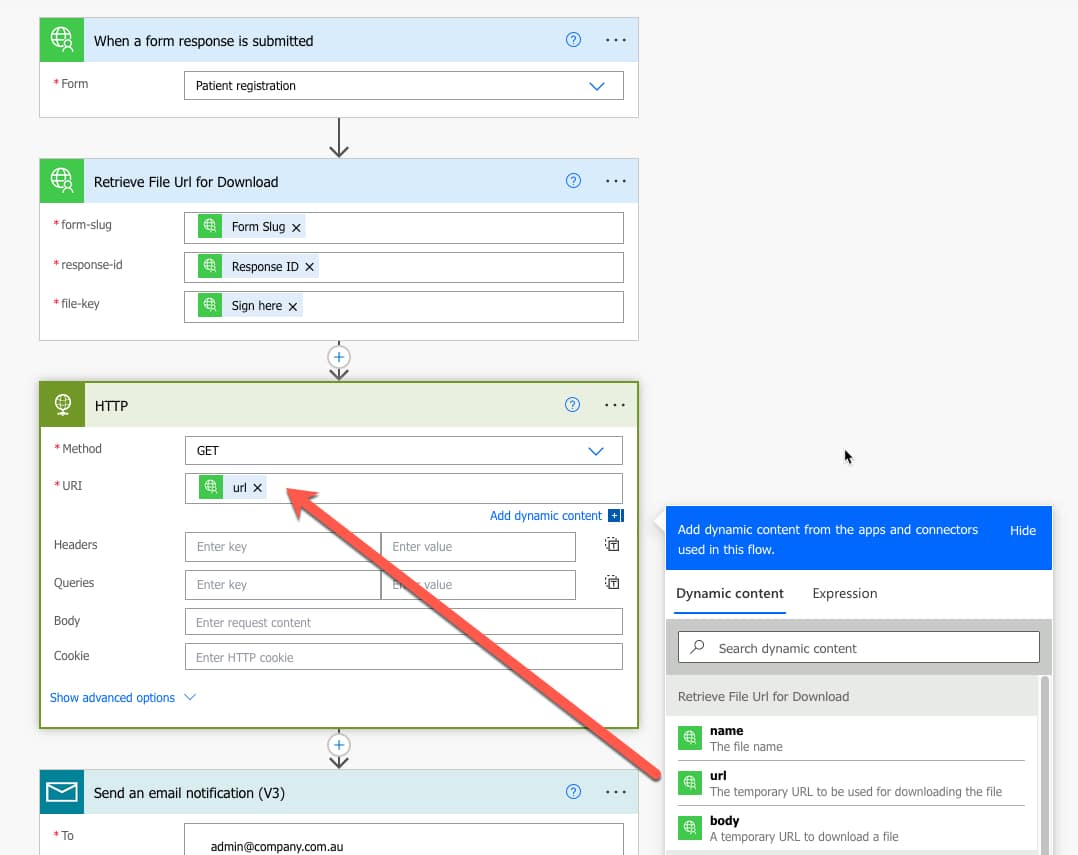
Add an action and search for Snapforms or click the ‘Custom’ tab and select the ‘Retrieve File URL for Download’ action.
Following the below example, populate the form-slug, response-id, and file-key settings for the action using the Dynamic content available to choose from.
Use the Signature field name in the file-key setting.

Now that you’ve already added an action to get the download URL for the signature image from Snapforms, it’s time to add another action to download the file.
Add another action, then search for and select ‘HTTP’.
In the settings for the HTTP action, select ‘GET’ as the method and then select the File URL as the URL to download.
Now that you’ve added an action to download the file from Snapforms, it’s time to add another action to send the file to your required system.
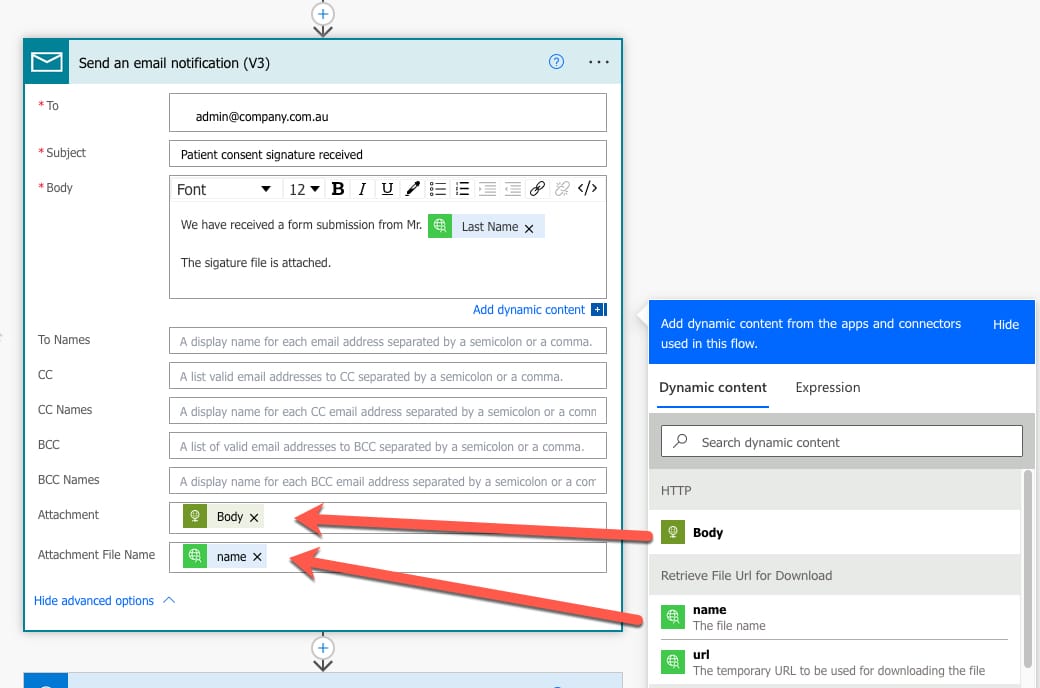
In this example we’re using an Email.
Choose the ‘Body’ from the HTTP action to attach the file.