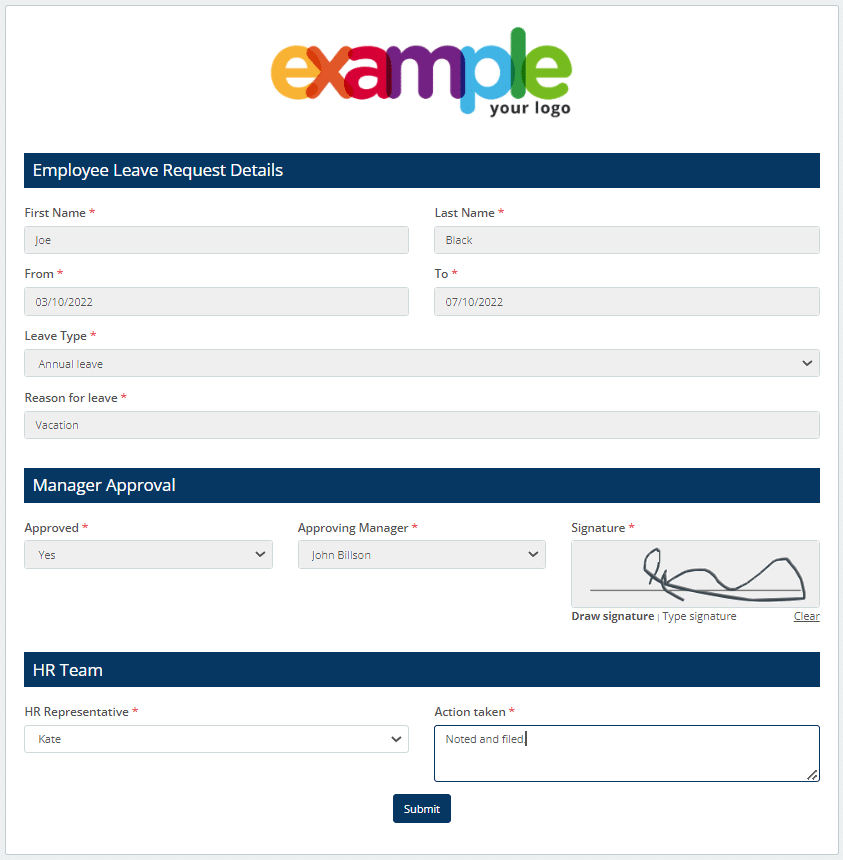
Workflow Example: Employee Leave Request
Using Snapforms’ workflow feature, you can streamline your organisation’s leave management by creating a digital workflow that allows multiple participants to review and approve information on a single form.
For example, your organisation may have an employee leave request process similar to this:

In our Workflows article, we show you how to transform the above process into an efficient, digital workflow that looks like this:
1. Employee completes the form online
By publishing the form URL on a company intranet or similar, employees can easily access the Leave Request form whenever they need it.
In the initial workflow step, only the Employee Information section is displayed on the form. Form users can view and edit this part of the form (as configured in the Workflow setup).
The employee completes the required fields and submits the request for approval.

2. Manager notified via email and approves request
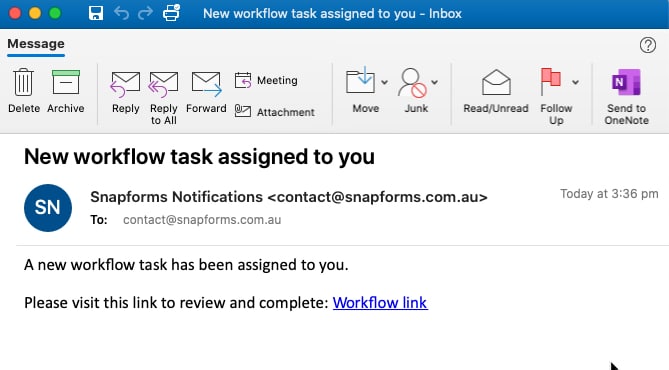
When a completed form is submitted, step two of this workflow automatically sends an email notification to participants who are responsible for approving the leave request.
The email contains a workflow link that takes them directly to the online form. Workflow participants are not required to be logged into Snapforms.
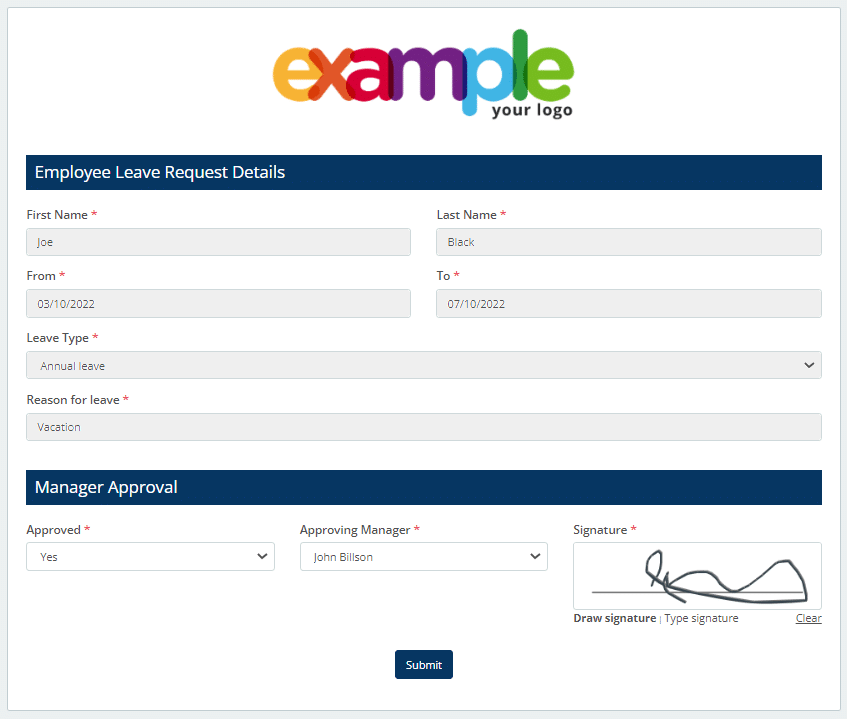
In this workflow step, the Employee Request fields (view only) and the Manager fields (view/edit) are displayed on the form (as configured in the Workflow setup).
The approving manager completes the required fields and submits the form to HR.
Tip: If a workflow participant is unavailable, an Administrator can access and complete the workflow step on their behalf. To learn more, see Managing workflows as an Administrator.
3. HR representatives notified via email and action request
When a request is approved, step three of this workflow sends an email notification to participants who are responsible for HR notes.
Note: This workflow step is executed based on conditional logic, instead of sequential order (as configured in the Logic Rules tab in the Workflow setup).
In this workflow step, the Employee Request fields (view only), the Manager Response fields (view only), and the HR Notes section (view/edit) are displayed on the form (as configured in the Workflow setup).
The HR representative completes the HR section and submits the form, which completes the workflow.