
Automatically copy files uploaded to your form responses to OneDrive
In this example we want to create a copy of any files uploaded in your form responses to OneDrive.
You can follow a similar path to copy your files to Sharepoint or any other system supported by Power Automate.
This example assumes you have already completed:
- The entire ‘How to connect Snapforms to Power Automate’ section of the Power Automate setup guide.
- Steps 1-7 in the ‘How to use Snapforms in your flows’ section Power Automate setup guide.
Please complete those before proceeding.
The trigger ‘When a form response is submitted’ will start the flow when ever a form response is received on your form.
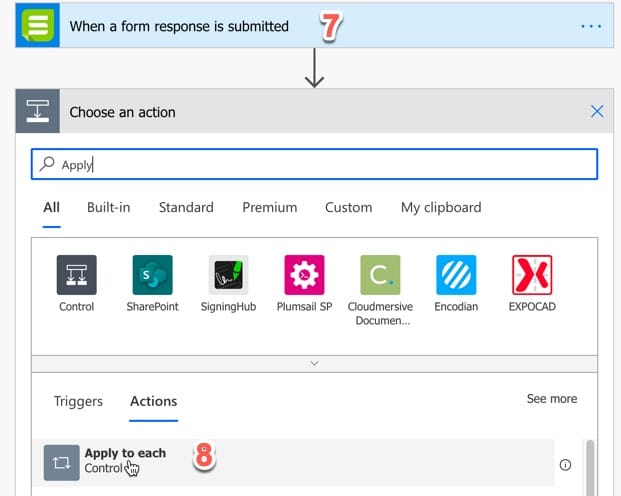
8. Since the file upload fields can contain one or multiple files, the first thing we need to do is add an ‘Apply to each’ control action to our flow.
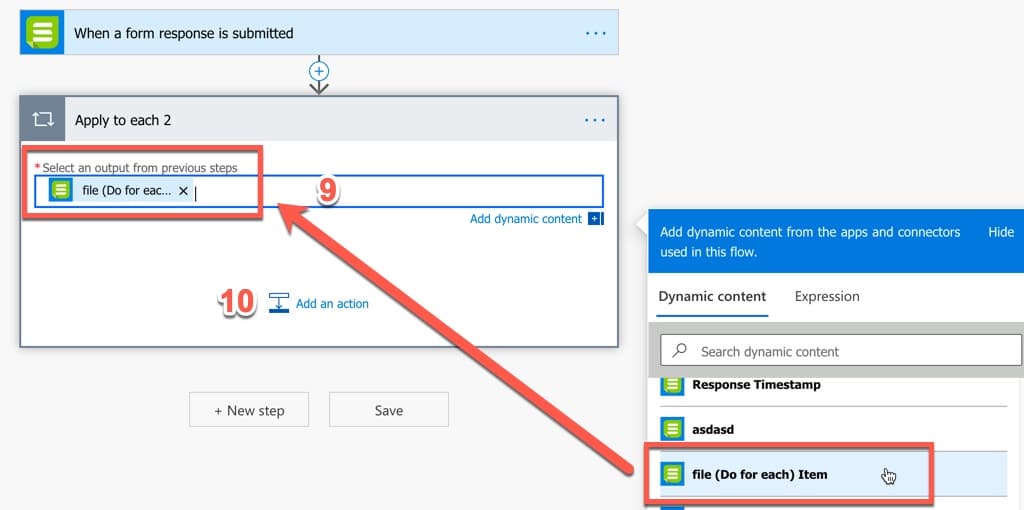
9. Select your file upload field as the output to be used in the ‘Apply to each’ control. Ensure you select the ‘Do for each’ version of the file field.
10. Then click to add an action within the ‘Apply to each’ control.
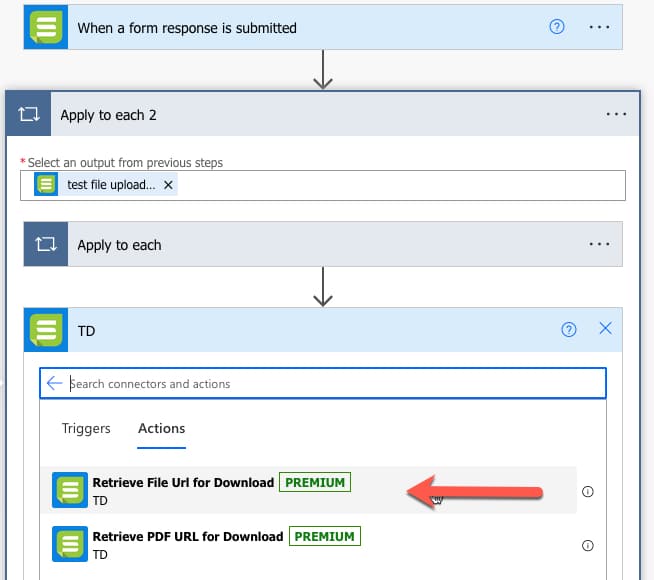
11. Search for Snapforms or click the ‘Custom’ tab and select the ‘Retrieve File URL for Download’ action.
12. Following the below example, populate the form-slug, response-id, and file-key settings for the action using the Dynamic content available to choose from.
13. Then click ‘Add an action’ again to add the next action.

Now that you’ve already added an action to get the download URL for the file from Snapforms, it’s time to add another action to download the file.
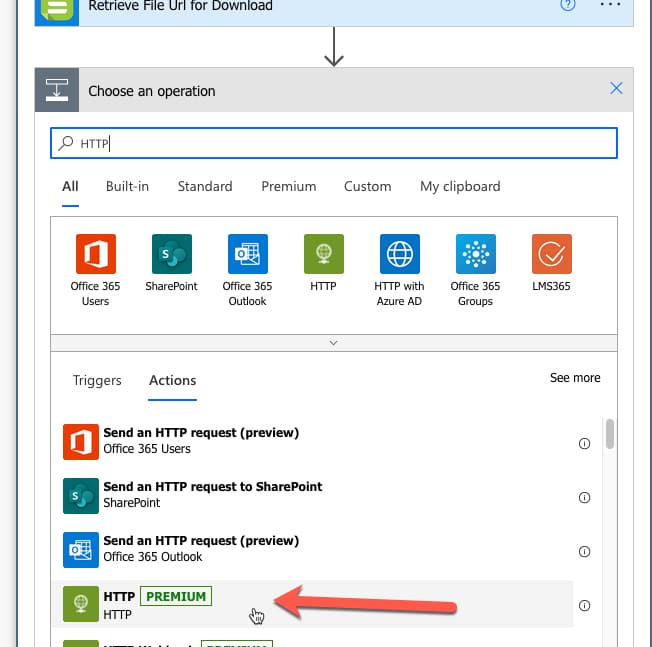
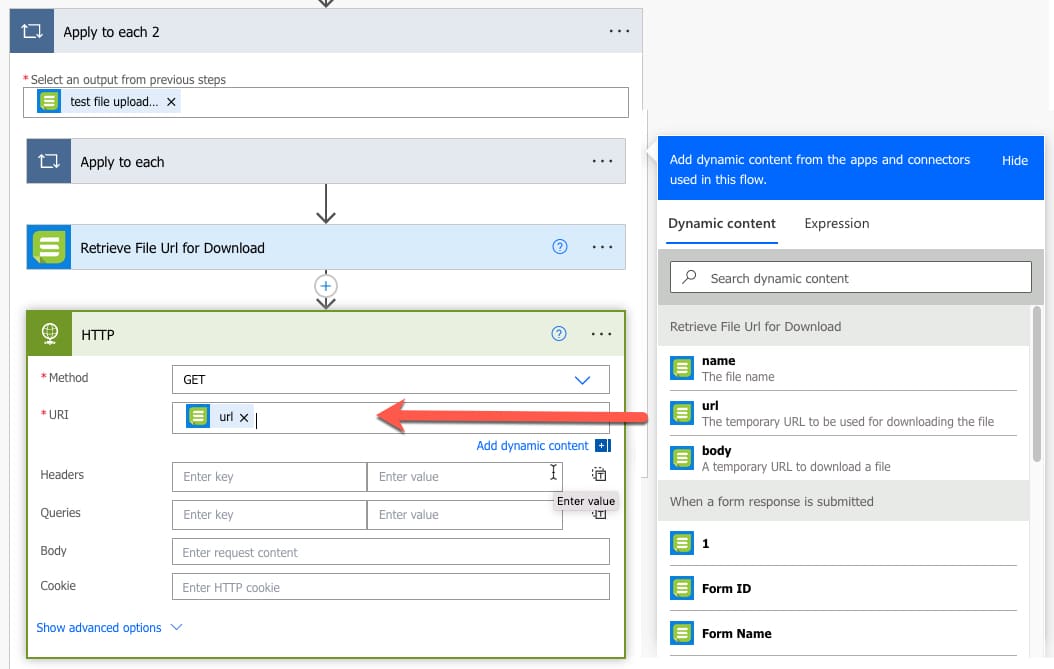
14. Add another action, then search for and select ‘HTTP’.
15. In the settings for the HTTP action, select ‘GET’ as the method and then select the File URL as the URL to download.
Now that you’ve already added an action to download the file from Snapforms, it’s time to add another action to send the file to your required system.
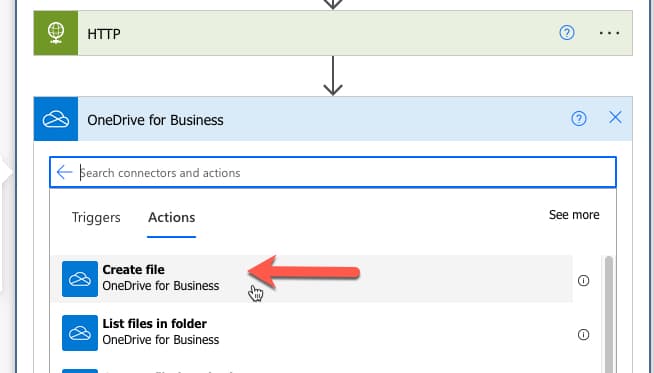
In this example we’re using OneDrive.
16. Find and select the ‘Create file’ action by searching OneDrive in the actions list.
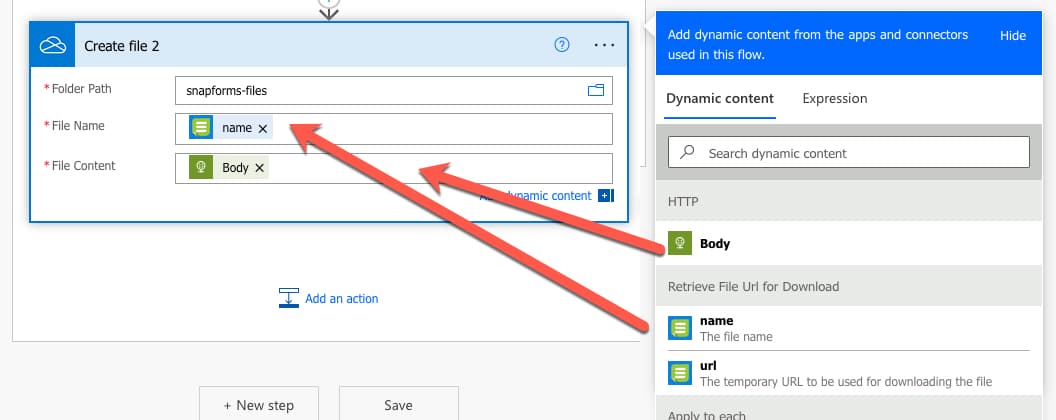
Populate your settings for the Create file OneDrive action.
17. Your folder path can be anything you like. In this example we have used ‘snapforms-files’ and then another sub-folder with the name of the form.
18. Your File Name can be anything you like. In this example we have used the original file name of the uploaded file.
19. Select ‘body’ in the File Content. This takes the file downloaded in the Download File action.
Each time your form is submitted, you should now find the files automatically added to your OneDrive.