
Automatically send a copy of form responses to a Sharepoint list
Automatically send a copy of form responses to a Sharepoint list with Power Automate
In this example we want to populate each of the answers to our form fields in to their relevant column in a Sharepoint list.
This example assumes you have already completed:
- The entire ‘How to connect Snapforms to Power Automate’ section of the Power Automate setup guide.
- Steps 1-7 in the ‘How to use Snapforms in your flows’ section Power Automate setup guide.
Please complete those before proceeding.
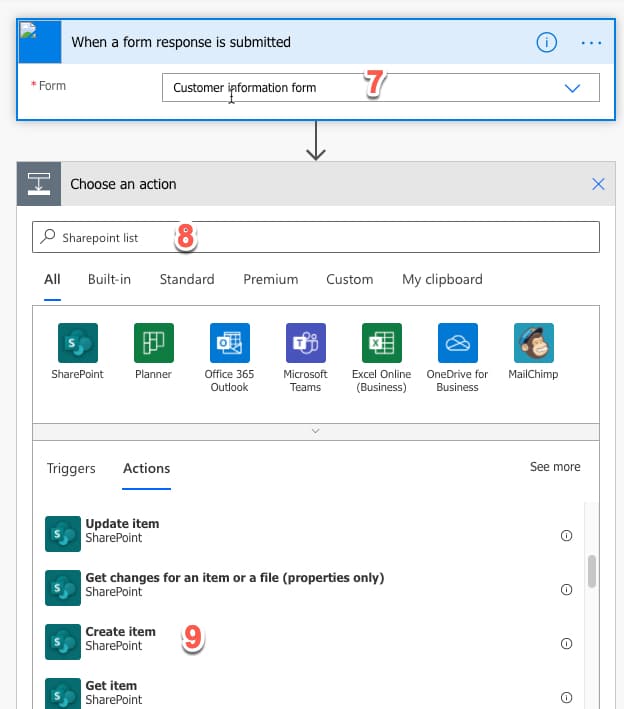
8. Since we want to add the form responses to a Sharepoint list, we need to find the relevant action. Search for ‘Sharepoint list’.
9. Click the ‘Create item‘ action.
10. Select your relevant Sharepoint site.
11. Select your relevant Sharepoint list.
12. Using the Dynamic Content window, set it to populate the rest of your Sharepoint list fields using answers from your form response.
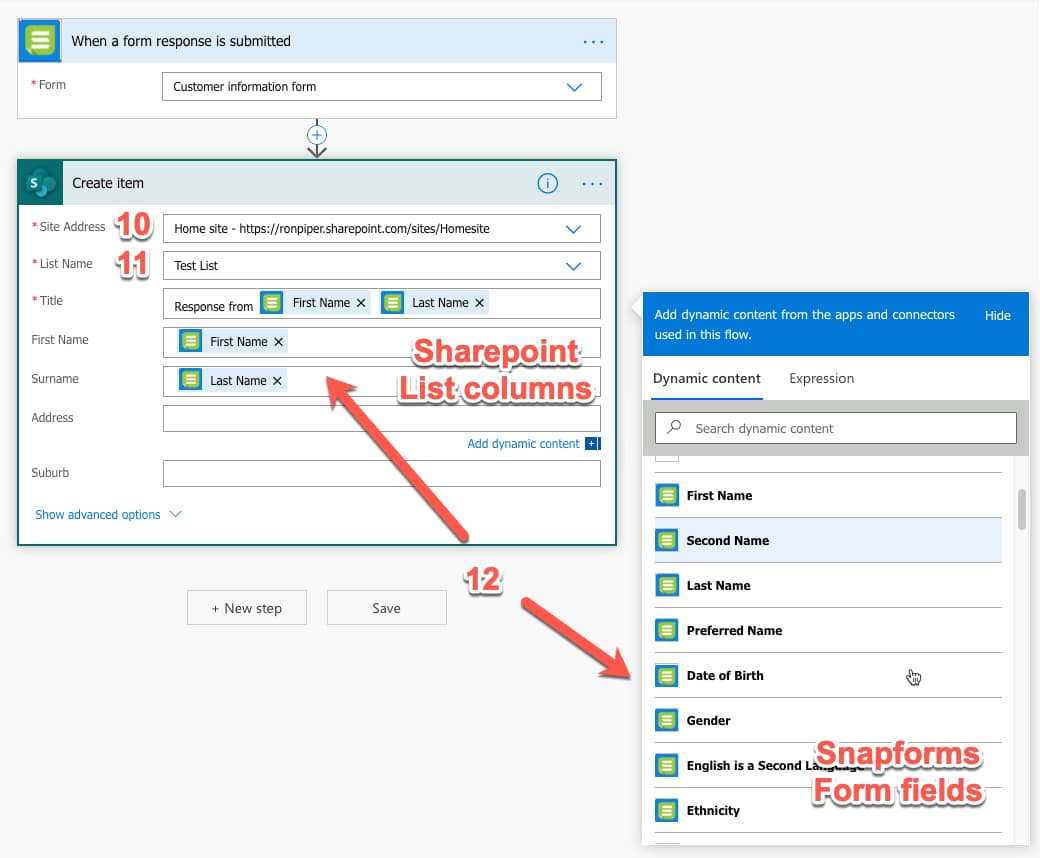
13. Click Save to complete the setup.
Each time your form is submitted, you should now find the data populated automatically in your Sharepoint list.