
Date Select
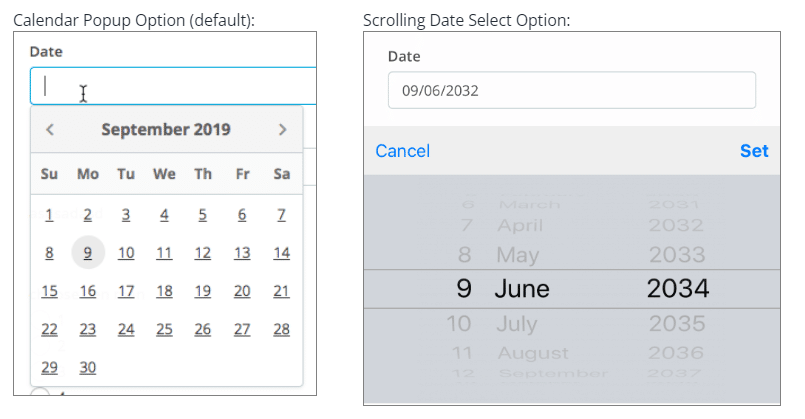
The Date Select field lets form users choose a date through either a calendar pop-up or a scrolling date selector. If you are using the calendar option, you can also enable a time picker in Advanced Options.
Tip: If you’re looking to set up a fully-fledged booking system, use the Booking field.
Basic setup
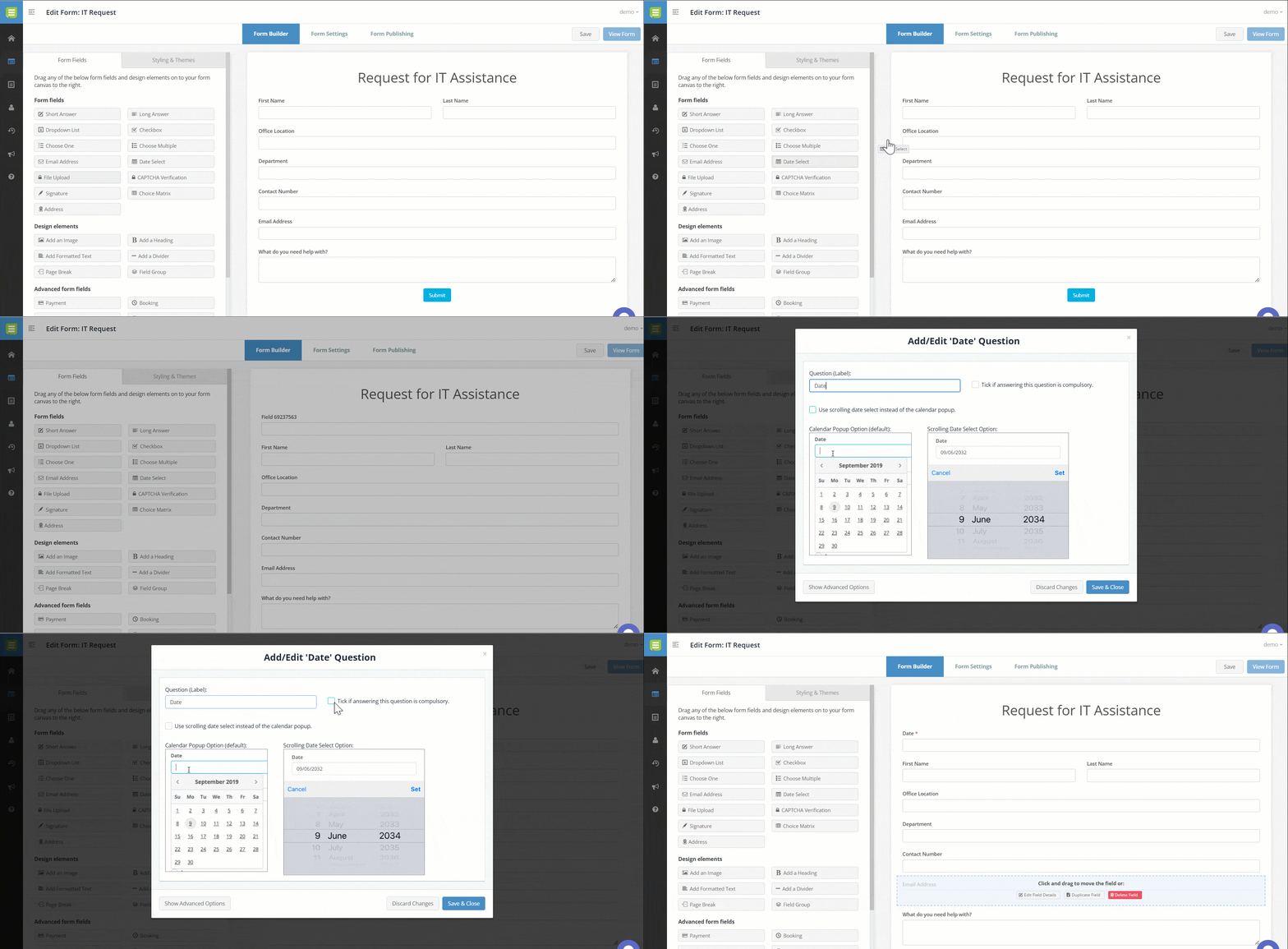
- In the Form Fields panel (left-hand side), click and drag the Date Select field onto your form.
- Enter the question or label.
- (Optional) Tick if answering this question is compulsory.
- (Optional) Use scrolling date select instead of the calendar popup.
- Save & Close.
Show advanced options
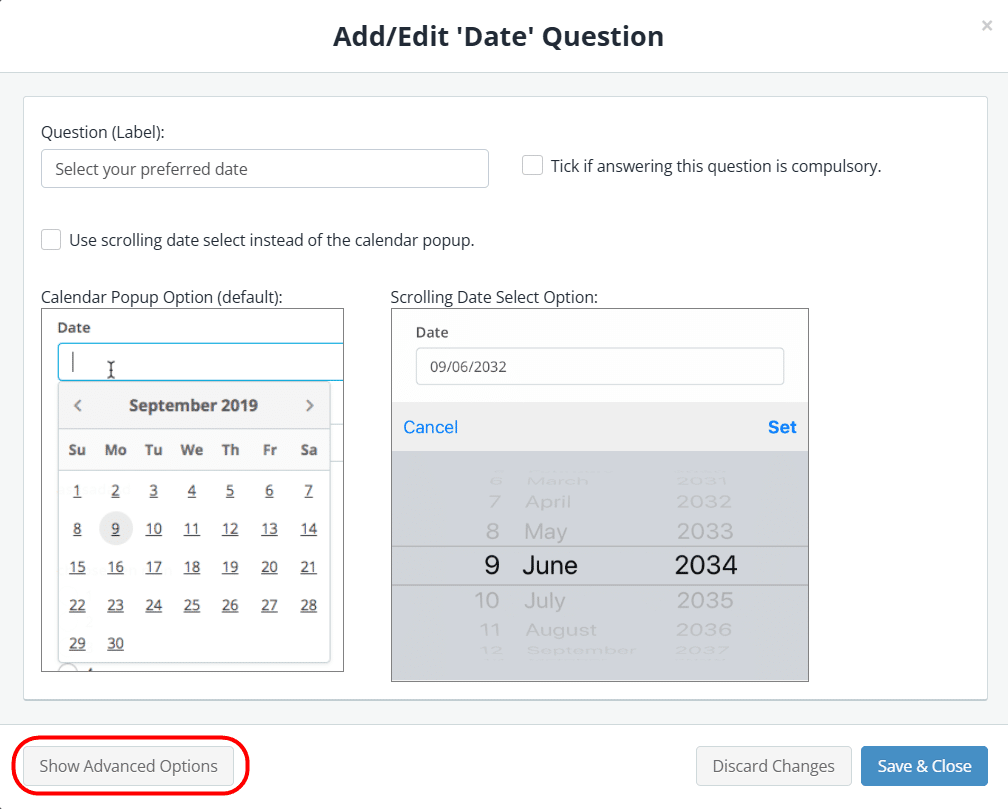
Advanced options provide additional controls and functionality as explained in the table below.
| Option | Description |
| Internal Name |
A unique field identifier used internally for reporting, exporting, and shortcodes.
The internal name is automatically generated, however you can modify it if required. Each internal name must be unique within the form, so duplicates are not allowed.
|
| Hide the question (only show the answer box) | Enable this option if you want to only show the input field (without the question/name). |
| Minimum date allowed / Maximum date allowed | Allows you to reduce the date range to a specific period. |
| Disable certain days: Mon, Tues, Wed, Thur, Fri, Sat, Sun | Allows you to lock certain days on the calendar to prevent selection. |
| Pre-enter a default date | Allows you to pre-fill the date field with a specific date. |
| Pre-fill with today’s date | Select this option to pre-fill the date field with the current date. |
| Add a placeholder in the answer box | Provide an example of a response or required format to guide form users. The placeholder text will disappear when a date is selected. |
| Further instructions | Display some informative text just below the field. |
| Disable all past dates | Prevent form users from selecting dates in the past. |
| Disable all future dates | Prevents form users from selecting dates in the future, e.g. date of birth. |
| Enable time picker
Hour increment Minute increment
Min & Max time |
Allow form users to select a date and time (only available on the calendar date selector).
Set the increment of hours a form user can select throughout the day. Default setting: 1 Set the increment of minutes a form user can select throughout the day. Default setting: 1 (all) Or change to 15 = 15mins, 30 = 30mins If you’re using the date and time field for simple bookings/appointments, you may wish to limit the number of form submissions per date/time slot.
|
| Disable typing – Only allow user to select a date from the calendar | Only allow form users to select dates from the calendar to ensure consistency in the date format. |
| Read-only – don’t allow entry into this field | Lock a field to prevent form users from modifying a pre-defined field value.
For example, you may have a default answer such as ‘today’s date’ or ‘customer ID’ that is pre-filled on the form and you don’t want form users to change it. |
| Hidden – don’t show this field on the online form | Hide a field to prevent form users from modifying a pre-defined field value.
For example, you may have a default answer such as ‘today’s date’ or ‘customer ID’ that is pre-filled on the form and you don’t want form users to see it. |
| Show /hide this field with conditional logic | Hide this field until certain conditions/responses in other fields are met.
To learn more, see Show/hide fields based on conditions. |