
Automatically add a PDF copy of a form response to Dropbox with Make
In this example we want to add a PDF copy of a form response to Dropbox.
You can follow a similar path to add a PDF copy to any other system supported by Make.
This example assumes you have already completed:
- The entire ‘How to connect Snapforms to Make’ section of the Make setup guide.
- Steps 1-12 in the ‘How to use Snapforms in your scenarios’ section Make setup guide
Please complete those before proceeding.
The trigger ‘New Response Event’ will start the scenario when ever a form response is received on your form.
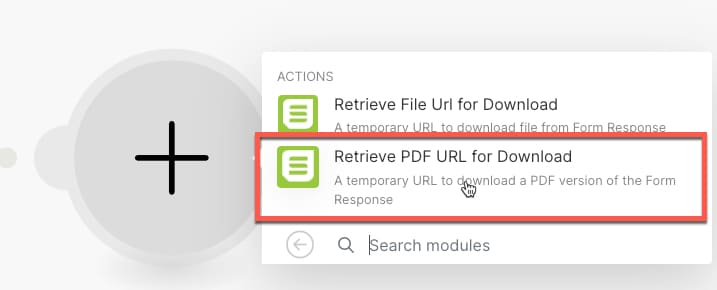
13. To get started add a module to your flow, search for Snapforms and select the ‘Retrieve PDF URL for Download’ action.
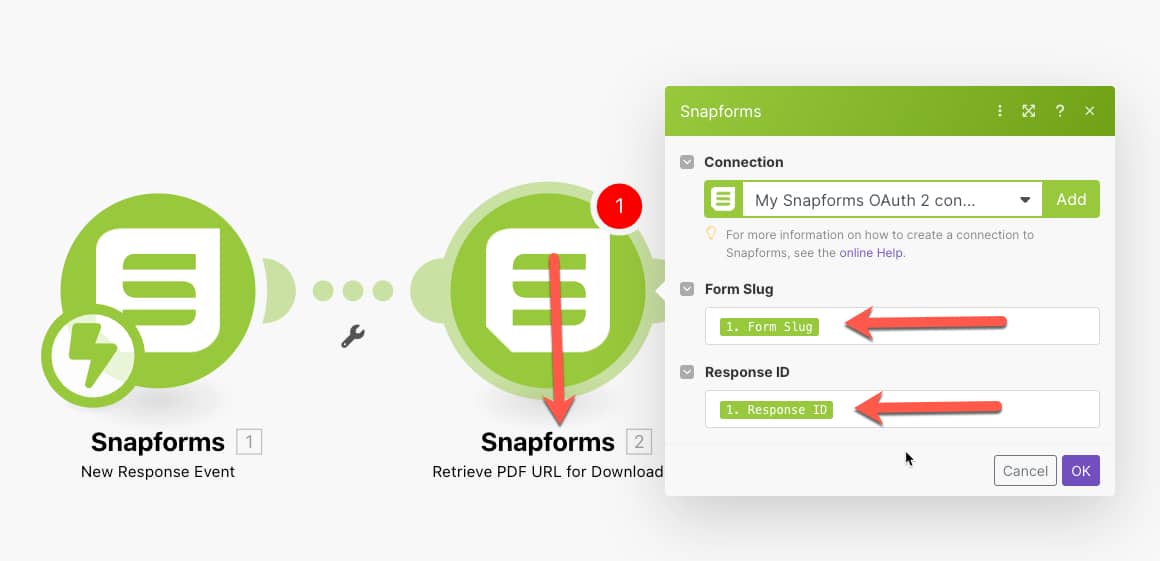
14. Select the Form Slug and Response ID settings as shown in the below screenshot, then click OK.
Now that you’ve already added an action to get the download URL for the PDF file from Snapforms, it’s time to add another action to download the PDF file.
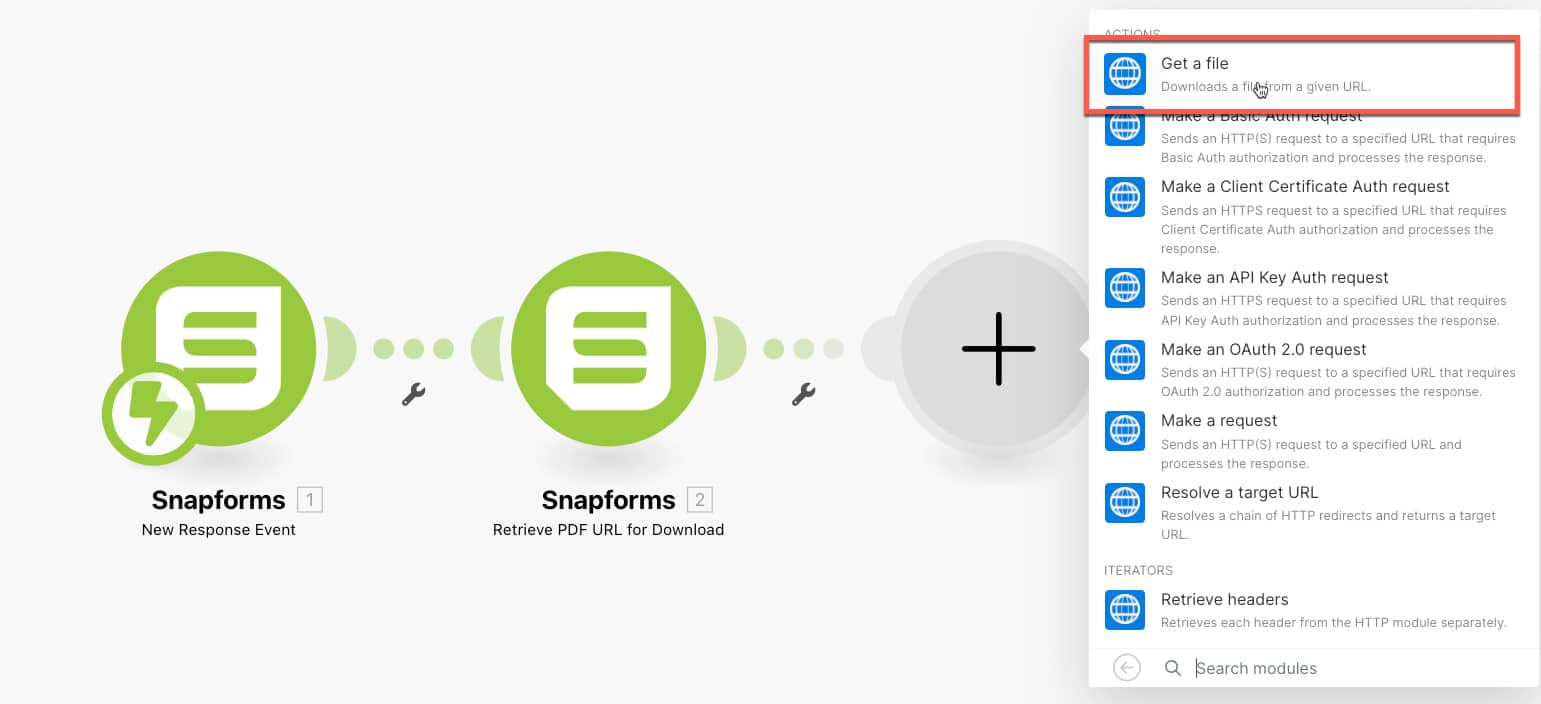
15. Add another module, then search for and select ‘HTTP’, then select the ‘Get a file’ action.
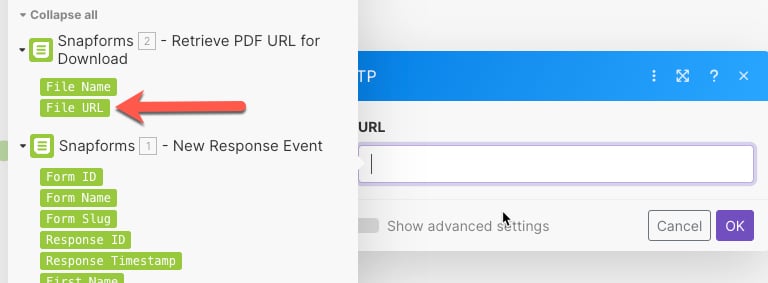
16. In the settings for the ‘Get a file’ action, select the PDF File URL as the URL to download.
Now that you’ve added an action to download the PDF file from Snapforms, it’s time to add another action to send the PDF file to your required system.
In this example we’re using Dropbox.
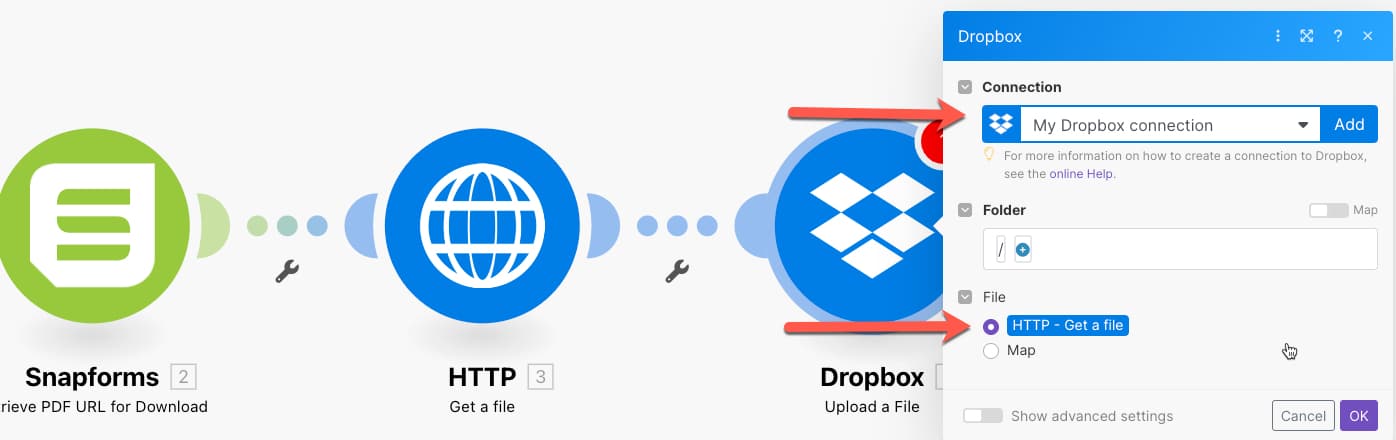
17. Add another module, then find and select the ‘Upload file’ action by searching Dropbox in the actions list. Choose or create a Dropbox connection, then populate your settings for the ‘Upload file’ Dropbox action.
17.1. You may select any folder you like. In this example we have used the root folder ‘/’.
17.2. Select ‘HTTP – Get a file’ in the File Content. This takes the file downloaded in the HTTP action we added earlier.
Save the scenario. Each time your form is submitted, you should now find the PDF copy automatically added to your Dropbox.