Save and complete later
Snapforms’ Save & Complete Later feature allows respondents to pause their progress and return to finish the form whenever it’s convenient.
This is especially helpful for longer or more detailed forms that require extra time or information to complete. By giving respondents the flexibility to save their work and come back later, you can reduce abandonment rates and encourage more complete, higher-quality submissions.
Enabling Save and Complete Later
To enable the Save and Complete Later feature on your form:
- Open your form in Edit mode.
- Select Form Settings in tabbed menu at the top.
- Select Usability in the tabbed menu on the left side.
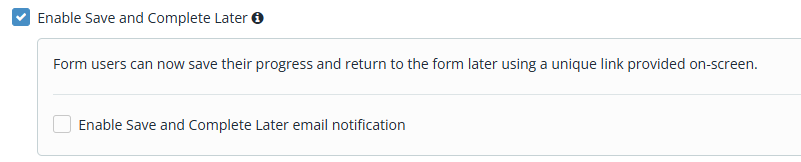
- Tick the Enable Save and Complete Later checkbox.

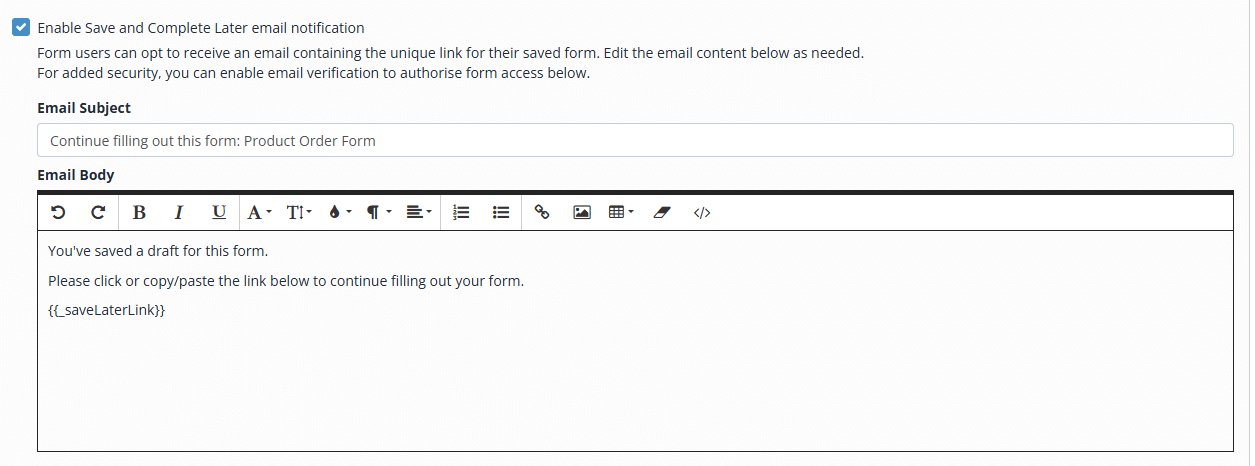
- (Optional) If you want to allow form links to be sent via email, tick the Enable Save and Complete Later email notification checkbox.

- (Optional) Customise the email template to suit your requirements.
- (Optional) To add an extra layer of security for saved forms, select the Enable one-time code email verification to access saved forms. Form users will need to enter a code sent to their email before they can resume the form.

- Save changes to your form.

Saving an incomplete form
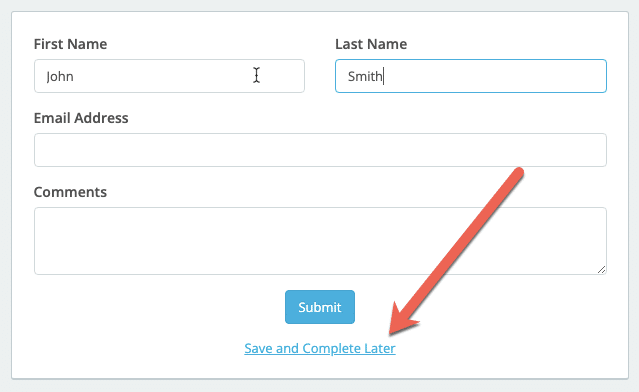
To save a partially completed form, click the Save & Complete Later option at the bottom of the page.
A unique form link is generated, allowing you to return and complete the form at any time. You can copy the link and save it in your browser’s bookmarks.
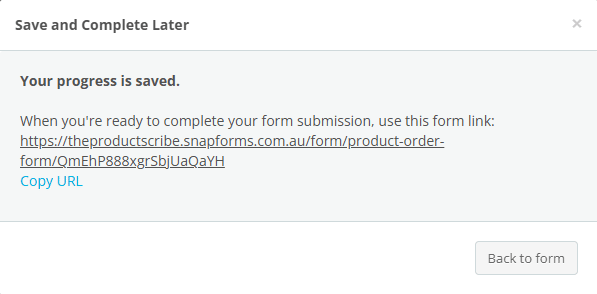
If email notifications are enabled, you can send the link to yourself or to another respondent when prefilling the form on their behalf.
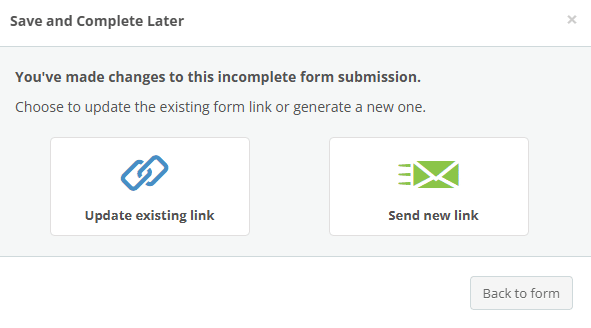
Incomplete forms can be saved multiple times, with the option to either update the existing form link or generating a new one.
Returning to an incomplete form
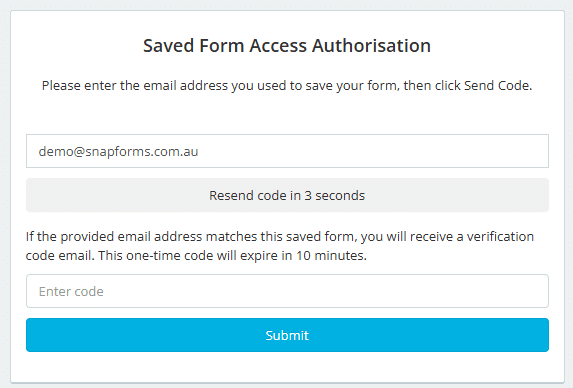
When you’re ready to complete your form submission, use the form link you previously saved in your browser, or sent to your email. If you can’t find the form link, you will need to contact the form owner.
To access protected form submissions:
- Enter the email address that you used at the time of saving.
- Click Send Code. A one-time email verification code will be sent to this email address.
- Enter the verification code.
- Click Submit.

Viewing all incomplete form responses
Admin users and permitted sub-users can view incomplete responses in a separate list that provides a summary of the responses and a link to view the responses on the actual form.
To learn more, see Viewing Incomplete Form Responses.
Pre-populating fields on a form
The Save & Complete Later feature can also be used to pre-fill fields—such as a customer’s name—and generate a unique form link for each respondent. This allows you to send personalised forms that are already partially filled out.
Note: The form settings must have both Save and Complete email notification and one-time code email verification enabled.
To send a prefilled form to a respondent:
- Open the form in View mode or use the form link.
- Prefill the required fields on the form.
- Click Save and Complete Later.
- Enter the respondent’s email address and click Send.
- Click Back to form and update the required fields for the next respondent.
- Click Save and Complete Later.
- Select Send new link.

- Enter the respondent’s email address and click Send.
- Repeat steps 5 to 8 for each new respondent.