
Dropbox Integration Setup
The Snapforms Dropbox integration allows you to automate the transfer of form response PDF files and associated file uploads to your Dropbox account.
This is a direct integration between Snapforms and Dropbox and is an alternative to the more flexible approach of using our Microsoft Power Automate connector.
How does the Dropbox integration work?
- Once a respondent submits a completed form, a PDF version of the form response is automatically generated and sent to Dropbox.
- If you have a File Upload field on your form, you can opt for all uploaded files to be sent to Dropbox as well.
- Options to map to an existing Dropbox folder, or automatically create subfolders using form response information.
How to set up the Dropbox integration
Before you start
This guide assumes you’ve already created your online form using the drag-and-drop form builder.
If you’re new to Snapforms, we recommend you check out our 10-minute getting started video or have a look through our help guides to learn how to set up your form.
Enable and authorise the Dropbox integration
- Open your form in edit mode.
- Navigate to the Form Settings tab > Integrations.
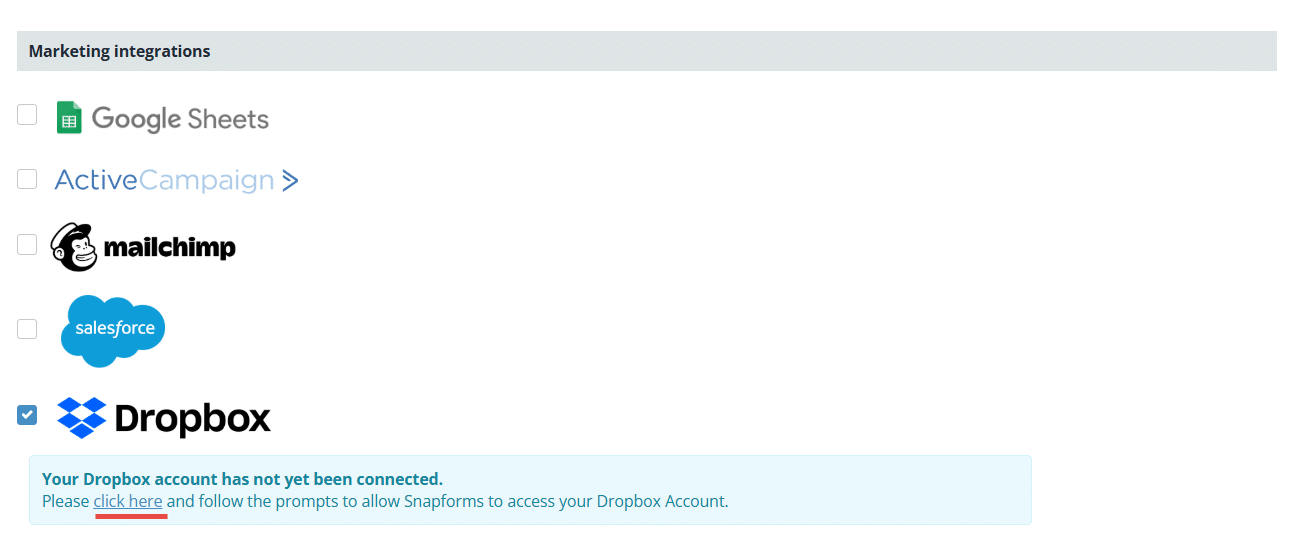
- Select the Dropbox checkbox.
- If this is the first connection, click the click here link to start the authorisation process between Snapforms and Dropbox.

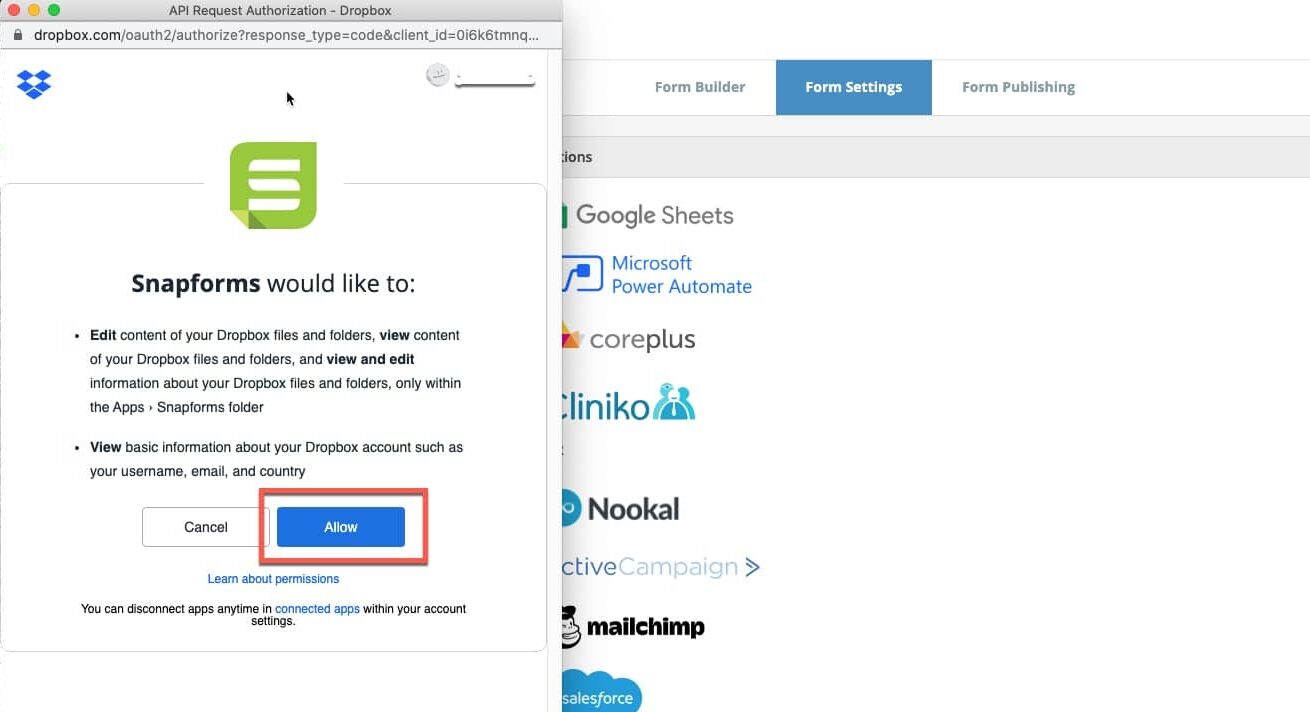
- From the popup that appears, log into your Dropbox account, read the warnings, then click Continue.
- Click Allow to grant access. Wait a few seconds for this action to complete and the popup window to close.

Configure the Dropbox integration settings
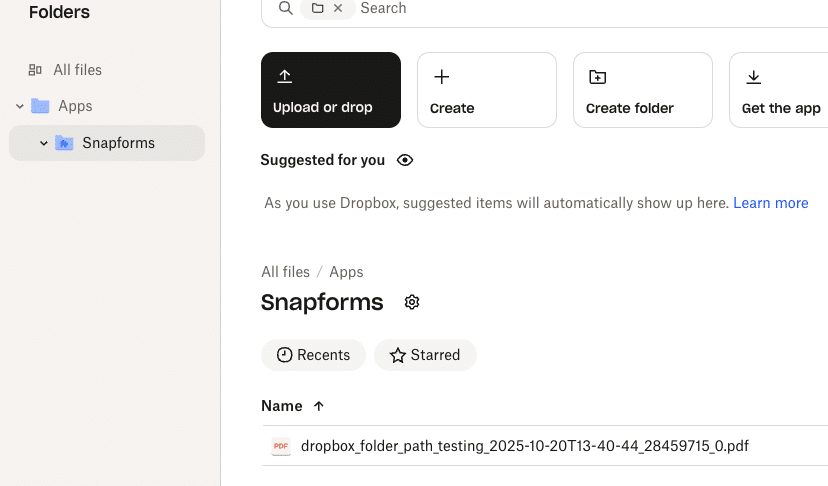
Dropbox allows Snapforms to send files only to the Apps/Snapforms directory in your Dropbox account.
You can create subfolders within this directory by using the Folder Path field in the Dropbox integration settings, as explained in the table below.
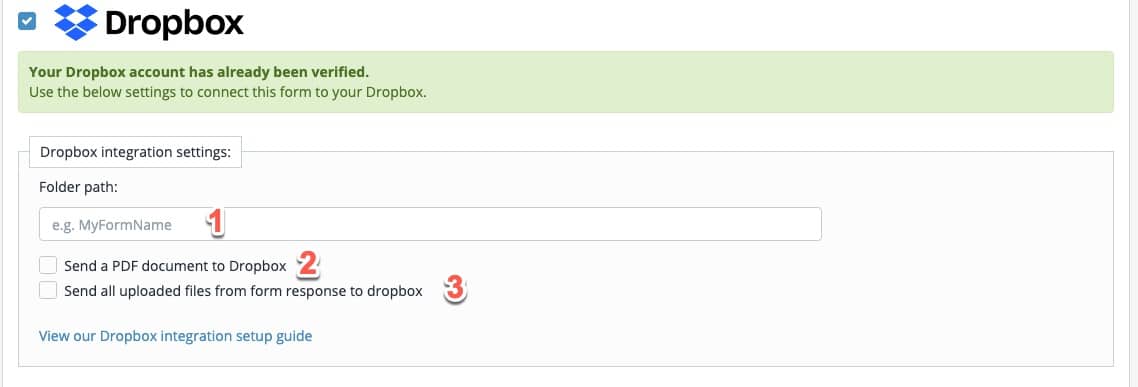
Configure the Dropbox integration settings to suit your requirements:
| Integration Setting | Description |
| Folder Path | Leave this field blank if you want Snapforms to send files to the Snapforms root folder within Dropbox.
To have Snapforms create a new subfolder or sync with an existing folder of the same name under the Snapforms root folder, enter the folder name in this field (e.g. Enrolment Forms). Snapforms will send files to this subfolder in Dropbox.
Tip: You can also use shortcodes to automatically create subfolders within this folder, using information pulled from the form’s responses. See below for steps on how to configure this. |
| Send a PDF document to Dropbox | Tick this checkbox if you want to send a PDF version of the form responses to Dropbox.
The default PDF layout will look exactly like your online form, with the form responses populated in the fields. If you want to customise the default PDF layout, design your own PDF document from scratch, or use a pre-made fillable PDF, click Add/edit PDF templates for this form and follow the instructions in the PDF templates guide. |
| Send all uploaded files from form response to Dropbox | If your form contains a File Upload field, tick this checkbox to send uploaded files associated with form responses to Dropbox. |
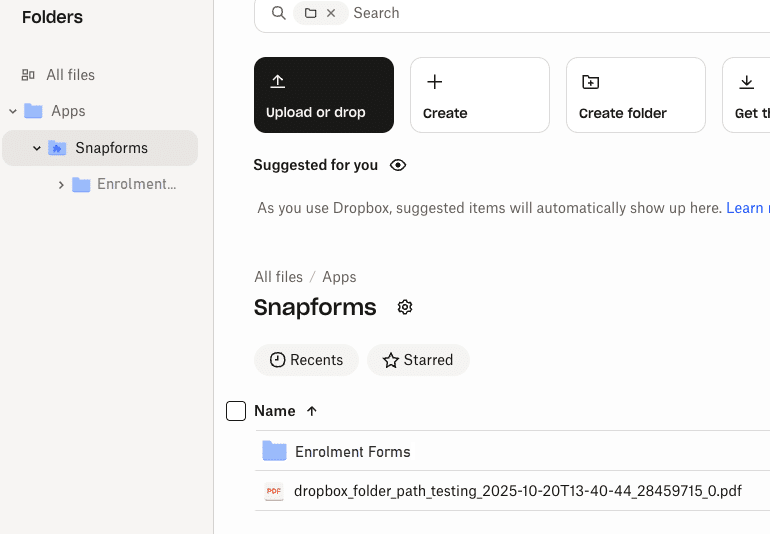

Creating subfolders in Dropbox using a form field shortcode
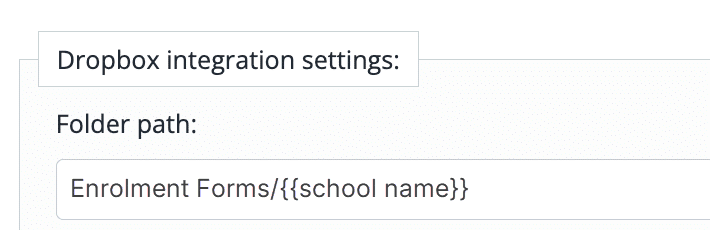
You can automatically create nested folders by using a field shortcode that pulls information from the form’s responses.
For example, our Enrolment form has a Dropdown List field for ‘School Name’.
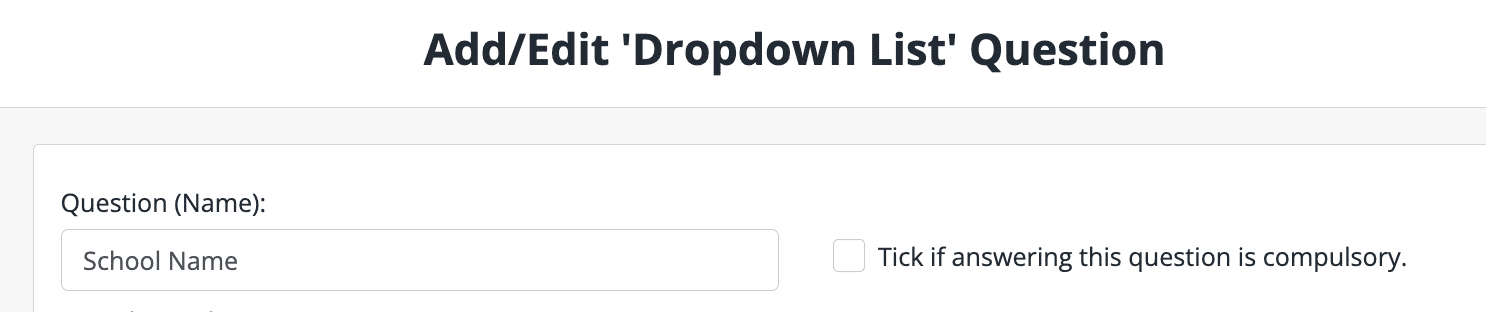
We can use this field’s shortcode in the Dropbox File Path to automatically create a subfolder for each school within the main folder, ‘Enrolment Forms’, when a form is submitted.
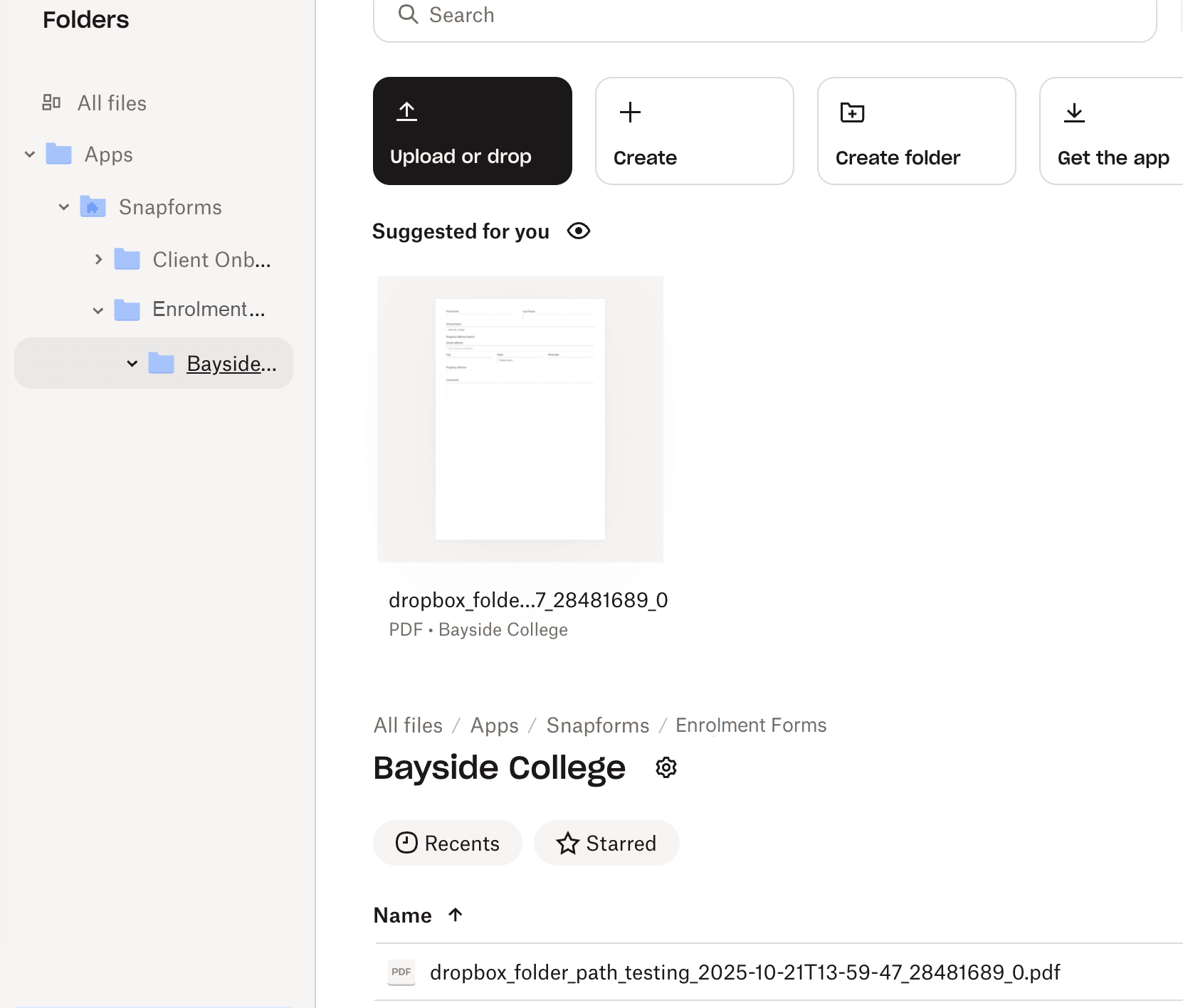
Upon submission, the form responses PDF and associated files will sync into a subfolder for the selected school.
Once you’ve completed the steps above, save your form. Form responses will now sync with Dropbox when they are submitted.
Troubleshooting
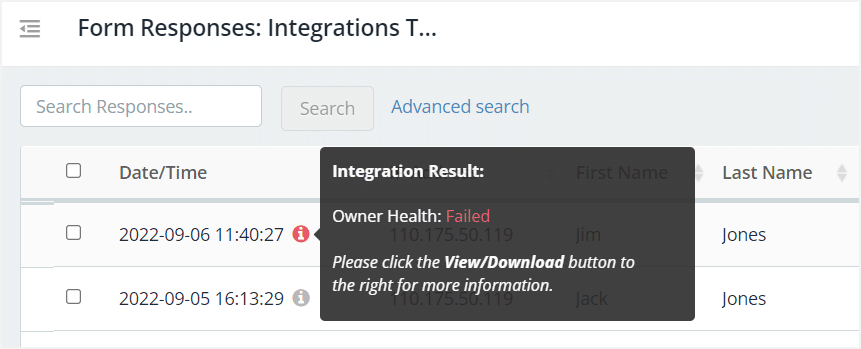
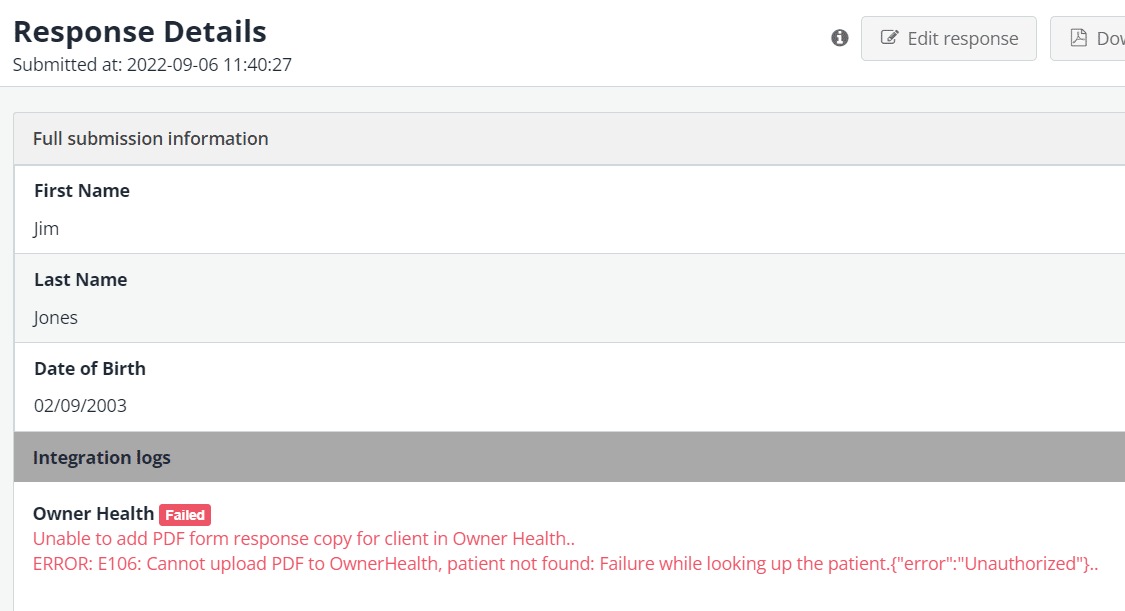
If an integration fails to send form response PDF files and file uploads to your Dropbox account, you can check the integration result and logs within the form’s responses.
- In the Forms List, on the form click Actions > View Responses.
- For more details, click View/Download.

- Scroll to the bottom of the response details to the integration logs.

If you’re unable to resolve any issues, please get in touch with us for assistance.