
Form Response Processing Errors
Every form submission automatically launches your configured workflow, executing the specific actions set up in your form settings. These actions might include sending a confirmation email or SMS to your customers, or syncing response data to your connected external systems.
Types of response actions
Response actions that can be configured in a form’s settings include:
- SMS Notifications/Verifications
- Email Notifications
- Auto-Reply Emails
- Workflow Emails
- Integration Syncing
Response processing errors
Response actions typically fail when data cannot be handed off to your external systems or email servers, or when structural changes are made to your forms and workflows.
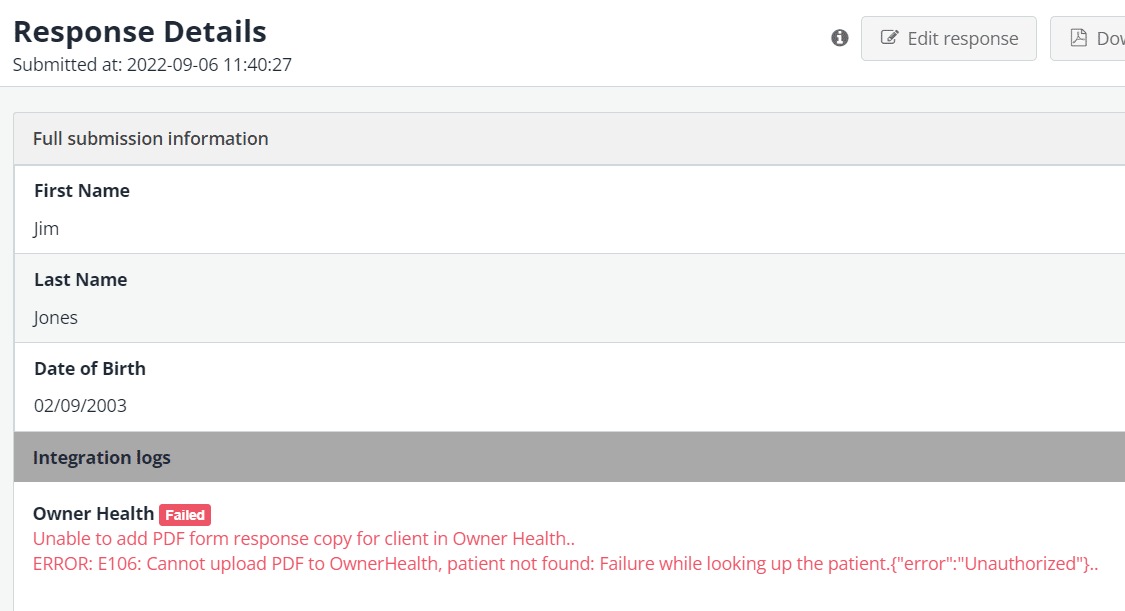
The Response Details page features a log that tracks all actions and errors for that particular record.
View processing errors on an individual response
- Navigate to the Forms List and locate the form.
- Click Actions > View Responses.
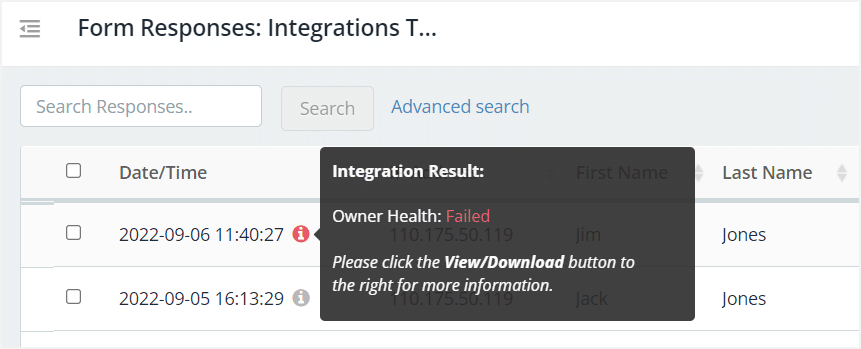
- Mouse over the information icon to see the result.
- To view the processing error details, click the View/Download button on the right hand side.
Use this log to verify successful actions and troubleshoot processing errors:
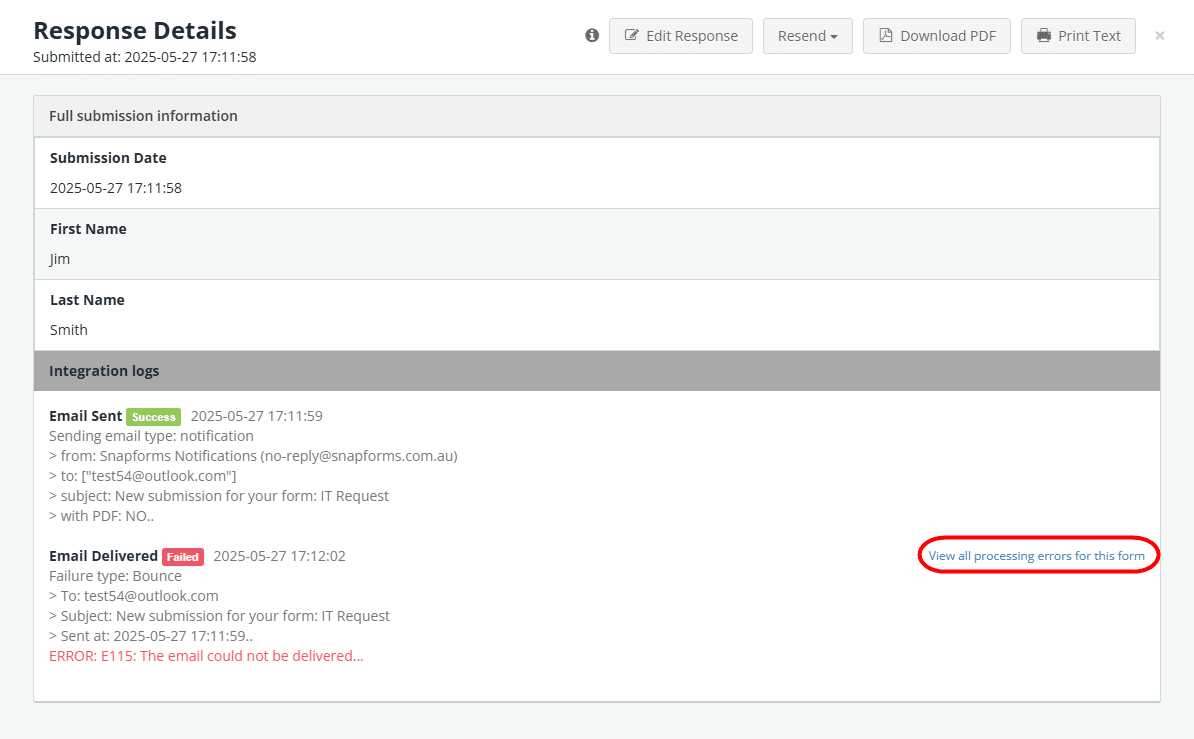
View all responses processing errors for a form
If there are other responses for this form that have processing errors, you can view these by clicking the View all processing errors for this form link.
Note: Sub-users can only view form responses that align with their assigned roles and form permissions.
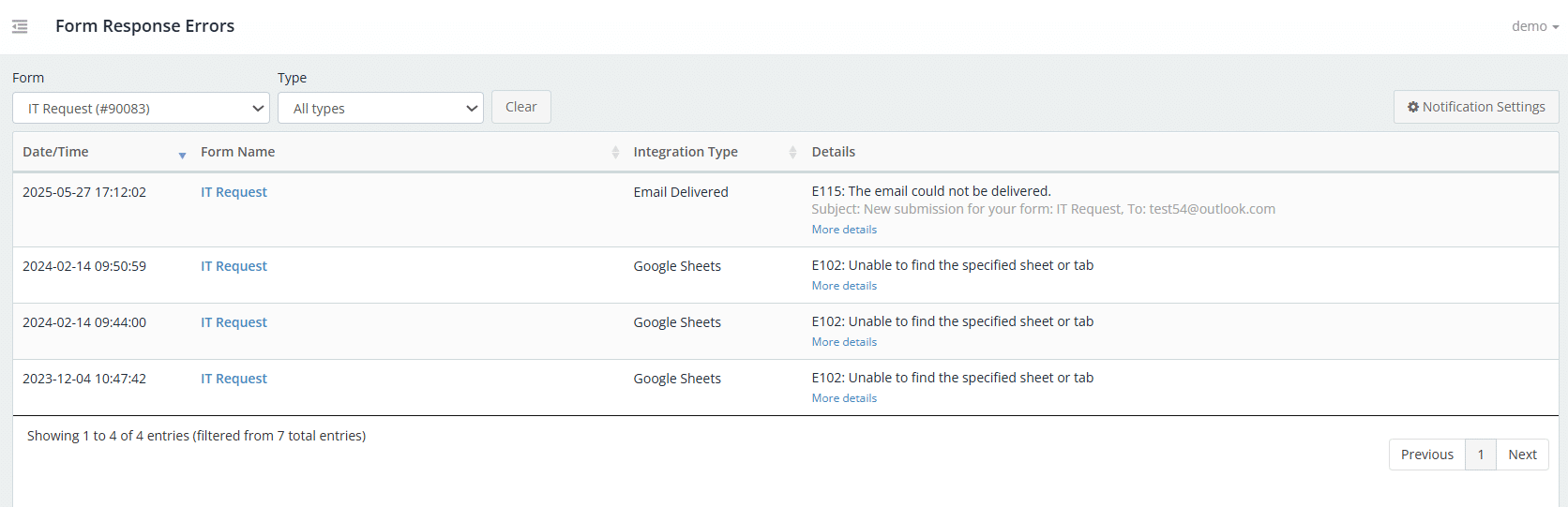
View processing errors for all forms
Organisation Admins can view processing errors for all forms in Account Settings > Response Processing > View all form response errors.
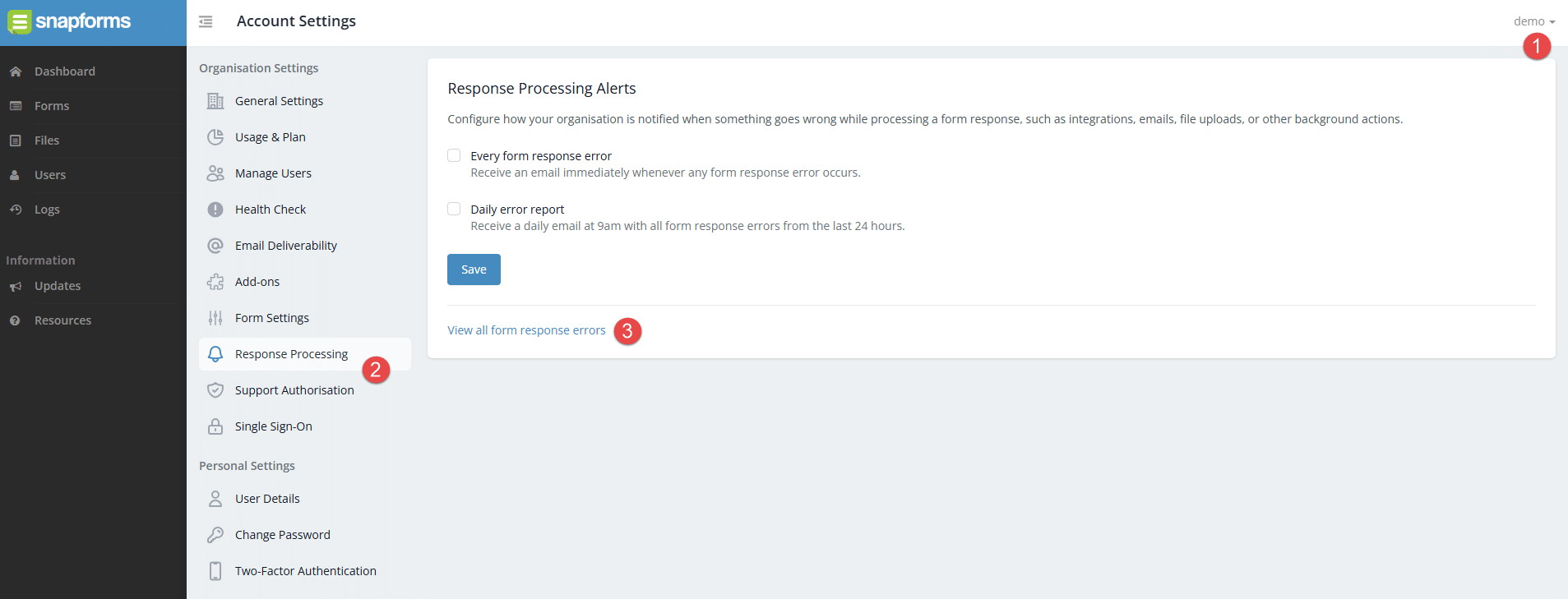
Set up a response error alert
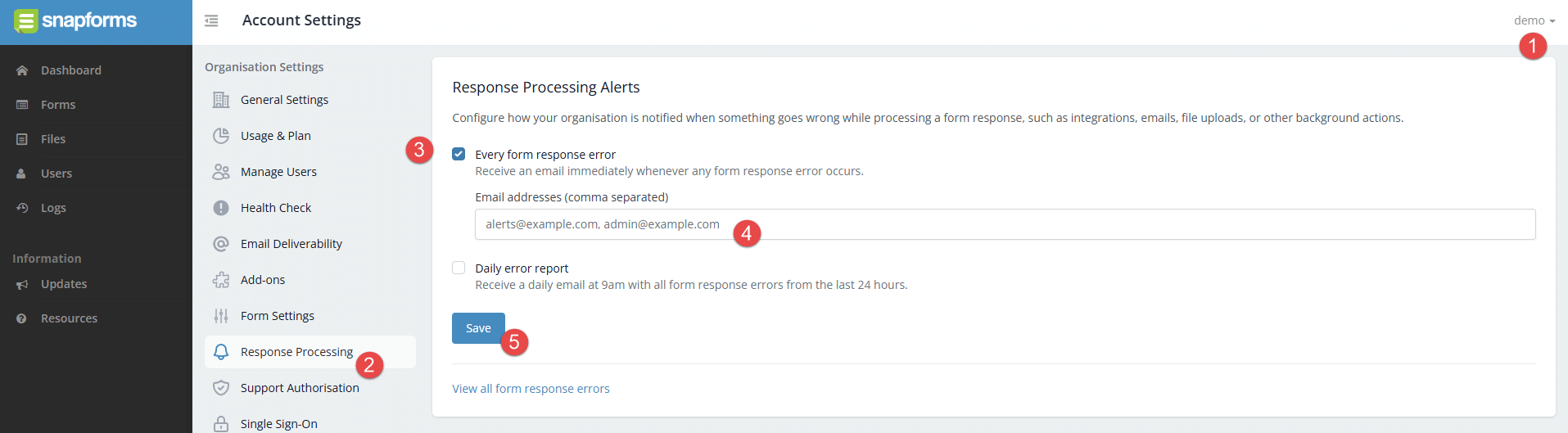
Organisation Admins can assign one or more recipients to receive email notifications whenever a form response error occurs. This ensures your team is immediately notified of action failures, along with the details needed to troubleshoot.
To set up a response error alert:
- Navigate to Account Settings > Response Processing.
- Choose one of the following:
- Every Form Response Error – Sends an email every time a form response error occurs.
- Daily Error Report – Sends a daily email at 9am listing all form response errors that occurred within the last 24 hours.
- Enter one or more recipient email addresses, using a comma to separate each email address.
- Click Save.
Retrigger failed actions
After resolving the issue, you can manually retrigger the action from the Response Details page. Every retry is logged to maintain a complete history for each response.
To retrigger a failed action:
- Navigate to the Response Details page.
- Click Resend.
- Select the relevant action. Note: Only configured actions will be displayed, e.g. Notification Emails, Nookal, Google Sheets, etc.


Troubleshooting processing errors
Use the tables below to identify and resolve common issues that may occur when syncing data or sending notifications.
Patient Management Systems (PMS)
| Error Message | Meaning | Resolution |
| Cannot add new patient/client: Required patient information may be missing or incorrect on the form submission. | Snapforms could not create a new record in your PMS because the required data is either missing or the format is incorrect. |
|
| Cannot update patient/client: No patient found/client not found
Cannot upload PDF/file because patient/client was not found |
Snapforms could not match the submission to an existing patient/client in your practice management system. |
|
| Cannot update patient/client: More than one patient/client found | Snapforms could not match the submission due to multiple matching records found. |
|
| Cannot add new patient/client: Required patient/client fields missing or not mapped | Snapforms could not create a new record in your PMS because the required data is either missing in the form responses, or the required fields have not been mapped in the integration settings. |
|
| API connection missing or invalid | The integration token/key is missing, expired, or incorrect. |
|
Google Sheets
| Error Message | Meaning | Resolution |
| Unable to find the specified sheet or tab… | Snapforms could not find the specified sheet or tab that was configured in the Integration settings. |
Tip: A quick way to get all the form fields is to export responses to CSV (Comma-Separated Values) file and copy/paste the header row into the Google Sheet.
|
SalesForce
| Error Message | Meaning | Resolution |
| Bad value for restricted picklist field | Indicates a mismatch between the Form Field Choices and the Salesforce Field Choices. |
|
Email Notifications
| Error Message | Meaning | Resolution |
| E115: The email could not be delivered… | Indicates the email address is temporarily suppressed due to repeated bounces. |
|
SMS Notifications
| Error Message | Meaning | Resolution |
| E106: SMS sending suspended. Please contact the support team for more information. | Indicates SMS sending has been paused for the account because a trial SMS limit was reached. |
|